When you have a JSON array of objects and want a Markdown table out of it, the most reliable path is to go through CSV first and then run it through CSV to Markdown. Tools that convert JSON straight to a table exist, but the moment nested values or missing keys show up, the output tends to break in ways that are hard to debug. Routing through CSV puts the columns and rows in front of you, so the result stays predictable.
This article walks through it from start to finish: checking the JSON structure, converting it to CSV, generating the Markdown table, and dealing with the harder cases like API responses and nested JSON. Everything runs in the browser, so pasting an API response or internal data never sends it to a server.
The short answer: route JSON through CSV
Here is the whole flow up front.
- Format the JSON with JSON Formatter and confirm it is an array of objects
- Convert that array to CSV — each object's keys become column headers, each element becomes a row
- Paste the CSV into CSV to Markdown to generate the table
JSON to Markdown Table Converter runs this whole flow in one step with the same JSON-to-CSV rules. Nested objects are flattened into dot-notation columns, arrays stay as JSON text in one cell, and missing keys leave the cell empty. The tool then builds a GFM-compatible table and escapes any pipe character inside a cell. Running the steps by hand shows you the intermediate CSV, where a misaligned column or an empty value is easy to spot.
What kind of JSON maps to a Markdown table
A Markdown table is a two-dimensional grid: a header row plus data rows. So the JSON that maps cleanly is an array of objects that share the same shape.
[
  { "name": "Mika", "role": "admin", "active": true },
  { "name": "Noah", "role": "viewer", "active": false }
]
Each object's keys (name / role / active) become the column headers, and each element of the array becomes one row. The JSON above corresponds to this table:
| name | role | active |
| --- | --- | --- |
| Mika | admin | true |
| Noah | viewer | false |
A single object that is not wrapped in an array does not become a row on its own. Either turn it into a two-column key/value table, or wrap it as [ { ... } ] before converting.
Steps: convert JSON to a Markdown table
Step 1: format the JSON and check the structure
JSON pulled from an API response or a log is usually a single line with no breaks. Paste it into JSON Formatter first, then confirm it really is an array of objects and that every element shares the same keys.
A syntax error will trip up everything downstream, so if formatting fails here, see How to fix JSON parse errors. If the payload contains // comments, check How to handle comments in JSON.
Step 2: convert the array to CSV
Once the structure checks out, reshape the array into CSV. There are only two things to do.
- Put the keys on the first line, comma-separated, as the header
- Write each object's values in the same order, comma-separated, one row at a time
For the JSON above, that gives you:
name,role,active
Mika,admin,true
Noah,viewer,false
If a value contains a comma or a line break, wrap that value in double quotes "...". For the basics of CSV, see What is CSV. To go the other direction and turn CSV back into JSON, see the CSV to JSON guide.
Step 3: generate the table with CSV to Markdown
With the CSV ready, paste it into CSV to Markdown and run it.
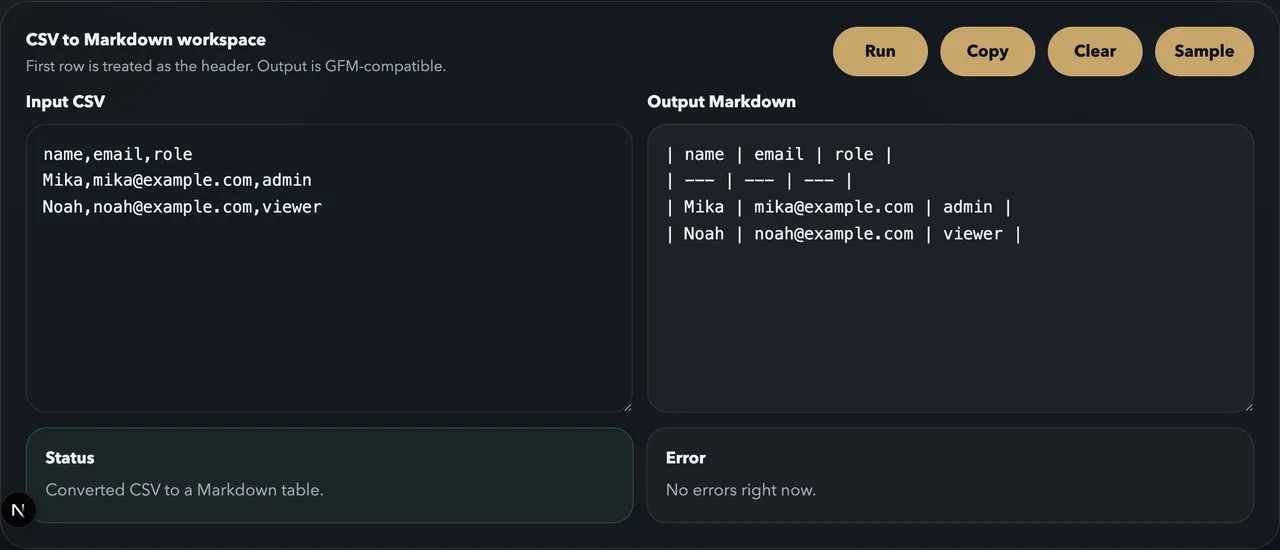
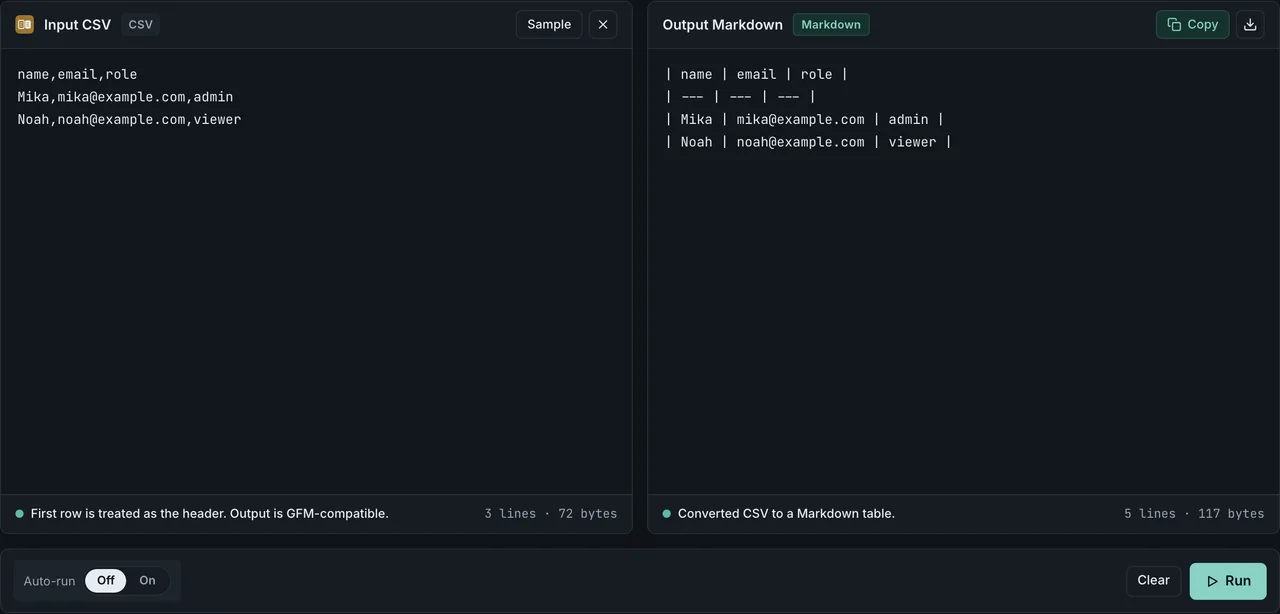
A GFM-compatible Markdown table appears on the right. The separator row and column widths line up automatically, so you can copy it straight into a README, an issue, or your docs. For more on how the conversion works and its edge cases, see How to convert CSV to a Markdown table.
Turning an API response into a table
Sometimes you want to share a curl response as a table. The flow is the same as above — format the curl output, then route it through CSV.
curl -s https://api.example.com/users | jq .
If the response is an array of objects, paste it into JSON Formatter and continue from step 2. If the response wraps the array inside something like { "data": [ ... ] }, pull out just the array you want to tabulate (the contents of data). With jq, jq '.data' extracts the array on its own.
For formatting curl responses in general, see How to pretty-print JSON from curl, which compares jq, Python, the CLI, and the browser.
For a workflow focused on curl responses (auth headers, pagination joining, jq for GraphQL, and 6 API response shapes ranked by difficulty), see Markdown table from a JSON API response.
How to handle nested JSON
Real API responses often carry objects or arrays inside their values.
[
  { "name": "Mika", "address": { "city": "Tokyo", "zip": "100-0001" } }
]
A Markdown table is a flat grid, so a nested structure cannot drop straight into a cell. There are two ways to deal with it.
Flatten it first
Expand nested keys into dot notation like address.city, flattening the structure before you build the CSV.
name,address.city,address.zip
Mika,Tokyo,100-0001
You can flatten by hand, but for larger payloads a function does it reliably — jq's to_entries, or pandas.json_normalize() in Python. After flattening, route the result through CSV into CSV to Markdown just like before.
Keep the nested value as a string in the cell
Instead of flattening, you can keep a nested branch as a single string in one cell. Put the address value into a column as a JSON string such as {"city":"Tokyo","zip":"100-0001"}. In that case, pipe characters | or line breaks inside the string would break the table, so wrap the value in double quotes at the CSV stage. CSV to Markdown escapes pipes inside cells automatically and replaces line breaks with spaces, so you do not have to handle that yourself.
Setting column alignment
GFM tables let you control per-column alignment by adding : to the separator row.
| name | count |
| :--- | ---: |
| Mika | 12 |
| Noah | 340 |
:--- is left-aligned, :---: is centered, and ---: is right-aligned. Right-aligning a numeric column keeps the digits lined up. Keep in mind that whether the alignment renders depends on the Markdown renderer on the display side. It works correctly on GitHub, but it will not look identical in every environment. For the full syntax including alignment and escaping, see Markdown table syntax.
Common pitfalls
Keys differ from one element to the next
When elements carry different keys, the result depends on which columns you emit. Taking the union of all keys leaves empty cells where a value is missing. Using only the first element's keys drops any key that appears only later. Decide how to align the columns while building the CSV so the output stays stable.
Booleans, null, and numbers
true / false / null and numbers are written as plain text in the CSV and shown as strings in the Markdown table, so their meaning reads fine. An empty value becomes an empty cell.
Line breaks and pipes inside cells
A value that contains a line break or a pipe character will collide with the column separator and break the table. Wrap such values in double quotes at the CSV stage, and CSV to Markdown will handle the line breaks and pipes safely.
Frequently asked questions
Do I have to upload the JSON?
No. All of FormatArc's conversions run inside your browser. Pasting an API response or internal data never sends it to a server.
Why go through CSV?
Using CSV as an intermediate step makes the mapping between column headers and rows visible. Converting JSON straight to a table makes it hard to find the cause when nested values or missing keys break the output, but with a CSV stage in between you can fix a misaligned column on the spot.
Can nested JSON go straight into a table?
Not as-is. Flatten it with dot notation like address.city, or keep the nested branch as a JSON string in a single cell. The steps are in the "How to handle nested JSON" section above.
Convert JSON to a Markdown table from code
If you need this conversion inside a script, CI step, or doc generator rather than a browser tab, use one of the following. Each picks the same shape (an array of flat objects) and produces a GFM-compatible table.
Python with tabulate
from tabulate import tabulate

data = [
    {"id": 1, "name": "Mika",  "role": "admin"},
    {"id": 2, "name": "Noah",  "role": "viewer"},
    {"id": 3, "name": "Sofia", "role": "editor"},
]
print(tabulate(data, headers="keys", tablefmt="pipe"))
tablefmt="pipe" emits GFM pipe tables. Use tablefmt="github" if you also want the alignment row written explicitly. Install with pip install tabulate.
JavaScript / Node.js with tablemark
import tablemark from "tablemark";

const data = [
  { id: 1, name: "Mika",  role: "admin" },
  { id: 2, name: "Noah",  role: "viewer" },
  { id: 3, name: "Sofia", role: "editor" },
];
console.log(tablemark(data));
tablemark accepts an array of objects directly and emits a GFM pipe table. Install with npm install tablemark.
Shell with jq + FormatArc CLI
For a one-liner that does not depend on a runtime, pipe jq through formatarc on npm:
curl -s https://api.example.com/users \
  | jq -r '(.[0] | keys_unsorted) as $k | $k, (.[] | [.[$k[]]]) | @csv' \
  | npx formatarc csv-to-markdown
jq extracts the keys of the first object as a header row and emits the rest as CSV. formatarc csv-to-markdown reads stdin and prints a Markdown table to stdout. Useful in CI or in a Makefile step that regenerates a README section from an API.
For the README side of that step — column conventions, the delimiter-row mistakes that stop a table from rendering, and the GFM quirks specific to github.com — see GitHub README Table: Make One from CSV or JSON.
Limitations of Markdown tables (and when to fall back to HTML)
Markdown tables are deliberately simple. Once your data outgrows the format, switch to HTML inside the Markdown rather than fighting it.
| Requirement | Markdown table | HTML <table> | Recommendation |
|---|---|---|---|
colspan / rowspan | Not supported | Supported | HTML |
| Line breaks inside a cell | Use <br> inline | <br> works natively | HTML or inline <br> |
| Many rows | Renderer-dependent | Lightweight | HTML or pagination |
| LLM context | Best (token-efficient) | Verbose | Markdown |
| GitHub README rendering | Good | Renderer-dependent | Markdown |
| Alignment beyond left/center/right | Not supported | Supported via inline style | HTML |
| Headerless table | Awkward (still need separator row) | Supported | HTML |
The escape hatch is that GitHub, Obsidian, Notion (block import), and most static site generators accept raw HTML inside Markdown. If you need cell merging or sortable headers, write the <table> block by hand or generate it from JSON with a templating tool and embed it directly. For converting a finished HTML table back into Markdown when the constraints relax, see the HTML table to Markdown guide.
Wrapping up
The shortcut to a clean Markdown table from JSON is to route it through CSV. Check the structure with JSON Formatter, reshape the array into CSV, paste it into CSV to Markdown, and you get a GFM-compatible table ready to copy. Even awkward cases like nested data or API responses fit the same flow once you add a flattening step.
If you are feeding the resulting Markdown table to an LLM as context, Markdown beats HTML on token efficiency and extraction accuracy. For a measured comparison, see Markdown vs HTML for LLMs.