You want to drop a comparison table into a GitHub README. You need to share benchmark numbers in a pull request description. You are migrating notes from a spreadsheet into Notion or Obsidian. In all of these cases, the missing piece is the same: turning CSV-shaped data into a clean Markdown table.
Pasting a spreadsheet directly into GitHub will not produce a Markdown table, and writing the pipes by hand stops being practical past a handful of rows. This guide covers the structure of Markdown tables, the gotchas that catch people, and how to do the conversion in the browser without any setup.
Want the table right now? Paste your CSV into the CSV to Markdown tool and hit Run — you get a GitHub-compatible table back. If you would rather understand the syntax and edge cases first, read on.
What the conversion actually does
Start from the CSV side, because that is what you will be pasting in:
name,email,role
Mika,mika@example.com,admin
Noah,noah@example.com,viewer
Running that through the converter gives you this:
| name | email | role |
| --- | --- | --- |
| Mika | mika@example.com | admin |
| Noah | noah@example.com | viewer |
The header line becomes the header row, a separator row is inserted underneath, and every remaining line becomes a data row with pipes around and between the fields. That is the whole transformation — everything else in this article is about the cases where the input is not this tidy.
What a Markdown table looks like
GitHub Flavored Markdown (GFM) tables use pipe characters as column separators, as in the output above.
The first row is the header, the second row is the alignment separator, and everything below is data. Adding : to the separator controls alignment for that column.
| Left | Center | Right |
| :--- | :---: | ---: |
| a | b | c |
The syntax is simple, but typing it by hand stops scaling fast. A 20-row, 5-column table requires keeping all the pipes lined up while you type, which is not how anyone wants to spend their time.
Why hand conversion gets painful
A few rows are fine. In real work the friction shows up immediately:
- Row counts grow — a comparison table that started at five rows keeps gaining entries
- Cells containing the pipe character
|need escaping - Cells containing newlines do not fit in a Markdown table at all
- CSVs with inconsistent column counts produce broken tables
CSVs exported from Excel are particularly fun: thousands separators in numbers can collide with column delimiters, and Windows-style line endings sometimes break naive parsers.
Comparing the options
There is more than one way to turn CSV into a Markdown table. Which one fits depends on your environment and how much data you handle.
| Method | Setup | Sends data off-device | Large tables | Auto-escapes pipes |
|---|---|---|---|---|
| Browser tool (FormatArc) | None | No | Good | Yes |
| CLI (csvtomd / csv2md) | pip / npm required | No | Good | Tool-dependent |
| By hand | None | No | Painful | Manual |
| awk / sed script | Shell knowledge | No | OK | Roll your own |
A CLI fits nicely into a pipeline but needs installation and a runtime. Writing by hand is fine for a few rows but falls apart as the count grows. A browser tool needs no setup, never uploads what you paste, and escapes pipes for you. For sensitive CSVs, that is safer than an upload-based online converter (see are online converters safe?). When you also want to reconcile a Markdown table that came from a PDF, the PDF to Markdown guide helps.
Convert with FormatArc
CSV to Markdown takes pasted CSV and produces a GFM-compatible table. There is nothing to install.
Step 1: Open the tool
Go to CSV to Markdown.
Step 2: Paste your CSV
Paste CSV into the left pane. A copy from Excel, Google Sheets, or a plain text file all work the same way. The first row is treated as the header.
Step 3: Hit Run
Press Run. The right pane fills in with the Markdown table.
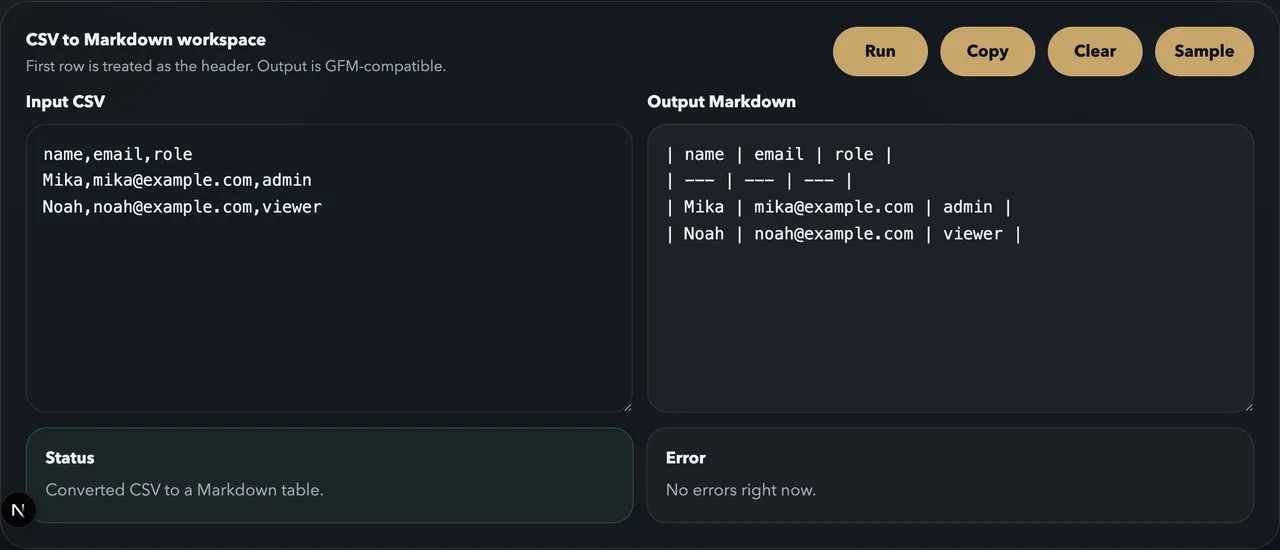
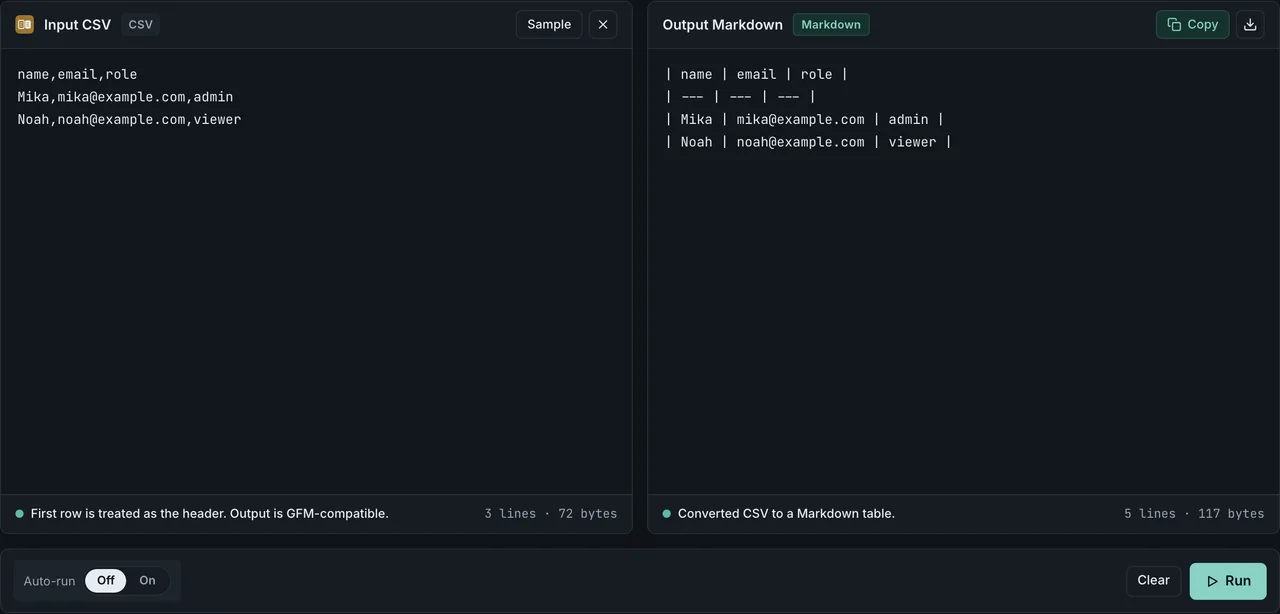
The output is ready to paste straight into a README, an issue, or a Markdown document. Column counts and separator widths are normalized for you.
Everything runs in the browser. Customer lists or internal spreadsheets are never uploaded to a server.
Edge cases worth knowing
Pipes inside cells
If a cell contains |, the converter escapes it as \| automatically so it does not collide with the column separator.
| x | y |
| --- | --- |
| foo\|bar | baz |
Newlines inside cells
The Markdown table spec has no representation for line breaks inside cells. FormatArc replaces them with spaces. If you need a visible line break inside a cell, use an explicit <br> tag in your source data.
Ragged rows
If a data row is wider than the header, the extra columns are dropped. If a data row is shorter, the missing cells are padded with empty strings. Either way the output stays a valid table.
Quoted fields
A CSV field wrapped in double quotes can contain the delimiter itself, so "Tokyo, Japan" is one cell and not two. The quotes are part of the CSV syntax, not the data, and they do not appear in the Markdown output:
name,location,note
Mika,"Tokyo, Japan","said ""ok"" twice"
| name | location | note |
| --- | --- | --- |
| Mika | Tokyo, Japan | said "ok" twice |
A doubled quote inside a quoted field ("") is the CSV escape for a literal ", which is why the note column comes out with plain quotation marks. If your table shows stray quotes or a value split across two columns, the source CSV is usually quoting incorrectly rather than the converter mishandling it.
Where the converted table goes
GitHub READMEs
API endpoint lists, supported options, library comparisons — README tables show up constantly. Keeping the source as CSV means the table can be regenerated whenever the underlying data changes.
Pull requests and issues
Benchmark numbers, regression test matrices, and design decision summaries all read better as tables. Aggregate the data in a spreadsheet, run it through the converter, paste.
Notion, Obsidian, Zenn, Qiita
Most note-taking and developer publishing tools speak Markdown. Storing data as CSV and converting on demand removes the need to reformat tables every time you move between platforms.
LLM context
Feeding a table to ChatGPT, Claude, or Gemini works better as Markdown than as raw HTML: it uses fewer tokens and is extracted more accurately. See Markdown vs HTML for LLMs for measured numbers on token cost and table-extraction accuracy.
Renderer compatibility for alignment
GFM alignment syntax (:---, :---:, ---:) is well-supported on developer platforms, but quietly silent or partial on consumer publishing tools. Use this matrix when you suspect a table is being rendered with the wrong alignment somewhere downstream. Rows marked "documented" follow the platform's own published spec or docs; rows marked "reported" reflect widely-reported user behavior that we have not independently re-tested — treat those as a starting point and verify with a two-row sample table on your target platform before relying on them.
| Platform | :--- (left) | :---: (center) | ---: (right) | colspan / rowspan | Basis |
|---|---|---|---|---|---|
| GitHub README / Issue / PR | OK | OK | OK | No (HTML required) | documented (GFM spec, tables extensionOpens in a new tab) |
| GitLab | OK | OK | OK | No | documented (GitLab Markdown docsOpens in a new tab) |
| Bitbucket | OK | partial | OK | No | reported — verify on your instance |
| Notion (paste import) | OK | ignored | ignored | No | reported — verify with a sample paste |
| Obsidian | OK | OK | OK | No (HTML required) | documented (Obsidian help, tablesOpens in a new tab) |
| Zenn / Qiita | OK | OK | OK | No | reported — verify before publishing |
| VS Code preview | OK | OK | OK | No (HTML works in HTML cells) | documented (built-in preview uses markdown-it with GFM tables) |
If you need cell merging or complex layout, drop into raw HTML inside the Markdown — most renderers accept a <table> block as-is.
Character encoding and delimiter detection
CSV is not a single format. Sources vary by encoding (UTF-8, UTF-8 with BOM, Shift_JIS, Windows-1252, ISO-8859-1) and by delimiter (comma, semicolon, tab, pipe). Two things to know:
- Encoding — paste-based conversion in CSV to Markdown consumes whatever the browser already decoded. If your file is UTF-8 (with or without BOM), opening it in any modern editor and pasting works. For Shift_JIS or Windows-1252 files, open them with the correct encoding first (VS Code: "Reopen with Encoding"; Excel: "Get Data → From Text") and then copy — otherwise non-ASCII characters arrive as mojibake.
- Delimiter — the tool auto-detects between
,,;,\t, and|. European locales often default to;because the comma is used as a decimal separator. If your CSV uses;, paste as-is; if it is genuinely ambiguous (mixed delimiters in the same file), save with a known delimiter from your source application first.
Frequently asked questions
Can I paste an Excel column directly without saving as CSV?
Yes. When you copy a range from Excel or Google Sheets, what lands on the clipboard is tab-separated text (TSV), not CSV. CSV to Markdown auto-detects the tab delimiter, so paste-and-run works. See Excel & Google Sheets to Markdown Table for the full path.
Does FormatArc upload my CSV to a server?
No. The conversion runs entirely as JavaScript in your browser tab. Nothing is sent to FormatArc or any third-party server. If your CSV contains customer data, financial figures, or NDA-covered content, paste-based conversion is the only safe option short of running a local script. See Are online JSON converters safe? for the wider privacy comparison across tool types.
Why does my table render on GitHub but break elsewhere?
Most likely a renderer that does not support GFM alignment or pipe-table syntax (Notion silently drops alignment; some CMS Markdown renderers expect CommonMark and ignore pipe tables entirely). See the matrix above, or convert to HTML with Markdown to HTML for platforms that do not handle pipe tables.
How do I escape a | inside a cell?
Use \| (backslash + pipe). FormatArc's converter does this automatically for pasted CSV that contains pipe characters. See Markdown table not rendering if your table comes out broken after a copy-paste.
What is the maximum size I can paste?
There is no hard limit beyond what the browser tab can hold in memory. We benchmarked the exact conversion code that runs in the tool (scripts/benchmarks/csv-to-markdown-throughput/, measured 2026-07-13 on Apple M5 Pro, Node, median of 7 warm runs): a 10,000-row CSV converts in about 7 ms, 50,000 rows in about 36 ms, and 100,000 rows (~5 MB) in about 75 ms — browser timings vary by machine, but the conversion itself is nowhere near the bottleneck. For very large CSVs (hundreds of MB), running a local script with formatarc on npm is more practical than pasting into a tab.
Wrapping up
Converting CSV to a Markdown table by hand burns time on row counts, column widths, and escapes. CSV to Markdown does it in three clicks. Try it the next time you find yourself laying out pipes manually.
If you need to fine-tune the generated table — alignment, escaped pipes, line breaks, or other GFM specifics — see Tables in Markdown: Syntax, Alignment & Copy-Paste Examples for the full reference. For a quick syntax reference, the GFM table cheatsheet is also handy.
For background on CSV itself, see What is CSV. To convert CSV into JSON instead, see the CSV to JSON guide. If you want to copy straight from Excel or Google Sheets without going through a CSV file, see Excel or Google Sheets to a Markdown table. If your source data is in HTML rather than CSV — for example a web page table or a CMS export — see the HTML to Markdown guide. If you need to take the resulting Markdown table further into HTML — for embedding in a non-Markdown CMS or HTML email — see the Markdown to HTML guide. If you prefer running the same conversion from your browser toolbar, see the FormatArc Chrome Extension 2026 guide.