Convert an HTML table to Markdown
Have a <table> in HTML and need it as a Markdown table for a README, a GitHub issue, or a Notion page? Paste the HTML into FormatArc's HTML to Markdown converter and copy the result. It runs entirely in your browser — nothing is uploaded.
- Open the HTML to Markdown tool
- Paste your HTML (the whole
<table>element, or a page fragment that contains one) - Click Run and copy the GitHub-Flavored Markdown table from the output
The rest of this page shows exactly what the conversion does — including how it keeps tables from breaking, and where it has limits.

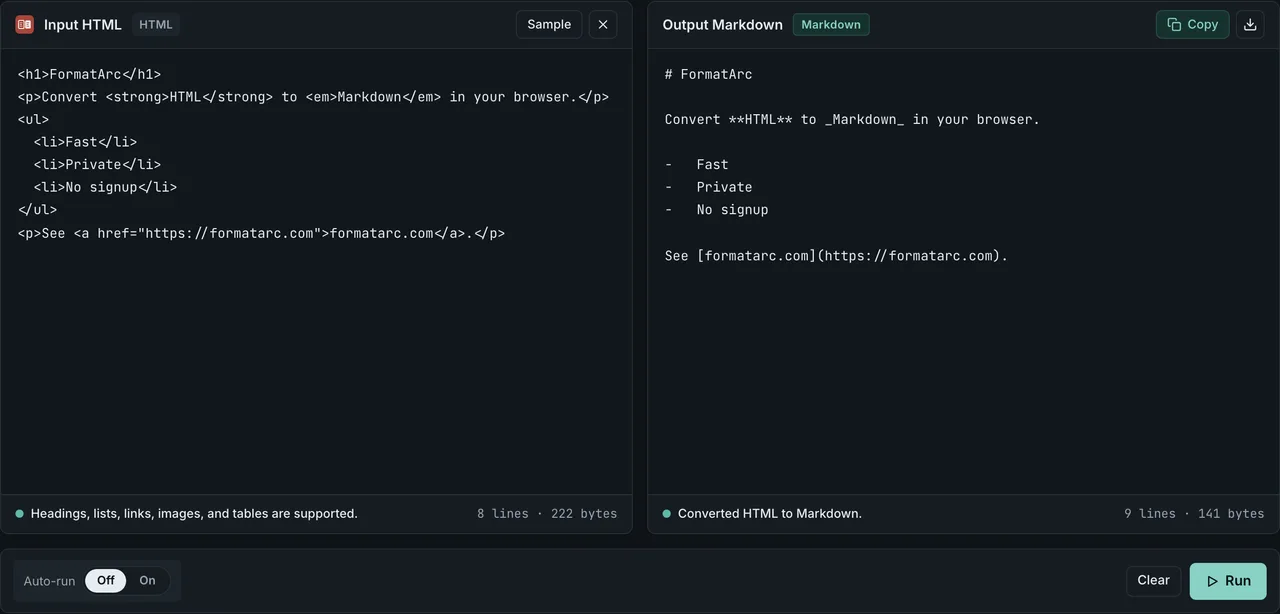
HTML table example: before and after
Here is a plain HTML table:
<table>
  <tr><th>Name</th><th>Role</th><th>Team</th></tr>
  <tr><td>Aoi</td><td>Engineer</td><td>Platform</td></tr>
  <tr><td>Ben</td><td>Designer</td><td>Web</td></tr>
</table>
Paste it into the converter and you get a GitHub-Flavored Markdown (GFM) table:
| Name | Role | Team |
| --- | --- | --- |
| Aoi | Engineer | Platform |
| Ben | Designer | Web |
The first <tr> becomes the header row, and the separator line (---) is generated automatically. The output is left-aligned GFM, which renders correctly on GitHub, GitLab, Notion, and most Markdown editors.
Tables that usually break — handled for you
The hard part of HTML-to-Markdown tables is not the happy path. It is the cell content, and the rows that do not line up, that quietly break a Markdown table. The converter handles the three most common cases so the row stays intact.
A cell that contains a pipe
In Markdown, | is the column separator, so a raw pipe inside a cell splits the row in the wrong place. The converter escapes it for you:
<td>a | b</td>
becomes a \| b in the output, so the table keeps the right number of columns.
A cell with line breaks
A hard line break inside a cell would otherwise push the rest of the row onto a new line and break the table. Newlines inside a cell are collapsed to a single space, keeping each row on one line.
Rows with a different number of cells
If some rows have more or fewer cells than the header, the converter normalizes every row to the header's column count: extra cells are dropped, and short rows are padded with empty cells. You get a valid table instead of a misaligned one.
For the underlying rules of the format itself, see Markdown table syntax and the GFM table cheatsheet.
Convert a table copied from a web page
Often you do not have the HTML source — you are looking at a rendered table on a page. There are two reliable ways to get it into Markdown.
Copy the HTML
In your browser, right-click the table and choose Inspect, then right-click the <table> element in DevTools and choose Copy, Copy element. Paste that HTML into the HTML to Markdown tool and convert.
Copy the cells
If you select and copy the visible cells (or copy them out of a spreadsheet), you usually get tab-separated text rather than HTML. That path fits the CSV to Markdown tool, which reads tab- or comma-separated rows. The same approach is covered in detail in Excel or Google Sheets to Markdown.
So: paste real HTML into HTML to Markdown, and paste copied cells into CSV to Markdown.
When the result looks wrong
The converter targets ordinary HTML tables. A few structures cannot map cleanly onto a Markdown table, because Markdown tables themselves do not support them:
- No header row in the source — the first
<tr>is always used as the header. If your table has no header, the first data row will appear as the header; add one in the output if you need it. - Merged cells (
rowspan/colspan) — Markdown tables have no merged cells (see Tables (extension)Opens in a new tab in the GFM spec), so spans are not expanded. A table that relies on merged cells will not reproduce exactly; flatten it first. - Nested tables — a table inside a cell gets mixed into the row scan and will not survive cleanly. Convert the inner table separately.
- Links and bold inside a cell — cell content is taken as plain text, so inline formatting and links are flattened to their text. Re-add Markdown links in the output if you need them.
- Column alignment — output columns are left-aligned. If you want centered or right-aligned columns, change the separator row (for example
:---:) afterward; see Markdown table syntax.
Merged cells do more than skip expansion — depending on where they sit, they can drop data outright. When colspan is on the header row, the Markdown table's column count is set by that header row's cell count, so a whole column can disappear (measured in scripts/benchmarks/html-table-merged-cells/).
Before:
<table>
  <tr><th colspan="2">Name</th><th>Price</th></tr>
  <tr><td>Widget</td><td>Blue</td><td>$3</td></tr>
</table>
After (measured):
| Name | Price |
| --- | --- |
| Widget | Blue |
$3 never appears in the output. The header counts as two cells (Name and Price), so the table becomes two columns wide, and the third cell in the data row gets cut off.
rowspan does not drop values, but it shifts columns instead.
Before:
<table>
  <tr><th>Region</th><th>City</th><th>Pop</th></tr>
  <tr><td rowspan="2">APAC</td><td>Tokyo</td><td>14M</td></tr>
  <tr><td>Seoul</td><td>9M</td></tr>
</table>
After (measured):
| Region | City | Pop |
| --- | --- | --- |
| APAC | Tokyo | 14M |
| Seoul | 9M |  |
Seoul lands in the Region column on the second row, and Pop is left empty — the cell that rowspan omits is never filled back in. If a table depends on merged cells, flatten it (write the value back into every cell) before you paste it in.
If a table comes out misaligned, it is almost always one of the cases above — a merged cell or a nested table. For full-document HTML (headings, lists, links, not just a table), use the broader HTML to Markdown guide.
When the converted table gets too wide
An HTML table that already has more than 10 columns, or cells holding long runs of text, converts into a single wide line full of pipes (|) that is hard to read both in an editor and in a repository diff. This is not a conversion failure — it is a limitation of Markdown's table syntax itself.
- Consider cutting columns. Remove columns that are not central to the table's purpose (internal IDs, timestamps) before converting
- If the width is truly needed, split one table into several smaller ones (for example a table with only the summary column, plus one with only the detail columns)
- You do not need to align the pipes by hand (matching the width of
| --- | --- |). GFM renderers parse a table correctly even when the pipes are not aligned. Aligning them by hand only raises maintenance cost and has no effect on how it renders.
If your converted table is already coming out broken, see Markdown table not rendering for symptom-by-symptom fixes.
Other ways to convert an HTML table to Markdown
Besides the browser converter, three other routes accomplish the same conversion:
- Pandoc from the command line (
pandoc -f html -t gfm table.html) - A VS Code extension that converts a selection within the editor
- A library, if you are converting from code — Turndown with its GFM plugin in Node.js, or markdownify in Python
Browser-side, no upload
The conversion runs in your browser with JavaScript — the HTML you paste is never sent to a server, logged, or stored. That matters when the table contains internal data: customer rows, pricing, anything from a private dashboard. Many online converters upload what you paste; FormatArc does not. More on why that distinction matters: are online converters safe?
Frequently asked questions
How do I convert an HTML table to a Markdown table?
Paste the HTML (the <table> element or a fragment containing one) into FormatArc's HTML to Markdown converter and click Run. The first row becomes the header and you get a GitHub-Flavored Markdown table you can copy.
Why is my converted Markdown table broken?
The most common causes are merged cells (rowspan / colspan) and nested tables, which Markdown tables cannot represent. Pipes and line breaks inside cells are handled automatically, so if the table is misaligned, look for a merged or nested cell and flatten it first.
Does it keep links and bold text inside cells?
No. Cell content is converted as plain text, so links and inline formatting become their text. Add Markdown links back in the output if you need them.
My HTML table has no header row — what happens?
The first <tr> is always treated as the header. If your table has no header, the first data row will be used as one; add or adjust a header in the output.
Can I convert a table I copied from a website?
Yes. Copy the <table> element from DevTools (Copy, Copy element) and paste the HTML into HTML to Markdown. If you copied the visible cells instead, paste them into CSV to Markdown, which reads tab-separated rows.
Summary
- Paste an HTML
<table>into HTML to Markdown to get a GitHub-Flavored Markdown table - Pipes are escaped, line breaks inside cells become spaces, and uneven rows are normalized — so the table does not break
- Merged cells, nested tables, and in-cell links do not map onto Markdown tables; flatten them first
- For cells copied from a spreadsheet or web page, CSV to Markdown reads tab-separated rows
- Everything runs in your browser with no upload