TL;DR — the one-liner
If jq is already installed, this is all you need:
curl -s https://api.example.com/users/1 | jq .
No jq? Use Python, which ships with most systems:
curl -s https://api.example.com/users/1 | python3 -m json.tool
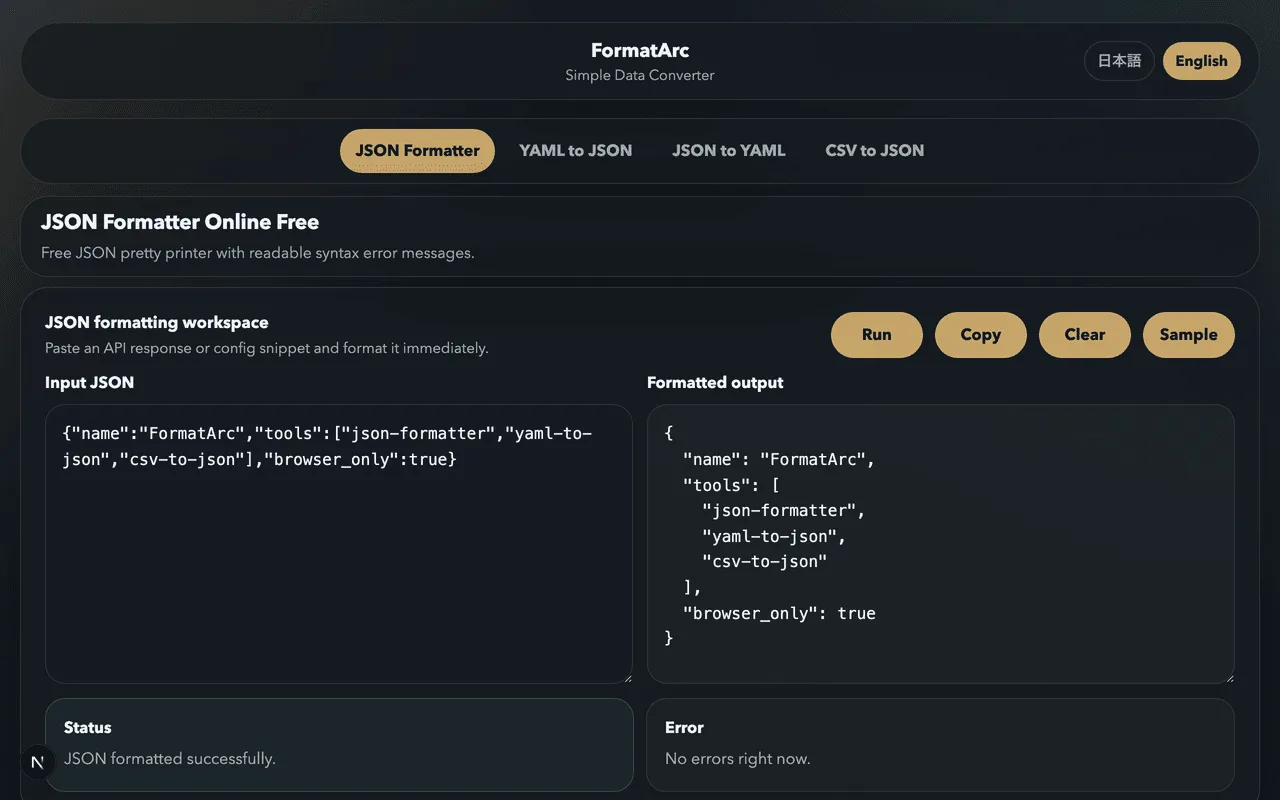
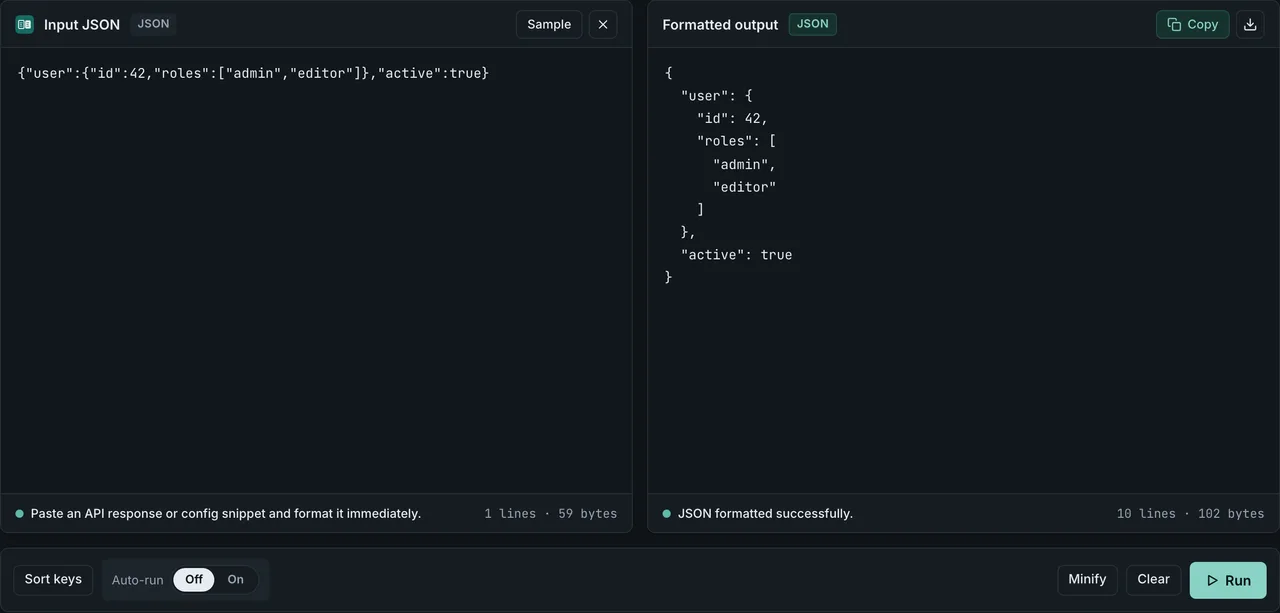
Prefer a browser? Paste the response into FormatArc JSON Formatter — no install, works offline after the first load. The rest of this guide compares all four options so you can pick the right one for each situation.
Why curl output is hard to read
When you hit an API with curl, the JSON response comes back as a single line.
curl -s https://api.example.com/users/1
{"id":1,"name":"Tanaka","email":"tanaka@example.com","address":{"city":"Tokyo","zip":"100-0001"},"roles":["admin","editor"]}
No line breaks, no indentation. As nesting increases, this becomes impossible to scan. Here are four ways to turn that wall of text into readable JSON.
Pretty-print with jq
jq is the most popular command-line JSON processor.
Installing jq
# macOS
brew install jq

# Ubuntu / Debian
sudo apt install jq

# Windows (Chocolatey)
choco install jq
Basic usage
Pipe curl output into jq with a dot filter.
curl -s https://api.example.com/users/1 | jq .
{
  "id": 1,
  "name": "Tanaka",
  "email": "tanaka@example.com",
  "address": {
    "city": "Tokyo",
    "zip": "100-0001"
  },
  "roles": [
    "admin",
    "editor"
  ]
}
The -s flag silences curl's progress bar so only JSON reaches jq.
Useful filters
jq does more than pretty-printing. It can extract specific fields from the response.
Extract a single key:
curl -s https://api.example.com/users/1 | jq '.name'
"Tanaka"
Access nested keys with dot notation:
curl -s https://api.example.com/users/1 | jq '.address.city'
"Tokyo"
Pull a field from every element in an array:
curl -s https://api.example.com/users | jq '.[].name'
"Tanaka"
"Suzuki"
"Sato"
Filter elements by condition with select:
curl -s https://api.example.com/users | jq '.[] | select(.roles[] == "admin")'
To turn that array response into a Markdown table for a README or issue, see Markdown table from a JSON API response. It covers array slicing with jq, Python, and Node, and the CSV-based workflow into a Markdown table.
Pretty-print response headers and JSON together (curl -i)
The -s examples above drop everything except the response body. When you debug an API and want to see both the headers and the body, you reach for curl -i. The catch: piping curl -i | jq . always fails, because the header block at the top of the stream is not JSON.
curl -is https://api.example.com/users/1 | jq .
# parse error: Invalid numeric literal at line 1, column 9
You need to keep the headers visible but route only the JSON body into jq.
Stream split: headers to stderr, body to stdout
curl -D <file> writes the response headers to the file you point at. Aim it at /dev/stderr and the headers print to the terminal while stdout keeps just the body — ready for jq.
curl -sSD /dev/stderr https://api.example.com/users/1 | jq .
HTTP/2 200
content-type: application/json
cache-control: no-store
date: Mon, 19 May 2026 09:30:00 GMT

{
  "id": 1,
  "name": "Tanaka",
  ...
}
The headers reach the terminal but never enter the pipe, so jq sees only valid JSON. On Windows PowerShell, /dev/stderr does not exist — write to a file and cat it afterward (see the file-split pattern below).
File split: save headers and body separately
When you want to keep both for later inspection (e.g. saving a failed request for triage), split into two files with -D and -o.
curl -sSD head.txt -o body.json https://api.example.com/users/1
cat head.txt
jq . body.json
This works identically on macOS, Linux, and Windows (any shell). Use it when you also want to grep the headers later, or attach them to a bug report.
Make it a permanent alias
Most of the time you want one short command. Add this to your ~/.bashrc or ~/.zshrc:
alias curl-json='curl -sSD /dev/stderr'
curl-json-format() { curl-json "$@" | jq .; }
Now curl-json-format https://api.example.com/users/1 prints headers to the terminal and pretty JSON below. The function name is intentionally explicit so it does not collide with anything else in your shell history.
curl 7.82+ --json shortcut (request side)
The flip side of pretty-printing a response is sending JSON in a request. Since curl 7.82 (March 2022), the --json shortcut sets Content-Type: application/json, Accept: application/json, and --data in one flag.
curl --json '{"name":"alice"}' https://api.example.com/users
It does not pretty-print the response on its own — pipe it into jq or one of the methods below to format the body. But it removes the three usual flags from request examples, so combining --json for the request with curl-json-format for the response gives a clean two-step pattern for any REST API.
Checklist: is the curl response actually valid JSON?
Before piping a response into jq, json.tool, or any formatter, confirm two things: the server declared the body as JSON, and the body itself is well-formed. The JSON data interchange format is defined by RFC 8259 (STD 90)Opens in a new tab, and the grammar is summarized on json.orgOpens in a new tab. Use this checklist:
- Content-Type is
application/json. RFC 8259 registersapplication/jsonas the media type for JSON. Inspect the response header withcurl -ior thecurl -sSD /dev/stderrpattern above and confirm thecontent-typeline readsapplication/json. A type liketext/htmlusually means an error page, login redirect, or proxy response slipped in instead of JSON. - The body is well-formed JSON. A JSON text must be a single value — an object, array, string, number, or one of the literals
true,false, ornull(RFC 8259, Section 2). Object keys must be double-quoted strings, single quotes are not allowed, and trailing commas are invalid. RFC 8259 (Section 8.1) requires JSON exchanged between systems that are not part of a closed ecosystem to be encoded as UTF-8. - It parses without error. A parser accepting the body is the practical test. If
jq .orpython3 -m json.toolreturns a parse error rather than formatted output, the body is not valid JSON, regardless of the Content-Type header. Comments (//or/* */) are not part of JSON; a body containing them is JSONC or JSON5, not JSON.
Pretty-print with Python json.tool
If Python is already installed, you don't need any extra tools. The standard library includes json.tool.
curl -s https://api.example.com/users/1 | python3 -m json.tool
{
    "id": 1,
    "name": "Tanaka",
    "email": "tanaka@example.com",
    "address": {
        "city": "Tokyo",
        "zip": "100-0001"
    },
    "roles": [
        "admin",
        "editor"
    ]
}
It doesn't have jq's filtering capabilities, but for quick formatting it does the job. On systems with Python 2 only, use python instead of python3.
When the response is not valid JSON
If the API returns an empty body or an HTML error page instead of JSON, json.tool prints one line and exits with status 1 (checked on Python 3.14.6):
$ printf '<html>' | python3 -m json.tool; echo "exit=$?"
Expecting value: line 1 column 1 (char 0)
exit=1
An empty body gives the same message, so all it tells you is that parsing failed at the first character, not why the server sent something other than JSON. Work through the checklist to find the cause. jq 1.7.1 fails on the same input with jq: parse error: Invalid numeric literal at EOF at line 1, column 6 and exit status 5, so in a shell script either one can be caught by checking for a non-zero exit status.
Sort the keys and set the indent
curl -s https://api.example.com/users/1 \
  | python3 -m json.tool --sort-keys --indent 2
--sort-keys orders object keys alphabetically, which makes two responses easy to compare with diff. --indent sets the number of spaces (4 by default); --tab indents with tabs and --compact removes all whitespace. --no-ensure-ascii, which keeps non-ASCII characters as they are, is covered in the next section.
Non-ASCII characters are escaped as \uXXXX by default
json.tool escapes non-ASCII characters — Japanese, accented Latin letters, anything outside the ASCII printable range — as \uXXXX sequences by default.
echo '{"city":"Bogotá","msg":"情報","p":"informação"}' | python3 -m json.tool
{
    "city": "Bogot\u00e1",
    "msg": "\u60c5\u5831",
    "p": "informa\u00e7\u00e3o"
}
This is not broken output. A JSON string may represent any Basic Multilingual Plane character as a six-character escape sequence — a reverse solidus, the letter u, and four hexadecimal digits (RFC 8259, Section 7Opens in a new tab). It just makes non-Latin text hard to read at a glance.
Add --no-ensure-ascii to keep the original characters. The flag was added in Python 3.9 (Python docsOpens in a new tab).
echo '{"city":"Bogotá","msg":"情報","p":"informação"}' | python3 -m json.tool --no-ensure-ascii
{
    "city": "Bogotá",
    "msg": "情報",
    "p": "informação"
}
jq works the other way around. By default it prints non-ASCII characters as-is in UTF-8; -a (--ascii-output) forces the \uXXXX escape instead (jq manualOpens in a new tab).
echo '{"city":"Bogotá","msg":"情報","p":"informação"}' | jq -a .
{
  "city": "Bogot\u00e1",
  "msg": "\u60c5\u5831",
  "p": "informa\u00e7\u00e3o"
}
Measured output for all four commands (Python 3.14.6 / jq 1.7.1) lives in the repository under scripts/benchmarks/json-tool-non-ascii/.
Pretty-print with formatarc CLI
Installation and usage
formatarc runs instantly via npx with no installation required.
curl -s https://api.example.com/users/1 | npx formatarc json-format
{
  "id": 1,
  "name": "Tanaka",
  "email": "tanaka@example.com",
  "address": {
    "city": "Tokyo",
    "zip": "100-0001"
  },
  "roles": [
    "admin",
    "editor"
  ]
}
For frequent use, install it globally to skip the npx startup time.
npm install -g formatarc
curl -s https://api.example.com/users/1 | formatarc json-format
Pipe to YAML or CSV
formatarc can also convert the JSON output to YAML or CSV in the same pipeline.
curl -s https://api.example.com/users/1 | npx formatarc json-to-yaml
id: 1
name: Tanaka
email: tanaka@example.com
address:
  city: Tokyo
  zip: "100-0001"
roles:
  - admin
  - editor
See the formatarc CLI guide for the full list of commands and options.
Format in the browser
Using FormatArc JSON Formatter
If you prefer not to use the command line, copy the curl output and paste it into JSON Formatter.
- Copy the curl response
- Open FormatArc JSON Formatter
- Paste into the left text area
- Click "Format"
The formatted result can be copied or converted to YAML / CSV directly from the tool.
One thing worth checking before you paste: a curl response often carries an Authorization header echo, a session token, or customer records, and most online formatters upload what you paste to a server. FormatArc converts entirely in the browser, so nothing leaves your machine — but the general question of how to tell whether an online converter is safe is worth knowing before you paste a production API response anywhere.
Handling parse errors
If the JSON contains syntax errors, formatting will fail. Common causes and fixes are covered in How to Fix JSON Parse Errors.
If the API response contains // or /* */ comments and jq or json.tool fails to parse it, the payload may be JSONC or JSON5. See How to Add Comments to JSON for the working alternatives.
If you want a JSON URL to be auto-formatted the moment you open it in a tab, a Chrome extension is an alternative to curl. See Best Chrome JSON Formatter Extensions Compared.
Which method to choose
| Method | Installation | Filtering | Best for |
|---|---|---|---|
| jq | Required | Powerful | Developers who work with APIs daily |
| Python json.tool | None (needs Python) | None | Quick formatting without extra tools |
| formatarc CLI | npx (instant) | None (conversion only) | When you also need YAML/CSV conversion |
| Browser (FormatArc) | None | None | Non-CLI users or one-off formatting |
Using jq for everyday work and adding formatarc CLI when you need format conversion is an efficient combination.
Related articles
- JSON Formatting Tips
- formatarc CLI Guide
- How to Fix JSON Parse Errors
- JSON Syntax Guide
- How to Add Comments to JSON
- Best Chrome JSON Formatter Extensions Compared
- Markdown Table from a JSON API Response — turn curl + jq array output into a Markdown table for README or issues
Summary
This article covered four ways to pretty-print JSON from curl: jq, Python's json.tool, formatarc CLI, and browser-based tools. jq is the most capable option with its filtering features, and the curl -sSD /dev/stderr | jq . pattern keeps response headers visible without breaking the parse. Python's json.tool requires no installation on most systems. formatarc CLI adds YAML and CSV conversion to the pipeline. For a visual approach, try FormatArc JSON Formatter.