If you have ever worked with JSON, you have almost certainly encountered the dreaded SyntaxError: Unexpected token message. It shows up in browser consoles, API responses, configuration files, and CI/CD pipelines. The error itself is not very helpful — it tells you something is wrong but rarely explains what.
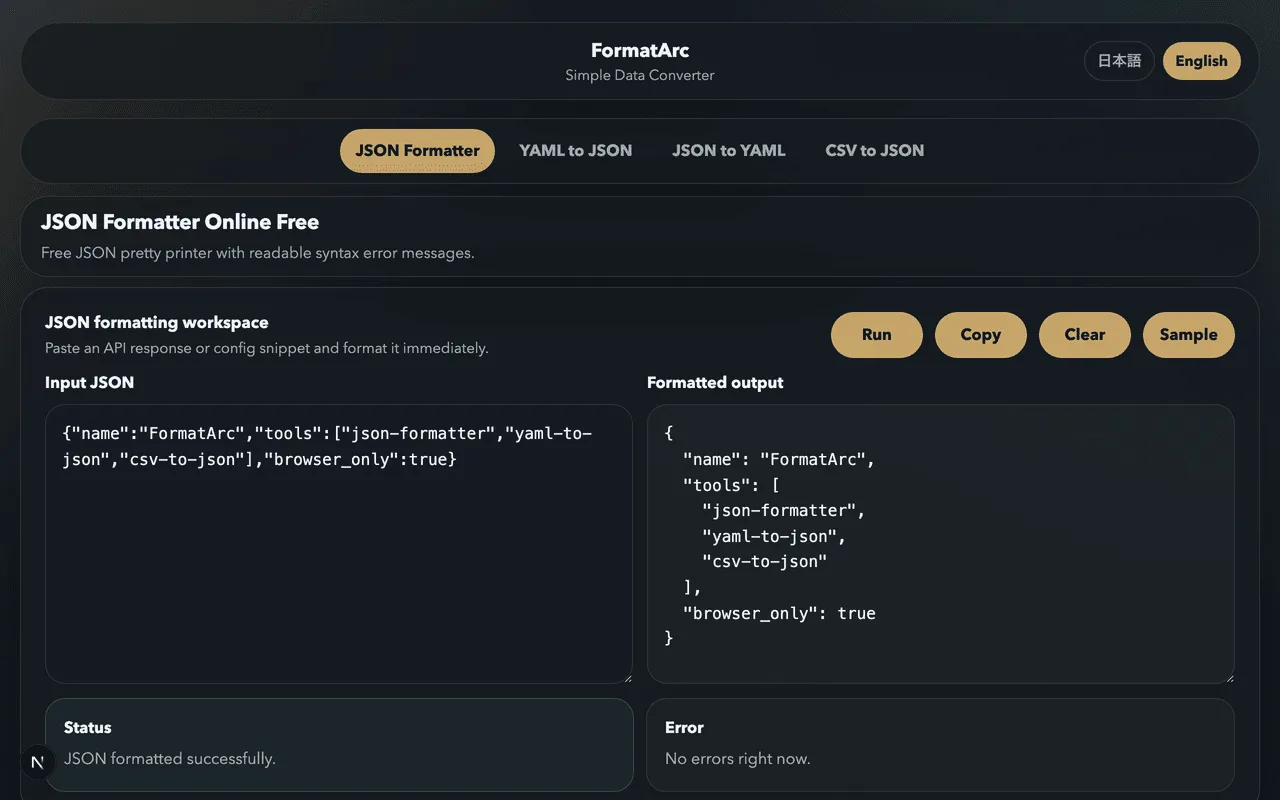
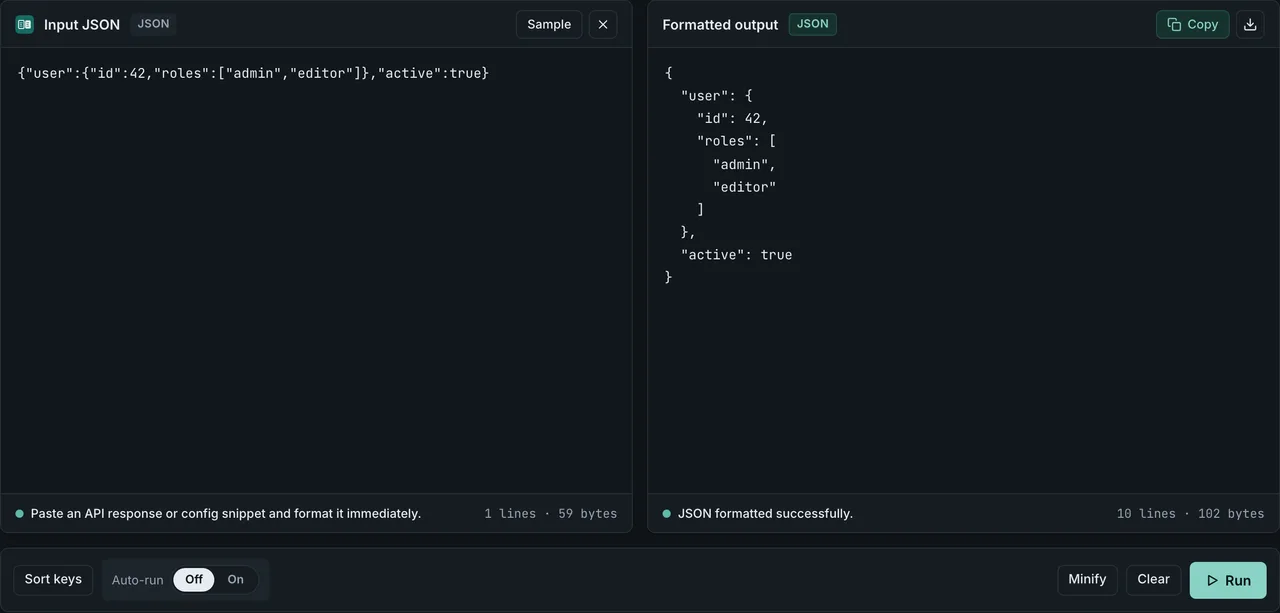
If you want to skip straight to a fix, paste your broken JSON into the JSON Formatter and it will highlight the exact line and character where the error occurs. From there, this guide walks through the most common causes of JSON parse errors, shows you exactly how to fix each one, and gives you a reliable workflow for catching these mistakes before they cause problems.
What does "Unexpected token" actually mean?
JSON parsers read your text character by character. When the parser encounters a character that does not belong according to the JSON specification, it throws a SyntaxError. The "unexpected token" is simply the character that the parser did not expect to find at that position.
For example, take this broken JSON, where an object value uses a single quote instead of a double quote:
{
  "name": "Alice",
  "age": 30,
  "city": 'Tokyo'
}
Current V8 — the engine behind Chrome and Node.js — reports:
Unexpected token ''', ..."  "city": 'Tokyo'
}" is not valid JSON
Instead of a position number, the message quotes a slice of the text around the mistake. Older engines reported a position number instead (Unexpected token ' in JSON at position 14) — the comparison table later in this guide lists both wordings side by side, since a lot of existing guides and Stack Overflow answers still quote the older one. Either way, counting characters manually in a large JSON file is tedious. That is where a tool like the JSON Formatter becomes invaluable — it pinpoints the error location visually.
The 5 most common causes of JSON parse errors
1. Trailing commas
This is arguably the single most frequent cause of JSON parse errors, especially for developers who write JavaScript regularly. JavaScript arrays and objects happily accept trailing commas. JSON does not.
The broken version:
{
  "name": "Alice",
  "age": 30,
  "city": "Tokyo",
}
The fixed version:
{
  "name": "Alice",
  "age": 30,
  "city": "Tokyo"
}
The comma after "Tokyo" is the problem. Current V8 reports:
Expected double-quoted property name in JSON at position 53 (line 5 column 1)
The parser reads the comma, expects another key-value pair, and — since the next real content is a closing brace rather than a quoted key — reports that it expected a property name. It does not call the brace an "unexpected token," which is different from how older engines described this exact case.
Trailing commas also appear in arrays:
{
  "colors": ["red", "green", "blue",]
}
Here the message does follow the "unexpected token" pattern:
Unexpected token ']', ..."", "blue",]
}" is not valid JSON
Unlike the object case above, an array's trailing comma leaves ] as the next real character, and V8 does report that as an unexpected token. Remove the comma after "blue" and the error disappears:
{
  "colors": ["red", "green", "blue"]
}
This mistake is so easy to make that many code editors now have settings to automatically remove trailing commas when saving JSON files. If your editor supports it, turn that feature on.
2. Single quotes instead of double quotes
JSON requires double quotes for all strings and keys. Single quotes are not valid, even though JavaScript and Python both accept them for string literals.
The broken version:
{
  'name': 'Alice',
  'age': 30
}
The fixed version:
{
  "name": "Alice",
  "age": 30
}
This error commonly appears when someone copies a Python dictionary or a JavaScript object literal and tries to use it as JSON. The two formats look similar but they are not interchangeable.
A quick find-and-replace from ' to " often works, but be careful if your string values contain apostrophes. In that case, you need to escape them or handle the replacement more carefully. Pasting the text into the JSON Formatter will flag the exact positions where single quotes appear so you can fix them one by one.
3. Unquoted keys
In JavaScript, object keys do not need quotes if they are valid identifiers. In JSON, every key must be a double-quoted string — no exceptions.
The broken version:
{
  name: "Alice",
  age: 30
}
The fixed version:
{
  "name": "Alice",
  "age": 30
}
This tends to happen when someone writes JSON by hand or copies from a JavaScript source. It also shows up in configuration files where someone has forgotten that JSON is stricter than the language they normally use.
4. Comments in JSON
JSON does not support comments. Not single-line comments (//), not multi-line comments (/* */), not hash comments (#). If a parser encounters any of these, it throws an error.
The broken version:
{
  // User's display name
  "name": "Alice",
  /* Age in years */
  "age": 30
}
The fixed version:
{
  "name": "Alice",
  "age": 30
}
This is a real pain point. It is perfectly reasonable to want comments in a configuration file, and many developers feel frustrated that JSON does not allow them. Some tools (like VS Code's settings.json) actually use a superset called JSONC (JSON with Comments), but standard JSON parsers will reject comments outright.
For a side-by-side comparison of JSONC, JSON5, _comment fields, and strip scripts — and which one to pick for config, data, or API files — see Can JSON Have Comments?. If you would rather move off JSON entirely, YAML supports comments natively with the # character and you can convert between the two formats easily. Check out our JSON formatting tips article for more on managing complex JSON files.
5. BOM (Byte Order Mark) characters
This one is sneaky because you cannot see the problem by looking at the file. A BOM is an invisible character (U+FEFF) that some text editors — especially on Windows — insert at the very beginning of a file. It tells the editor what encoding the file uses.
The JSON parser hits this invisible character before it reaches the opening { or [, and it has no idea what to do with it. Current V8 reports:
Unexpected token '', "{
  "name"... is not valid JSON
That blank-looking character right after the first ' is the BOM. Older engines instead reported Unexpected token in JSON at position 0 — position 0, since the BOM is always the very first character in the file.
How to fix it:
- Open the file in a hex editor and remove the first three bytes (
EF BB BFfor UTF-8 BOM). - In VS Code, click the encoding indicator in the status bar, choose "Save with Encoding," and select "UTF-8" (without BOM).
- Use a command-line tool:
sed -i '1s/^\xEF\xBB\xBF//' file.json
If you cannot control how the file was saved — for example, when reading user uploads — strip the BOM in code before parsing:
const cleaned = text.replace(/^\uFEFF/, "");
const data = JSON.parse(cleaned);
The before state (shown as hex):
EF BB BF 7B 0A 20 20 22 6E 61 6D 65 22 ...
The after state:
7B 0A 20 20 22 6E 61 6D 65 22 ...
The file content looks identical in a text editor, but the parser can now read it.
Other causes worth knowing about
Beyond the top five, here are a few more issues that trip people up:
Mismatched brackets or braces
A missing closing } or ] will cause a parse error, usually reported at the end of the file. If your JSON is deeply nested, finding the mismatched bracket by eye is nearly impossible. A formatter with bracket matching will save you significant time.
Control characters in strings
Newlines, tabs, and other control characters inside JSON strings must be escaped. A literal newline inside a string value is not valid:
{"message": "Hello
World"}
It should be:
{"message": "Hello\nWorld"}
Numbers with leading zeros
JSON numbers cannot have leading zeros. 007 is not valid JSON — it must be either 7 or 0.07 or some other standard numeric format.
{
  "code": 007
}
Fixed:
{
  "code": 7
}
Using undefined or NaN
JavaScript's undefined and NaN are not valid JSON values. If you serialize an object that contains undefined, most serializers will either omit the key or throw an error. NaN and Infinity are similarly rejected.
Legacy vs. current error message wording
If you are debugging against an older guide, a cached Stack Overflow answer, or an earlier version of this article and the wording does not match what your own console shows, this is why: JSON.parse() error message wording has changed as JavaScript engines evolved. The rest of this guide leads with the current wording, but the older wording is still worth keeping searchable, since a lot of existing material online quotes it.
Two changes matter most. First, quoted-token messages (Unexpected token 'X', "..." is not valid JSON) no longer report a position number at all — the message instead quotes a slice of the surrounding text. Second, the Expected ... in JSON at position N messages that do keep a position now also append (line L column C), which the older wording never included.
| Where in this guide | Legacy wording | Current V8 output (measured) |
|---|---|---|
| Intro example (single quote) | Unexpected token ' in JSON at position 14 | Unexpected token ''', ..." "city": 'Tokyo'}" is not valid JSON |
| Cause 1: trailing comma (object) | not quoted in the article (described as "the closing brace becomes the unexpected token") | Expected double-quoted property name in JSON at position 53 (line 5 column 1) |
| Cause 1: trailing comma (array) | not quoted in the article (same description as the object case) | Unexpected token ']', ..."", "blue",]}" is not valid JSON |
| Cause 3: unquoted keys | not quoted in the article | Expected property name or '}' in JSON at position 4 (line 2 column 3) |
| Cause 4: comments | not quoted in the article | Expected property name or '}' in JSON at position 4 (line 2 column 3) |
| Cause 5: BOM | Unexpected token in JSON at position 0 | Unexpected token '', "{ "name"... is not valid JSON |
JSON.parse(undefined) | Unexpected token u in JSON at position 0 | "undefined" is not valid JSON |
JSON.parse({ name: "Alice" }) | Unexpected token o in JSON at position 1 | "[object Object]" is not valid JSON |
| HTML response (environment table below) | Unexpected token < in JSON at position 0 | Unexpected token '<', "<!DOCTYPE html>" is not valid JSON |
We measured every string in the "current" column by running JSON.parse() on the exact JSON snippets used throughout this guide, on Node v26.3.1 / V8 14.6. The script and raw output are committed in scripts/benchmarks/json-parse-error-messages/ in the repository, so every row is reproducible. We have not verified which V8 release introduced this wording — this table only confirms what current V8 outputs today.
Symptom lookup: token u, token o, and end of input
The exact character named in the error message narrows the cause considerably. The three variants below each point to a different mistake — and none of them is a problem inside your JSON file itself. They all happen before the parser ever sees valid JSON. (If the token is <, the server returned an HTML page instead of JSON — see the environment table below.)
Unexpected token u in JSON at position 0
JSON.parse received the string "undefined" — the u is its first letter, which is why older engines named the token u in their error message. This almost always means the value you passed was undefined before parsing:
const raw = localStorage.getItem("settings"); // key missing → null
JSON.parse(undefined); // throws SyntaxError: "undefined" is not valid JSON
Current V8 quotes the whole coerced string ("undefined" is not valid JSON) instead of naming a single character; see the comparison table later in this guide if you are matching against an older stack trace. Check that the value actually exists before parsing. An API call that returned no body, a missing storage key, or a typo in a variable name are the usual suspects.
Unexpected token o in JSON at position 1
The parser received the string "[object Object]". Position 0 is [, which looks like the start of an array, so older engines reported failing on the o at position 1. This happens when you pass a JavaScript object — rather than a JSON string — to JSON.parse, forcing an implicit string conversion:
const data = { name: "Alice" };
JSON.parse(data); // data is coerced to "[object Object]"; throws SyntaxError: "[object Object]" is not valid JSON
Current V8 quotes the coerced string directly instead of naming the o character. The value was already parsed. Use it directly — or if you meant to deep-copy it, use structuredClone(data) instead of a stringify/parse round trip.
Unexpected end of JSON input
The parser ran out of characters before the JSON was complete. The two common cases are an empty string (JSON.parse("")) and a truncated response — a network request that was cut off, or a file that was only partially written. Log the raw string's length first; if it is 0, the bug is upstream of the parser, not in your JSON.
RapidJSON reports the same situation as The document is empty. (error stringsOpens in a new tab), and the .NET host prints the same wording when a runtimeconfig.json file is empty (dotnet/runtime#111231Opens in a new tab).
A reliable workflow for debugging JSON
When you hit a parse error and the file is more than a few lines long, staring at the raw text is not productive. Here is a workflow that consistently works:
-
Paste the JSON into the JSON Formatter. It will show you the exact error location with a line number and a description of what went wrong.
-
Look at the reported position. The error is usually at or just before the position the parser reports. Sometimes the actual mistake is a few lines earlier — for example, a missing comma on line 10 might not cause an error until the parser reaches line 11.
-
Check for the top five causes listed above. In practice, trailing commas and single quotes account for the majority of real-world parse errors.
-
If the file was generated by code, check the serialization step. Are you using
JSON.stringify()or an equivalent function? Hand-building JSON strings with string concatenation is a common source of bugs. -
If the file was downloaded or received from an API, check the encoding. BOM issues, character encoding mismatches, and truncated responses all produce parse errors.
When the JSON comes from a fetch call, read the raw text and the status before parsing. This single pattern catches HTML error pages, empty bodies, and truncated responses in one place:
const response = await fetch("/api/data");
const raw = await response.text(); // read as text first, not response.json()

if (!response.ok) {
  console.error(`HTTP ${response.status}:`, raw.slice(0, 200));
} else if (!raw) {
  console.error("Empty response body"); // classic "Unexpected end of JSON input"
} else {
  try {
    const data = JSON.parse(raw);
  } catch (e) {
    console.error("JSON parse failed:", e.message, raw.slice(0, 200));
  }
}
Parse errors in different environments
The error messages vary by platform, which can make searching for solutions confusing. Here is how the same kind of syntax error surfaces across common runtimes:
| Environment / Runtime | Typical error message | What it tells you |
|---|---|---|
| Chrome / Node.js (V8) | Unexpected token '<', "<!DOCTYPE html>" is not valid JSON | A leading < means the server returned an HTML page, not JSON — check the network tab |
| Firefox (SpiderMonkey) | SyntaxError: JSON.parse: unexpected character | MDN documents JSON.parse() errors in this JSON.parse: <reason> format (JSON_bad_parseOpens in a new tab). The reference does not say which engine each wording maps to, so treat this as the documented format rather than a string we confirmed against SpiderMonkey directly |
| Python | json.decoder.JSONDecodeError: Expecting property name enclosed in double quotes: line 3 column 5 | Gives you both a line and a column number |
| Java (Jackson) | JsonParseException: Unexpected character ('}' (code 125)): was expecting double-quote to start field name | Verbose but specific about what it expected versus what it found |
| RapidJSON (C++) / .NET host | The document is empty. | The input had zero bytes. Same cause as Unexpected end of JSON input above: check the file or response body before parsing |
If you see a message like this in the browser — the current V8 form Unexpected token '<', "<!DOCTYPE html>" is not valid JSON, the older Unexpected token < in JSON at position 0, or the JSON.parse: unexpected character form in Firefox — the server almost certainly returned an HTML error page (a 404 or 500 page) instead of JSON. Suspect the request URL or the status code, not your JSON syntax — the network tab will show you what actually came back.
Preventing parse errors in the first place
Rather than fixing errors after the fact, a few habits can eliminate most JSON parse errors:
- Use
JSON.stringify()to produce JSON, not string concatenation. This applies to every language — use the built-in serializer. - Configure your editor to validate JSON on save. VS Code, IntelliJ, and Sublime Text all have JSON validation built in or available as plugins.
- Add a linting step to your CI pipeline. A simple
python -m json.tool < config.jsoncheck will catch malformed files before they reach production. - When editing JSON by hand, use a tool with real-time validation. The JSON Formatter validates as you type and shows errors immediately.
When you do reach for an online tool, make sure it processes data locally rather than uploading it to a server — see are online converters safe? for how to tell the difference. The JSON Formatter runs entirely in your browser and never uploads your data.
For more on writing clean JSON, see our JSON formatting tips and JSON syntax guide. If you hit parse errors while debugging API responses with curl, our guide to pretty-printing curl JSON output shows how to catch malformed responses at the terminal before they reach your code.
When JSON is not the right format
If you find yourself fighting JSON's limitations regularly — wanting comments, needing multiline strings, or dealing with complex nested configurations — it might be worth considering YAML as an alternative. YAML supports comments, handles multiline text naturally, and is generally more readable for configuration files.
The tradeoff is that YAML is sensitive to indentation and has its own set of gotchas (implicit type coercion, for example). But for configuration files where humans need to read and edit the content, YAML is often the more practical choice. You can always convert between the two formats when needed — see our guide on YAML vs JSON differences for a deeper comparison.
Wrapping up
JSON parse errors are annoying but predictable. The same five or six causes account for the vast majority of cases:
- Trailing commas
- Single quotes
- Unquoted keys
- Comments
- BOM characters
- Mismatched brackets
Get familiar with these patterns and you will fix most parse errors in seconds. And when the file is too large or too complex to debug by eye, paste it into the JSON Formatter and let it do the work. If you want JSON auto-formatted directly in the browser tab, check out our comparison of JSON formatter Chrome extensions.