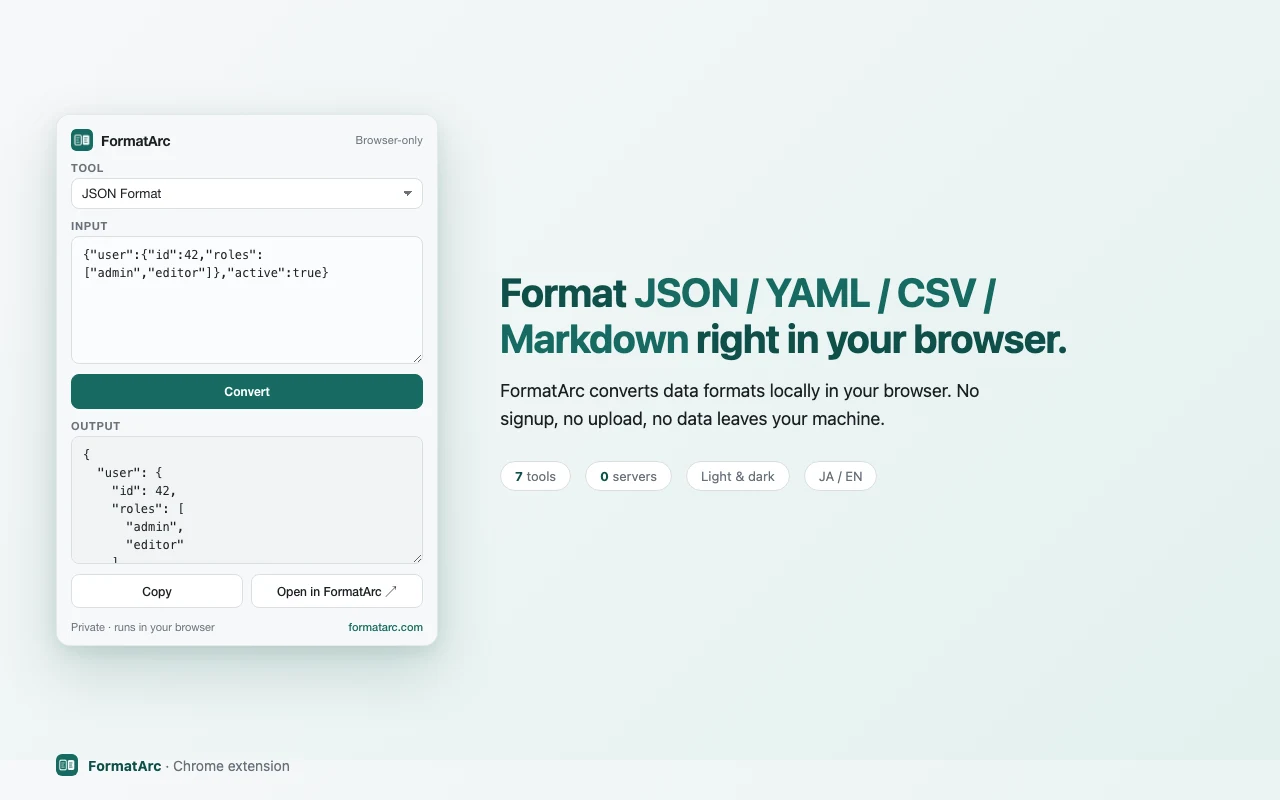
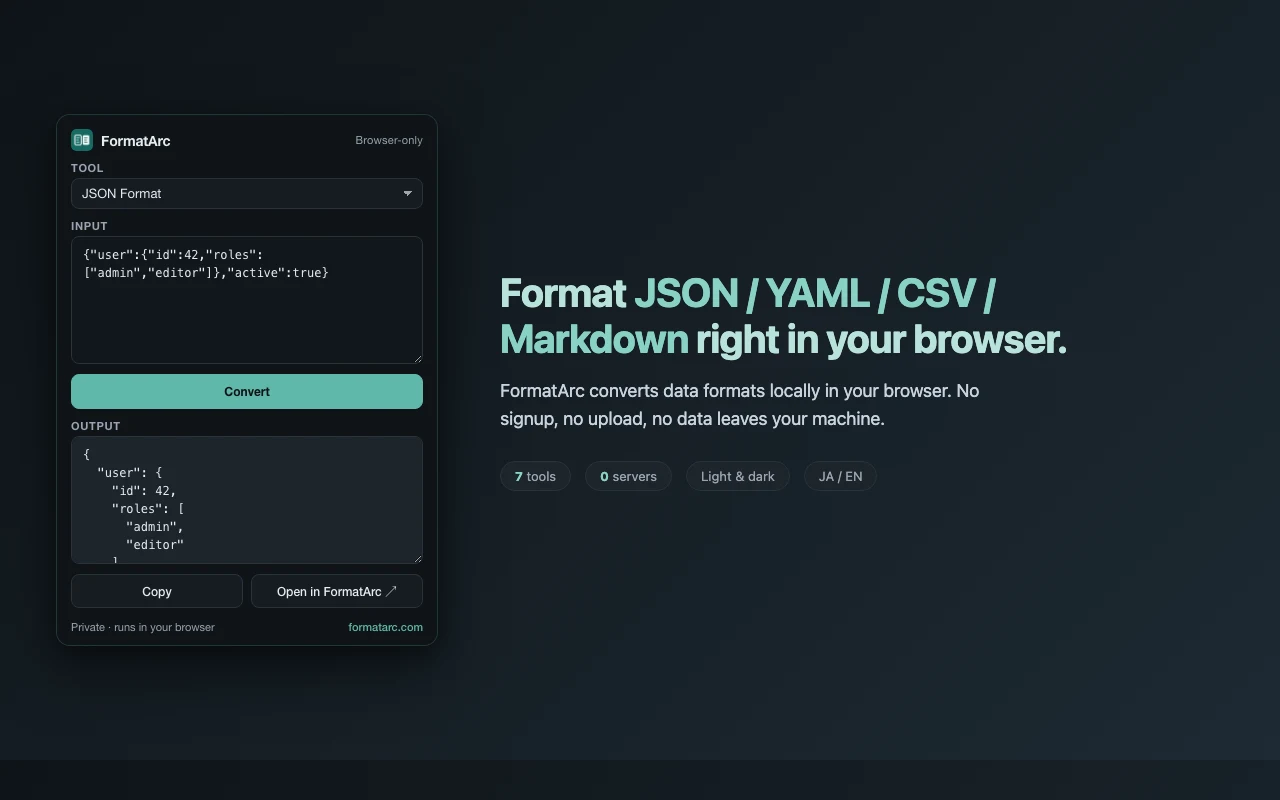
The FormatArc Chrome extension lets you format JSON and convert YAML, CSV, Markdown, and HTML right from your browser toolbar. All processing happens locally in your browser — no data is ever sent to an external server.
This article covers how to install the extension and three ways to use it.
Installation
Visit the FormatArc page on the Chrome Web StoreOpens in a new tab and click "Add to Chrome." No login or extra setup required.
Once installed, the FormatArc icon appears in your browser toolbar.
Permissions and runtime requirements
| Item | Value |
|---|---|
| Manifest | V3 |
| permissions | contextMenus / activeTab / scripting |
| host_permissions | none declared |
| Version | 1.3.0 |
| Store listing size | 138KiB |
| Store listing last updated | September 8, 2026 |
The sources are chrome-extension/manifest.json in the repository and the Chrome Web Store listing (retrieved 2026-09-08, recorded in scripts/benchmarks/chrome-json-extensions/results.json).
Because no host_permissions are declared, the extension never sits on any site. It only runs inside a page at the moment you invoke the right-click action, and that is when the temporary activeTab grant applies. For an extension that does request <all_urls>, you can narrow it under "Site access" in its detail panel at chrome://extensions; FormatArc already behaves that way by default.
Usage 1: Convert in the popup
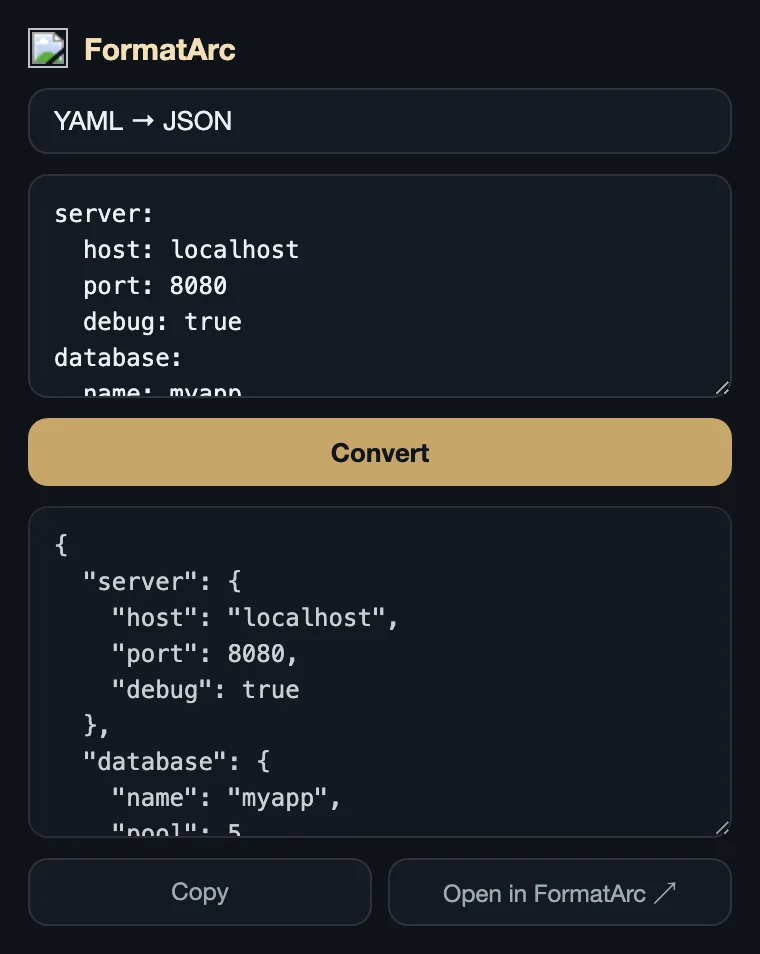
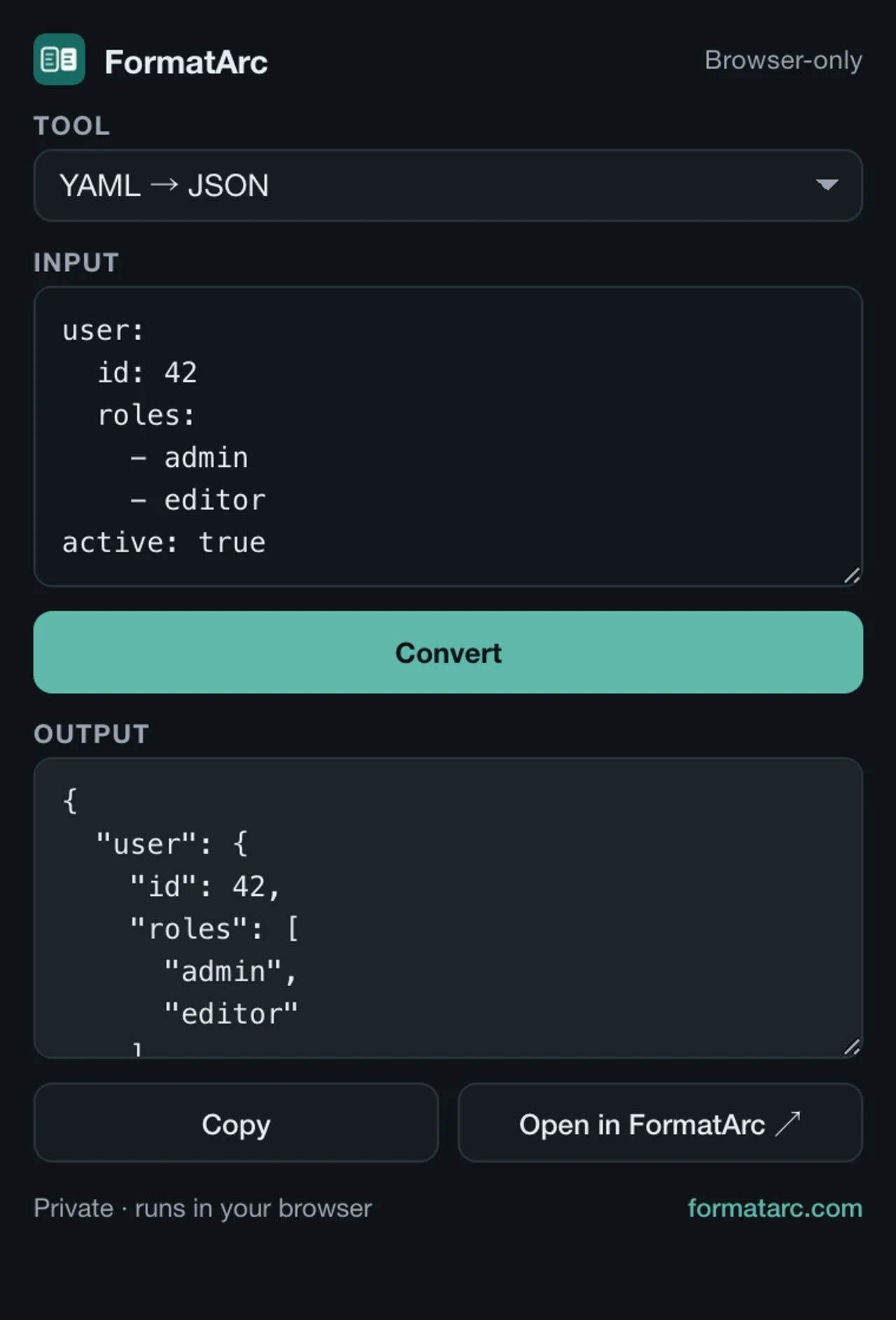
Click the FormatArc icon in the toolbar to open the popup.
- Select a tool from the dropdown
- Paste your data into the top text area
- Click the "Convert" button
- The result appears in the bottom text area
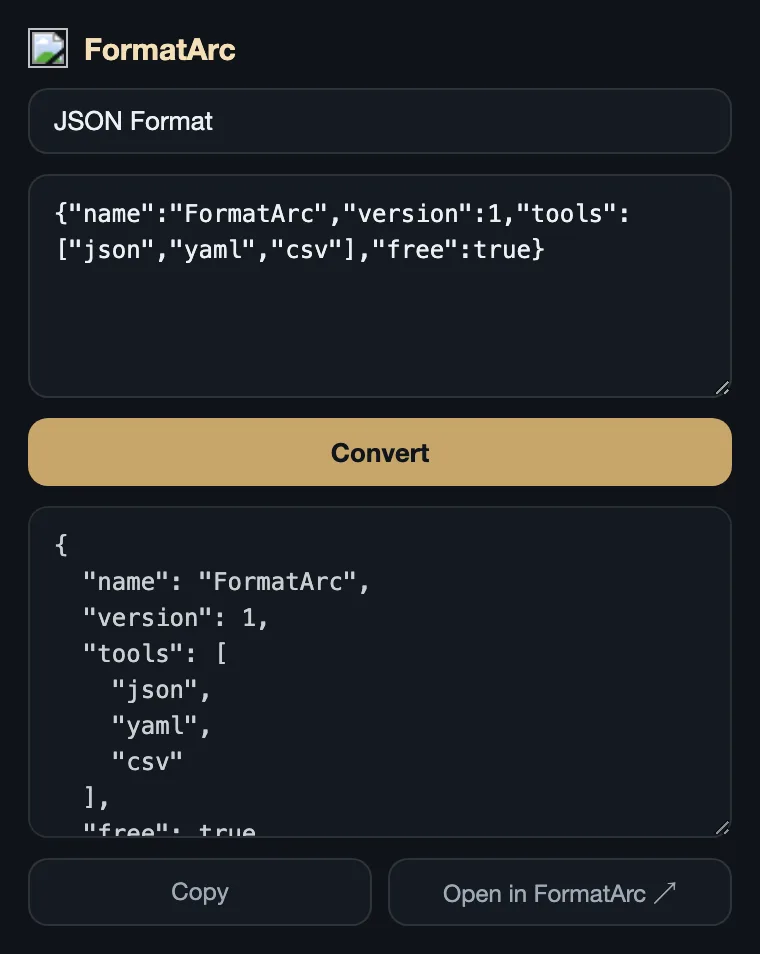
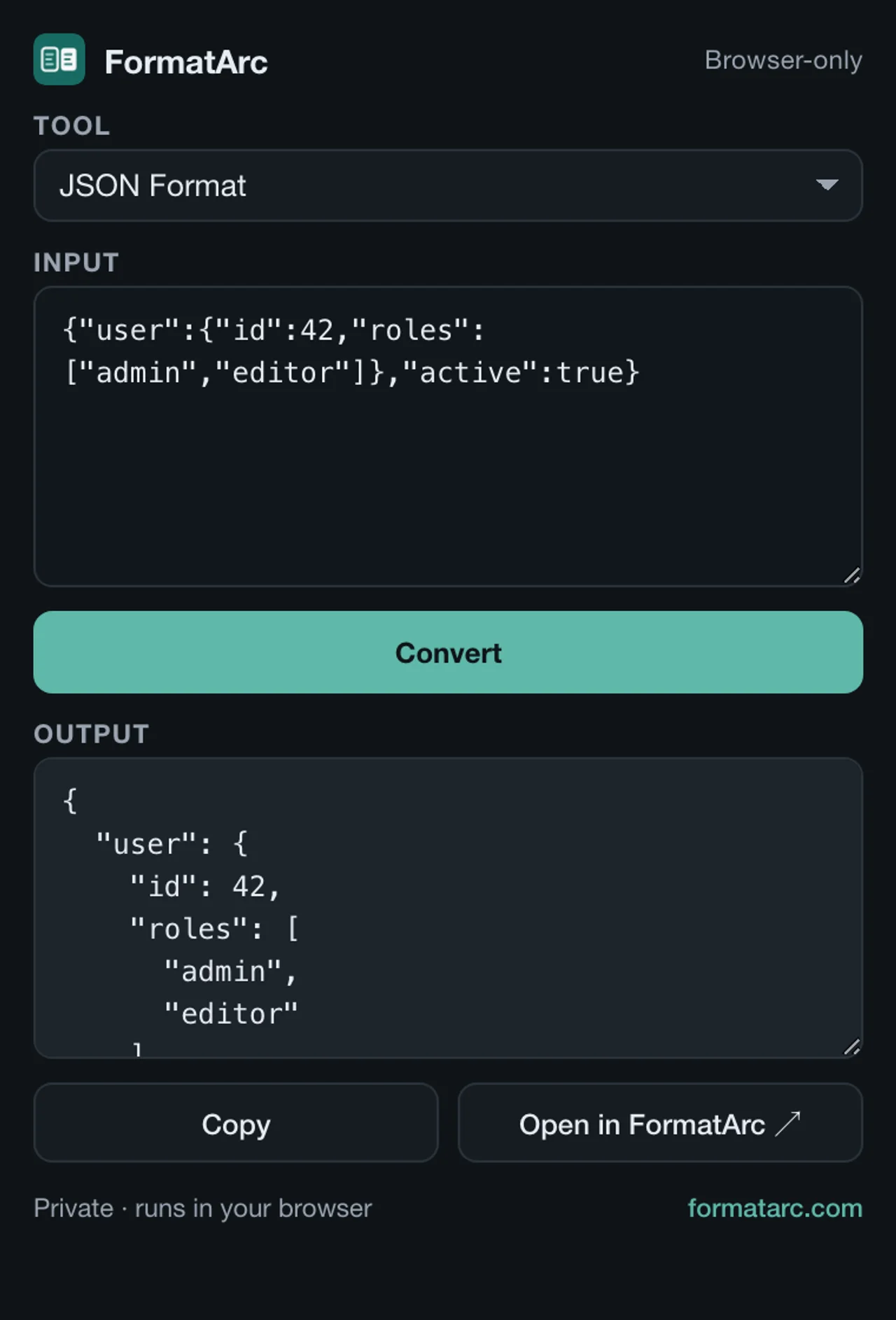
Click "Copy" to copy the result to your clipboard.
YAML to JSON conversion works the same way. Just select "YAML → JSON" from the dropdown and paste your YAML.
Usage 2: Right-click to format JSON
Select any text on a web page, right-click, and choose "Format as JSON (FormatArc)" from the context menu.
- Highlight JSON text on a page
- Right-click → "Format as JSON (FormatArc)"
- The formatted JSON is automatically copied to your clipboard
- A toast notification appears in the bottom-right corner
This is handy when you spot JSON in API docs or browser DevTools and want to format it quickly.
Usage 3: Open in the web version
Click "Open in FormatArc ↗" at the bottom of the popup to open the corresponding tool on the FormatArc website.
The web version is better suited for large files or when you want more space to review the output. The web entry point is the JSON Formatter.
Supported tools
The popup offers these 11 tools. Each name links to the same tool on the web. Markdown → CSV and the Qiita / Zenn checks arrived in 1.3.0, so earlier versions show a shorter list.
| Tool | Description |
|---|---|
| JSON Format | Pretty-print and validate JSON |
| YAML → JSON | Convert YAML to JSON |
| JSON → YAML | Convert JSON to YAML |
| CSV → JSON | Convert CSV to JSON |
| JSON → CSV | Convert JSON to CSV |
| CSV → Markdown | Convert CSV to a Markdown table |
| Markdown → CSV | Convert Markdown tables to CSV |
| Markdown → HTML | Convert Markdown to HTML |
| HTML → Markdown | Convert HTML to Markdown |
| Qiita → Zenn | Check a Qiita article for Zenn compatibility |
| Zenn → Qiita | Check a Zenn article for Qiita compatibility |
When it does not work
The right-click action does nothing
On pages starting with chrome://, on the Chrome Web Store, in the PDF viewer, and on local files opened with file://, Chrome refuses to let extensions run scripts. The formatting still happens, but the extension cannot show a notification in the page or reach your clipboard. Run it on a regular web page, or paste into the popup instead.
"Format as JSON (FormatArc)" is missing from the menu
The item only appears while text is selected, because the extension registers it with contexts: ["selection"]. Right-clicking with nothing selected shows no item.
A "FormatArc: invalid or oversized output" toast appears
When the formatted output exceeds 200,000 characters, the extension shows this toast instead of copying. Handle larger files in the web JSON Formatter.
Frequently asked questions
Does the FormatArc Chrome extension send data to a server?
No. All conversions run entirely in client-side JavaScript inside your Chrome tab. JSON, YAML, CSV, Markdown, and HTML you paste are processed locally — nothing is uploaded to FormatArc or any third-party service. This makes it safe for internal API responses and sensitive configuration files.
How is it different from JSONView or JSON Formatter?
JSONView and JSON Formatter auto-format JSON URLs opened directly in a browser tab. The FormatArc Chrome extension is built around the paste-and-convert workflow and also covers YAML, CSV, Markdown, and HTML in one tool. For a full side-by-side comparison, see Best Chrome JSON Formatter Extension 2026.
What is the difference between the extension and the web version?
Both share the same conversion engine. The extension gives you one-click access from the toolbar, while the web version is better for large files or when you want a full-screen view of the output. Click "Open in FormatArc ↗" at the bottom of the popup to hand off the same input to the web version.
When should I use the right-click "Format as JSON (FormatArc)" action?
Use it when you spot JSON in API documentation or browser DevTools and want it formatted and on your clipboard in a few clicks: select text → right-click → choose the menu item. See also the "Validate quickly in the browser" section of How to Fix JSON Parse Errors.
Does it work offline?
Yes. After installation the extension works fully offline. You can format JSON and convert YAML, CSV, Markdown, and HTML without a network connection.
Is there a CLI version?
Yes. For terminal workflows, FormatArc is also published as an npm package. See Using formatarc as an npm Package.
Summary
- Click the toolbar icon to open the popup and convert data
- Right-click selected text to format it as JSON
- All data is processed locally — nothing is sent to any server
- Uses the same conversion engine as the web version
Related articles
- Top JSON Chrome Extensions Compared — how FormatArc compares to JSONView and JSON Formatter
- JSON Pretty-Print Tips — formatting techniques beyond browser extensions
- How to Fix JSON Parse Errors — troubleshoot common syntax errors
- Using formatarc as an npm Package — CLI and API guide for terminal workflows
The web version of each tool is linked from the "Supported tools" table above.