The best JSON viewer browser extensions in 2026 — at a glance
Looking for the best JSON viewer or formatter extension for Chrome in 2026? Instead of repeating store descriptions, we installed seven of the most-mentioned options and measured them ourselves: manifest version, host permissions, store size, and the part no other comparison publishes — how large a JSON file each one can actually auto-format.
In our benchmark, only 2 of the 6 auto-formatting extensions managed to format a 10 MB JSON file (JSON Lite, median 1,852 ms; JSON Viewer Pro, median 14,258 ms) — and none of them formatted 50 MB.
| Extension | Manifest | Host permissions | Store size | Last updated | Open source | Auto-format limit (measured) |
|---|---|---|---|---|---|---|
| JSON Formatter | MV3 | <all_urls> | 20.35 KiB | 2026-05-16 | ✅ | 1 MB (696 ms); gave up at 10 MB |
| JSONView | MV3 | <all_urls> | 83.35 KiB | 2025-05-19 | ✅ | 1 MB (8,806 ms); hung at 10 MB |
| JSON Viewer Pro | MV3 | *://*/* | 479 KiB | 2025-04-15 | ✅ | 10 MB (14,258 ms); hung at 50 MB |
| JSON Lite | MV3 | <all_urls> | 23.65 KiB | 2024-06-10 | ✅ | 10 MB (1,852 ms); gave up at 50 MB |
| JSON Viewer (teocci) | MV3 | <all_urls> | 104 KiB | 2024-02-24 | ✅ | 1 MB (2,560 ms); gave up at 10 MB |
| Simple JSON Viewer | MV2 | none | 8.6 KiB | 2020-05-10 | ❌ | Not measurable; did not load in Chromium 147 |
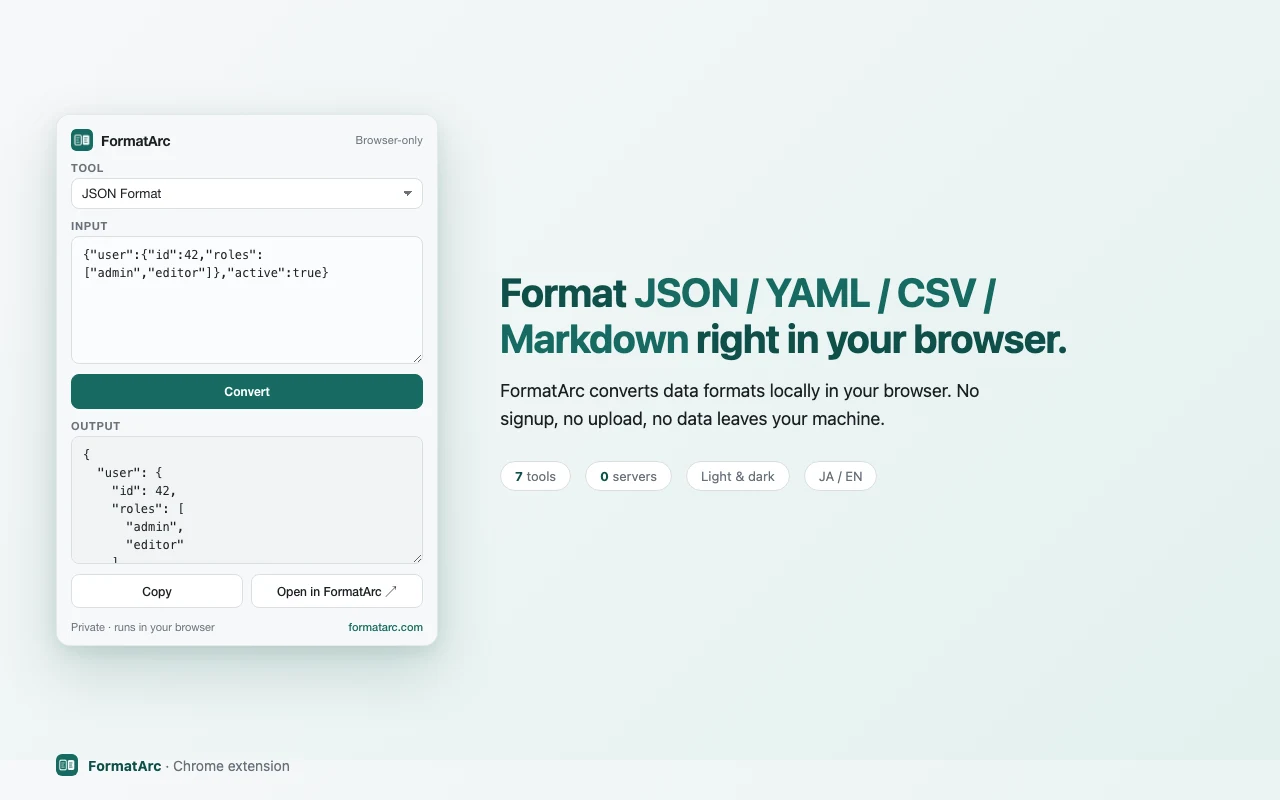
| FormatArc | MV3 | none (activeTab only) | 122 KiB | 2026-06-15 | ✅ | N/A — popup-based, no page auto-format |
All seven are free and render JSON in the browser without uploading it to a server. They differ in what the installed software is allowed to do: an extension runs with the page permissions you grant at install time, so source availability and network behaviour matter as much as features — see Privacy and permissions below before you install anything. FormatArc's own extension is popup-based and only acts on the current tab when you click it, which is why it is the only row with no host permissions — and also why the auto-format column does not apply to it.
For the paste-and-convert workflow the measured table does not cover, here is how the three tools most developers actually combine compare:
| Tool | Type | Auto-format URLs | Paste & format | YAML / CSV | Line-number errors | Signup |
|---|---|---|---|---|---|---|
| JSONView | Chrome extension | ✅ | ❌ | ❌ | ❌ | None |
| JSON Formatter | Chrome extension | ✅ | ❌ | ❌ | ❌ | None |
| FormatArc | Web tool + extension | ✅ (via extension) | ✅ | ✅ | ✅ | None |
If you only need to pretty-print JSON URLs, JSONView or JSON Formatter is enough. If you also paste JSON from the clipboard, convert YAML/CSV, or want line-numbered error messages, jump to FormatArc's JSON Formatter.
How we measured
All numbers in the measured table are our own data, collected on 2026-07-11 on an Apple M5 Pro (Mac mini), macOS 26.5.2, Chromium 147.0.7727.15 driven by Playwright. One honest caveat: branded Chrome stable has ignored --load-extension since version 137, so the benchmark runs on Chromium — the same engine, but not the branded build. For each auto-formatting extension we opened generated JSON payloads of 1 MB, 10 MB, 50 MB and 100 MB, with one warm-up run plus four measured runs per size; times shown are the median of the four runs. A size counts as failed in one of three ways: the extension gives up (the page stays responsive but nothing is formatted within 60 seconds), the page hangs (the main thread stops responding for 10 seconds), or the extension does not load at all. Manifest versions and host permissions were read from each extension's downloaded package, not from its store description; store size, last-updated dates and user counts are Chrome Web Store listing values as of 2026-07-11. The payload generator, measurement scripts and raw per-trial results live in the repository under scripts/benchmarks/chrome-json-extensions/, so every cell in the table can be re-run.
Quick pick
- Just viewing JSON at API URLs in a browser tab — JSONView or JSON Formatter (extension-only, zero clicks after install)
- Opening large (10 MB+) JSON responses — JSON Lite (10 MB in a median 1,852 ms in our test) or JSON Viewer Pro (14,258 ms); nothing we tested formatted 50 MB
- Only installing extensions that keep working after Chrome's Manifest V3 deadline — every option above except Simple JSON Viewer (still MV2, last updated 2020, did not load in our test)
- Pasting JSON from the clipboard or Slack — FormatArc JSON Formatter (no install, works on any device)
- Need YAML/CSV conversion too — FormatArc covers all three formats
- Debugging parse errors — FormatArc shows line-numbered errors; see How to Fix JSON Parse Errors
- Comparing formatting habits — see JSON Pretty-Print Tips
Why you need a JSON formatter in the browser
When you open a JSON API endpoint directly in Chrome, the response shows up as a single compressed line. Reading nested objects in that state is painful, so most developers install a Chrome extension to auto-format JSON responses.
But not all JSON tools work the same way. The sections below break down each option in more detail.
Privacy and permissions: what to check before you install
A JSON viewer extension reads the content of every page that matches its host permissions — that is how it auto-formats responses. Rendering JSON locally and being safe to install are not the same thing: the question is what the installed code does with the access you grant, and whether you can verify it. Three checks tell you most of what you need:
- Source availability — is the code open and auditable, or closed?
- Permissions — does it run on all sites, or only when you click it?
- Network behaviour — does it make requests beyond fetching the page you opened?
| Tool | Source code | Install required | Runs on every page | Sends data off-device |
|---|---|---|---|---|
| JSONView | Open source (MIT) | Yes | Yes (content script) | No |
| JSON Formatter | Closed source since 2025 (see note) | Yes | Yes (content script) | See note |
| JSON Formatter Classic | Open source (BSD-3, archived) | Yes | Yes (content script) | No |
| FormatArc (web tool) | Browser-side, no install | No | No | No |
This is also why a paste-based web tool is the most conservative option for sensitive data: there is nothing to install, no host permissions to grant, and no content script running on your other tabs.
A note on the 2026 JSON Formatter change
The widely used "JSON Formatter" extension by Callum Locke is a useful example of why these checks matter. Its original open-source repository is now archived on GitHubOpens in a new tab, and the README states the author is moving to a closed-source commercial model; the final open-source build was published separately as "JSON Formatter Classic". In early 2026, community reports on Hacker NewsOpens in a new tab and dev.toOpens in a new tab described the closed-source build contacting third-party domains (linked to a "Give Freely" donation service) and injecting elements into checkout pages.
We have not independently re-tested the extension, and its current Chrome Web Store listing carries its own data-use disclosures, so treat the above as reported behaviour rather than a verdict — check the current listing and permissions yourself before installing. The broader point stands: a closed-source extension can change hands or behaviour through an automatic update without you noticing, which is the risk an open-source or no-install option avoids.
Without an extension: DevTools and FormatArc
You do not always need an extension. Chrome's built-in DevTools shows a parsed, searchable JSON tree under the Network panel's "Preview" tab for any request, and Firefox ships a JSON viewer out of the box. For pasted JSON — clipboard, Slack, a log file — FormatArc's JSON Formatter formats it in the browser with no install and no host permissions at all.
After installing: pinning and the run-scope toggle
Chrome hides new extensions behind the puzzle-piece icon. Open it, click the pin next to the extension name, and the icon stays on the toolbar. Then right-click the icon and open "This can read and change site data" — the default is "on all sites", and switching it to "on click" means the extension only touches a page after you ask it to. That single toggle is the difference between an extension that sees every internal dashboard you open and one that sees only the JSON you point it at.
Popular JSON Chrome extensions
JSONView
One of the oldest JSON extensions, with about 100,000 users (Chrome Web Store listing value, as of 2026-07-11). When you navigate to a URL that returns JSON, JSONView automatically renders it as a collapsible tree. It validates against RFC 4627 and supports custom stylesheets. In our benchmark it formatted a 1 MB payload in a median 8,806 ms but hung on 10 MB.
Good for:
- Viewing API endpoints directly in the browser tab
- Collapsible tree navigation of large JSON responses
JSON Formatter
A polished alternative with dark mode, syntax highlighting, code folding, indent guides, and clickable URLs, and a toggle between raw and parsed views. With about 2,000,000 users (store listing, 2026-07-11) it is the most installed extension we measured, and at 20.35 KiB also one of the smallest — it formatted 1 MB in a median 696 ms, the fastest 1 MB time in our test, though it gave up at 10 MB. Note the source-availability change covered above: the original extension moved to a closed-source commercial model in 2025, and an open-source build remains available as "JSON Formatter Classic" for anyone who wants an auditable version.
Good for:
- Developers who prefer a polished UI and dark theme workflows
- Users who specifically choose the open-source "Classic" build for auditability
JSON Viewer (open-source alternative)
If open source is a hard requirement, JSON Viewer by tuliosOpens in a new tab is an actively maintained, MIT-licensed extension that renders JSON URLs as a collapsible tree with theming and JSONP support. It is a good drop-in replacement when you want auto-formatting of JSON URLs but prefer code you can audit. Note that this tulios extension is not part of our benchmark, and two similarly named extensions below are separate projects — "JSON Viewer Pro" and "JSON Viewer" by teocci.
Good for:
- Developers who only install open-source, auditable extensions
- Auto-formatting JSON URLs with theming options
JSON Viewer Pro
An open-source extension with about 300,000 users (store listing, 2026-07-11) offering tree and chart views, themes, and a built-in editor. It was the only extension in our benchmark besides JSON Lite to format a 10 MB payload — in a median 14,258 ms — though it hung at 50 MB. At 479 KiB it is also the largest package we measured, so it trades install size for features.
Good for:
- Working with larger responses (up to 10 MB in our test) in a feature-rich UI
- Chart visualisation of JSON structures
JSON Lite
A lightweight open-source extension with about 20,000 users (store listing, 2026-07-11). Its store page claims a small footprint and large-file support, and our measurements back that up: at 23.65 KiB it formatted 1 MB in a median 555 ms and 10 MB in 1,852 ms — the fastest 10 MB time in our test — before giving up at 50 MB. The trade-off is cadence: its last store update was 2024-06-10.
Good for:
- The fastest large-file formatting we measured
- Minimal install size with MV3 permissions
JSON Viewer (by teocci)
A separate project from both the tulios extension and JSON Viewer Pro, with about 100,000 users (store listing, 2026-07-11). It formatted 1 MB in a median 2,560 ms and gave up at 10 MB. Last updated 2024-02-24, it covers the basics — collapsible tree, clipboard actions — without standing out in our measurements.
Good for:
- A basic, no-frills JSON tree for small payloads
Simple JSON Viewer
Included as a cautionary data point. This extension still ships Manifest V2, was last updated on 2020-05-10, and would not load at all in Chromium 147 in our test (reproduced twice in a clean profile). Some comparison articles still recommend it without checking — which is exactly why we publish measured results instead of store descriptions. Skip it.
What these extensions do not cover
All of the auto-formatting extensions above share the same scope: they format JSON URLs opened in a browser tab. None of them handle:
- Pasting JSON from clipboard and formatting it
- Converting YAML or CSV to JSON
- Processing data entirely client-side without any network requests
For those use cases, a converter tool is a better fit.
FormatArc — JSON, YAML, and CSV in one place
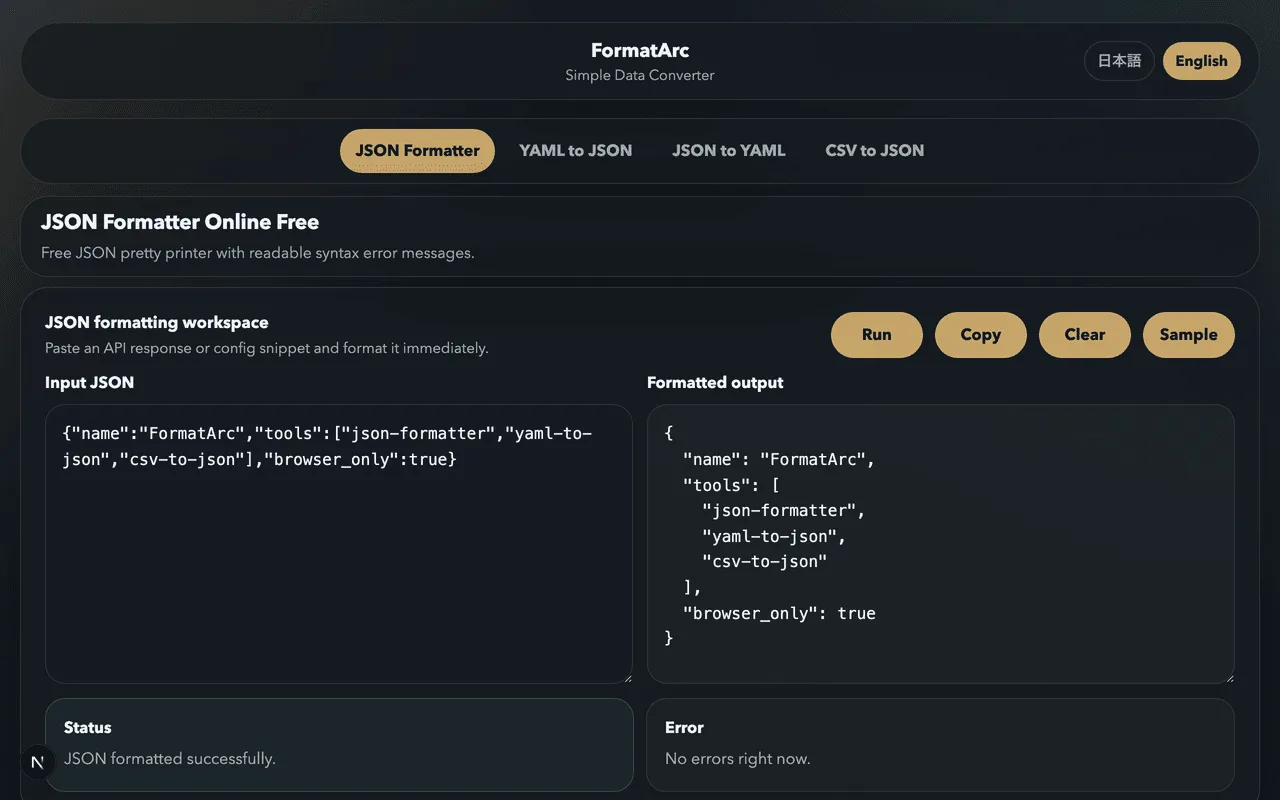
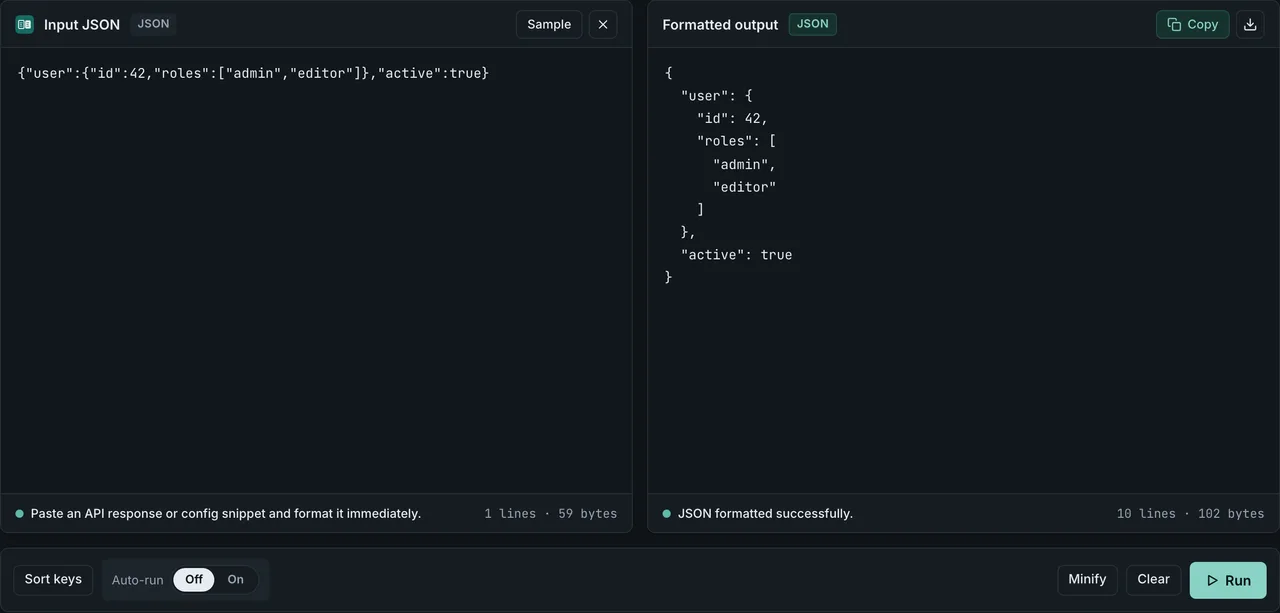
FormatArc is a browser-based tool that handles JSON formatting, YAML conversion, and CSV conversion without sending data to a server.
What makes it different
No data leaves the browser:
All processing runs in client-side JavaScript. You can paste internal API responses or production data without worrying about it being transmitted anywhere. Browser extensions like JSONView also process locally, but FormatArc works with pasted input rather than URL navigation.
Handles more than JSON:
- YAML to JSON — useful for Kubernetes manifests and CI config files
- JSON to YAML — convert API responses to config file format
- CSV to JSON — turn spreadsheet exports into JSON arrays
- CSV to Markdown — drop spreadsheets straight into a README
- Markdown ↔ HTML — clean up content for blogs or LLM prompts
Syntax error reporting:
When JSON is malformed, FormatArc shows the approximate line number where the error occurs. JSONView simply displays the raw text when parsing fails. For a deeper dive into fixing parse errors, see How to Fix JSON Parse Errors.
How to use it
- Open the JSON Formatter page
- Paste your JSON into the input area
- Click "Run"
- Copy the formatted output
FormatArc Chrome extension
FormatArc also has its own Chrome extension with popup conversion, right-click formatting, and a link back to the web version. See How to Use the FormatArc Chrome Extension for a walkthrough.
CLI option
If you prefer the terminal, FormatArc is also available as an npm package:
npx formatarc json-format '{"a":1}'
cat response.json | npx formatarc json-format
GitHub: https://github.com/m-naoki-m/formatarcOpens in a new tab
When to use what
JSONView / JSON Formatter
- Auto-formatting JSON URLs in the browser
- Quick inspection of API endpoints
- Install-and-forget convenience
FormatArc
- Paste-and-format workflow
- YAML and CSV conversion
- Syntax error diagnosis with line numbers
- Privacy-sensitive data handling
The practical approach is to use both. Let JSONView handle automatic formatting when you open JSON URLs, and reach for FormatArc when you need to paste, convert, or debug.
Try FormatArc now
Ready to format some JSON? Open the JSON Formatter, paste your data, and click Run. No installation, no signup — your data stays in the browser.
Need to convert between formats? Try YAML to JSON or CSV to JSON as well.
Common workflow: debugging an API response
Here is a typical scenario where a browser extension and a converter tool complement each other:
- Open an API endpoint in Chrome — JSONView auto-formats the response so you can scan the structure
- Copy part of the response to check deeper — paste it into the FormatArc tool above to isolate the section you care about
- Hit a parse error — FormatArc shows the line number so you can jump straight to the problem. See How to Fix JSON Parse Errors for common causes
- Need to convert the output — switch to YAML to JSON or CSV to JSON without leaving the browser
This two-tool approach covers both passive viewing and active editing. For more formatting techniques beyond browser tools, check JSON Pretty-Print Tips.
Frequently asked questions
Which Chrome extension is best for formatting JSON in 2026?
JSONView and JSON Formatter are the two most popular choices for auto-formatting JSON URLs opened directly in a browser tab. Both are free, work offline, and render JSON as a collapsible tree. If you regularly open large payloads, our measurements point to JSON Lite or JSON Viewer Pro — the only two extensions that formatted a 10 MB file in our test (see the measured table at the top). If you also need to paste JSON from the clipboard, convert YAML or CSV, or see syntax errors with line numbers, FormatArc's JSON Formatter is a better fit.
Do I need to install a Chrome extension to format JSON?
No. You can format JSON without installing anything by pasting it into a browser-based tool like FormatArc. It works in any modern browser on any device, and your data never leaves the page.
Is it safe to paste sensitive API responses into an online JSON formatter?
It depends on the tool. Some online formatters upload your data to a server, which is a problem for API keys or production payloads. FormatArc runs entirely client-side — nothing is sent anywhere. A browser extension renders JSON locally too, but it is installed software with page permissions, so prefer one that is open source (so you can audit it) or skip the install entirely with a paste-based web tool. See Privacy and permissions above for the checklist.
Did a popular JSON Formatter Chrome extension change in 2026?
Yes. The original open-source "JSON Formatter" extension was archived and its author announced a move to a closed-source commercial model. In early 2026, community reports on Hacker News and dev.to described the closed-source build adding third-party tracking and checkout-page injection. An open-source build remains available as "JSON Formatter Classic". Always check an extension's current listing, permissions, and source availability before installing — see Privacy and permissions.
Can a Chrome extension convert YAML or CSV to JSON?
Most popular JSON extensions (JSONView, JSON Formatter) only handle JSON. For YAML and CSV conversion you need a dedicated tool. FormatArc covers YAML to JSON, JSON to YAML, and CSV to JSON in the browser, and also ships an official Chrome extension with these conversions built in.
Why does my Chrome extension show raw JSON instead of a formatted tree?
Usually because the response Content-Type is not application/json, or the JSON is malformed and fails to parse. Another common culprit is inline comments in JSONC/JSON5 input — standard JSON.parse rejects them. With very large responses the extension may also give up or freeze: in our 10 MB benchmark, four of the six auto-formatting extensions failed. See Can You Use Comments in JSON? for the workarounds. For malformed JSON in general, paste it into FormatArc's JSON Formatter — the error message includes the line number so you can jump straight to the problem. See How to Fix JSON Parse Errors for common causes.
Summary
- JSONView and JSON Viewer (tulios) are open-source extensions that auto-format JSON URLs in the browser
- In our measurements, only JSON Lite and JSON Viewer Pro formatted a 10 MB file, and nothing formatted 50 MB — check the measured table at the top before trusting "handles large files" claims
- Check source availability, permissions, and network behaviour before installing — the 2026 JSON Formatter change shows why a closed-source extension can shift behaviour through an update
- FormatArc covers paste-and-format, YAML/CSV conversion, and error diagnosis with no install and no host permissions
- Using an open-source extension for JSON URLs plus a paste-based tool gives the best coverage. For paste-and-format and privacy-sensitive workflows, FormatArc's JSON Formatter covers more ground.