When you convert a PDF to Markdown, scanned pages can come out empty, images vanish, and table columns drift. The conversion itself is just picking a file and copying the result. Add one check on the PDF before you start and one against the original afterwards, and missing content becomes much easier to catch.
This guide covers those steps in 5 parts, then goes through what to do about each symptom. Tables that conversion cannot fix are rebuilt from a spreadsheet or from JSON.
Check what kind of PDF you have before converting
Some PDFs store their text as text. Others store each page as a picture and nothing more. The type of PDF determines what a converter can extract.
A quick test is to open the PDF in a viewer and try to select a line of body text by dragging the cursor over it. If it highlights, the file has text. If nothing highlights, the page is most likely just an image. A PDF whose author has disabled copying can also refuse selection, so check the security settings in the viewer's document properties as well.
| Kind of PDF | How to tell | What a Markdown conversion gives you |
|---|---|---|
| PDF with text | Body text can be selected | Headings, paragraphs, and tables rebuilt as Markdown |
| Scanned PDF without OCR | No page lets you select text | No text at all. It needs OCR first |
| Mixed PDF | Some pages can't be selected | The content of those pages goes missing |
| Password-protected PDF | The viewer asks for a password | Nothing loads until the protection is removed |
Selectable text does not guarantee a correct conversion. A scan that has already been through OCR lets you select text, but that text is whatever the OCR engine recognized, and its mistakes carry straight into the Markdown. The selection test tells you whether conversion is possible at all, not how good the result will be.
Convert a PDF to Markdown in FormatArc in 5 steps
This guide uses PDF to Markdown. The conversion runs inside your browser and the PDF is never sent to a server, so you can check the result on files you would rather not upload to an outside service. Whether you may process internal documents this way is still up to your organization's rules.
- Use the test from the previous section to confirm the PDF has text
- Open PDF to Markdown and drag the PDF in, or pick it with "Choose file"
- Read any note shown above the result. The table after these steps explains each one
- Compare the result with the original. The Markdown output keeps no page breaks, so go through the original page by page and look for each page's headings or opening sentence in the output
- Copy or download the Markdown. If a table came out broken, rebuild it with the method below and swap it in
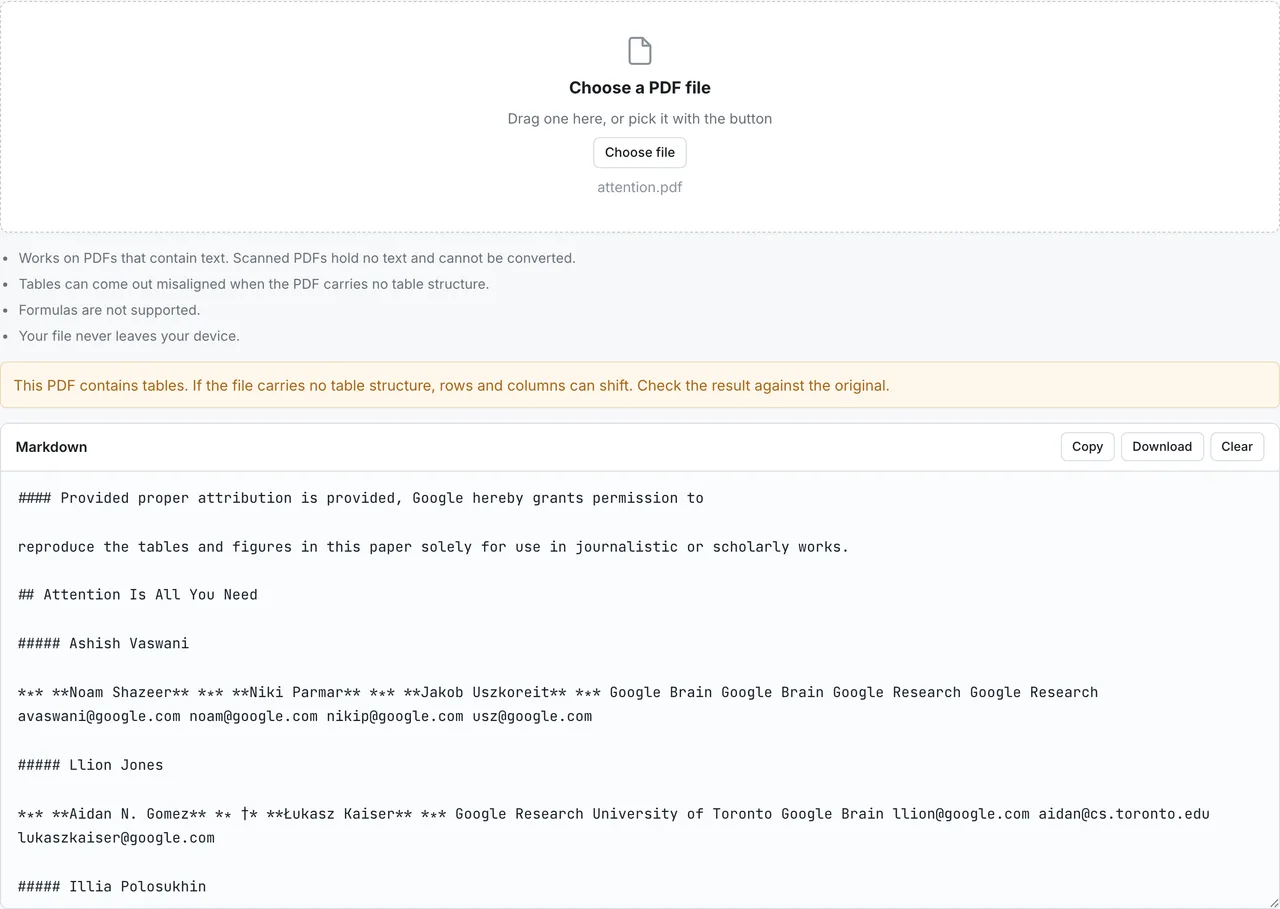
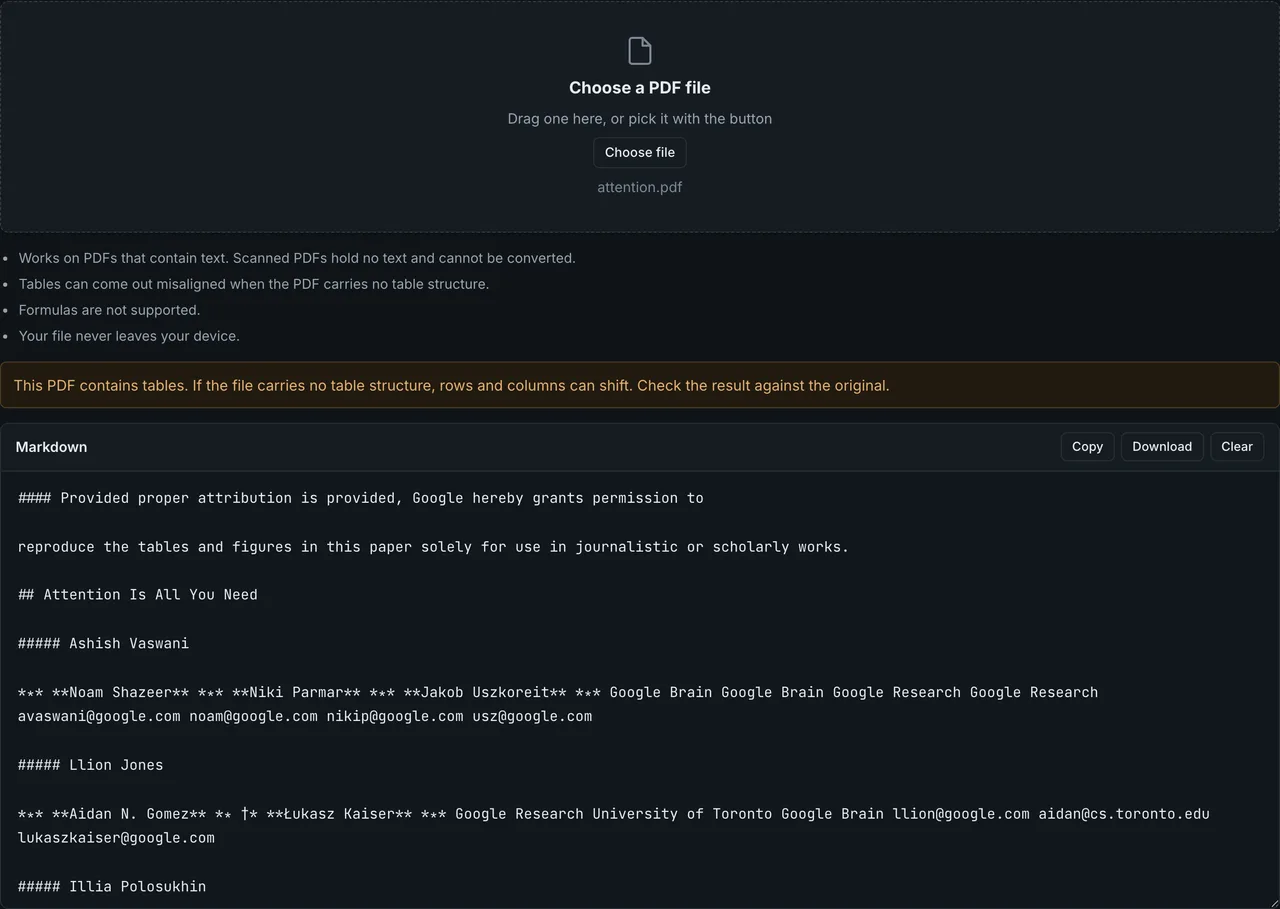
There are three notes you may see in step 3.
| What the note says | What it means | What to do next |
|---|---|---|
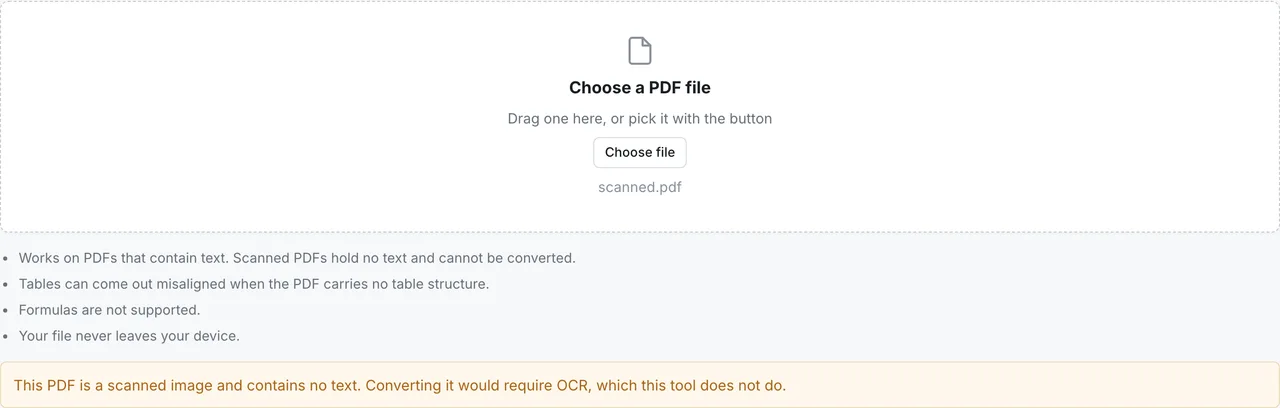
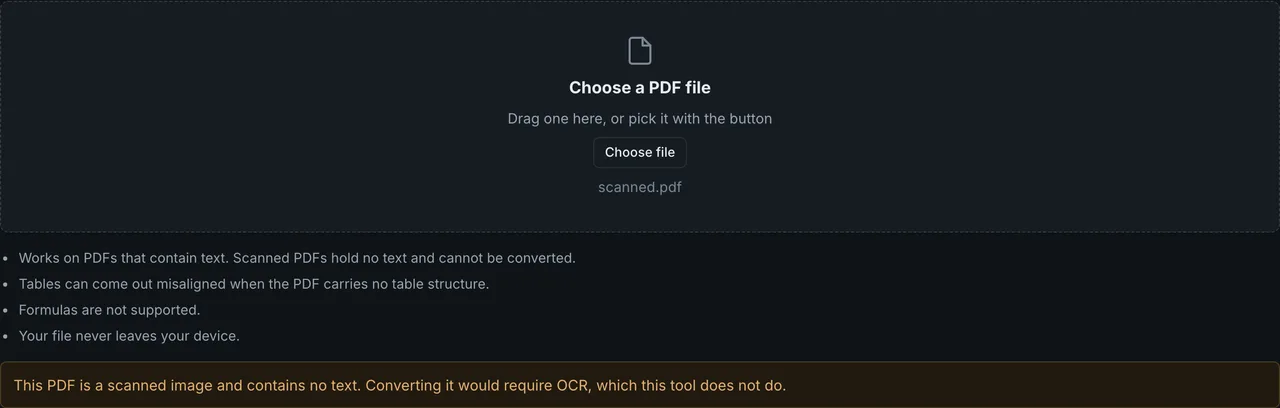
| The PDF is a scanned image and contains no text | Not a single character could be read, so nothing was output | Run OCR on the file |
| The PDF contains tables | Table structure was inferred and rebuilt | Check table rows and columns against the original |
| Only the text was extracted, without headings or tables | Part of the text could not be extracted reliably, so no structure was built | Add the headings back by hand |
Troubleshoot by symptom
When the result looks wrong, narrow down the cause from what you see. The last column says whether FormatArc's tools (PDF to Markdown and the table converters) can handle it.
| Symptom | Likely cause | What to do | Can FormatArc handle it? |
|---|---|---|---|
| Nothing is output | Scanned PDF without OCR | Run OCR | No |
| Some pages are missing | Image-only pages mixed in | Run OCR on those pages only | Only the pages with text |
| Body text is out of order, or turns into a table | The reading order across columns was guessed wrong | Discard the table and lay the text out as paragraphs | No, fix by hand |
| Table columns shift, or the table disappears | The PDF holds no table structure | Rebuild just the table | Yes, with CSV to Markdown or JSON to Markdown Table |
| Text inside a figure is missing | Text inside figures and images is not read | Export the figure and run OCR, or transcribe it | No |
| A password error appears | Protected PDF | Remove the protection, then load it again | Yes, once unlocked |
| Formulas come out garbled | Formulas are not supported | Use a converter that handles math | No |
Nothing is output from a scanned PDF: you need OCR
A scanned PDF is essentially a photo of each page, and unless it has been through OCR it carries no text data. When PDF to Markdown detects one, it does not convert it and reports that the file has no text.
Run the file through software with OCR first. OCR recovers characters. It does not promise to recover table structure or the reading order of columns, so after converting an OCR'd PDF, check tables and multi-column pages against the original with extra care.
Some pages are missing from the output
In a PDF that mixes text pages with image-only pages, the image-only pages produce no output. On 2026-10-13 we generated a two-page PDF in Chromium, with text on page 1 and only an image on page 2, and converted it. The output contained only the text from page 1, and no note appeared.
Without a note, the missing content may slip past you if you only read the output. That is why step 4 has you check page by page. Once you find the missing page, run OCR on that page alone and add the text to your Markdown.
Body text is out of order, or turns into a table
On a two- or three-column page, the converter has to guess the order in which to read the text. In our test on 2026-10-13 with a simple two-column PDF, the text came out in the right order, left column first, then the right one.
A column layout can also be mistaken for a table. When we converted a central bank report, the title and the body text all landed inside table cells. The details, along with how table columns end up shifted, are in Why PDF Tables Break When You Convert to Markdown. If your body text becomes a table, throw the table away and lay the text out as paragraphs. That is faster than repairing the cells.
Text inside figures and images is missing
Figures and photos embedded in the PDF are not output. No image syntax such as ![]() is left behind either. On 2026-10-13 we converted a PDF with an image containing text placed between two paragraphs. The paragraphs came through; the text inside the image did not.
If you need the numbers on a chart or the labels on a diagram, export the figure as an image from your PDF viewer and run OCR on it. For a few labels, typing them in from the original can be quicker. To include the image itself, add the exported file with .
A password-protected PDF returns an error
When you load a password-protected PDF, PDF to Markdown asks you to remove the protection first. If you know the password and are allowed to remove it, save an unprotected copy with a PDF editor and choose that file instead.
Formulas are not converted
PDF to Markdown does not support formulas. In math-heavy papers, symbols come out as scattered characters or in the wrong order. If you need formulas as LaTeX, use a converter built for math.
Rebuild broken tables with a Markdown table converter
Most PDFs do not store their visible tables as table structure. A converter infers a table from the positions of lines and characters, so columns can shift, or the table can come out as running text. For tables where a one-cell shift changes the meaning, such as amounts or totals, rebuilding is more reliable than patching the converted output. Which tool you use depends on the form you can get the source data in.
If you can paste it into a spreadsheet, go through CSV
Copy the table area in your PDF viewer and paste it into Excel or Google Sheets. If the columns land in the wrong places, fix them there. A spreadsheet makes shifted columns far easier to fix than a Markdown table does.
When it looks right, export it as CSV and paste it into CSV to Markdown to get a Markdown table.
Item,Qty,Price
Apple,3,120
Banana,5,80
That CSV becomes this Markdown table:
| Item | Qty | Price |
| --- | --- | --- |
| Apple | 3 | 120 |
| Banana | 5 | 80 |
Delimiters and commas inside cells are covered in How to Convert CSV to a Markdown Table.
If you can get the source data as JSON, convert it directly
If the PDF report was generated from an internal system or an API and you can get the same data as JSON, you do not need the PDF at all. Building the table from the JSON with JSON to Markdown Table is more reliable than reading it out of the PDF. Nested objects are expanded into columns such as address.city.
Markdown tables are not part of core CommonMark. They are defined as an extension in GitHub Flavored Markdown (the GFM spec's Tables extensionOpens in a new tab), and the spec has no syntax for merged cells. If the PDF table has merged cells, you have to restructure them, for example by repeating the value in each cell, or by leaving one cell blank and adding a note below the table.
Choose a conversion method that fits the PDF
Some of the symptoms above are out of reach for PDF to Markdown. Choose a method based on what the PDF contains.
| What the PDF contains | Method that fits |
|---|---|
| Text, and the file should not be sent anywhere | Convert in the browser (PDF to Markdown) |
| Scanned pages, or some image-only pages | Recognize the text with OCR software, then convert |
| Lots of math | A converter that outputs formulas as LaTeX |
| Many PDFs in the same format | A command-line tool wrapped in a script |
Checklist for the converted Markdown
Before you use the result, check the following.
- Does every page of the original have its content somewhere in the output?
- Is the number of headings roughly the same as in the original? A short one-line paragraph is sometimes treated as a heading
- Do table rows and columns match the original?
- Besides the first and last rows of each table, did you compare a few rows from the middle?
- Is anything important missing where figures or images used to be?
- Are there meaningless words or garbled characters in the text?
Frequently asked questions
Is my PDF uploaded?
No. The conversion runs entirely inside your browser.
Can I convert a scanned PDF to Markdown?
Not with PDF to Markdown. Once the PDF has been through OCR it can be converted, but any recognition errors stay in the text.
Are images included in the Markdown?
No. Export the images you need separately and add them with Markdown image syntax.
The conversion took too long and stopped
PDF to Markdown stops a conversion that does not finish within 120 seconds. For a long PDF, split out just the pages you need into a separate PDF and convert that.