You clicked Export as Markdown & CSV in Notion and got a ZIP full of files with 32-character page IDs suffixed onto every filename, callout blocks that arrived as raw HTML, and toggles that lost their collapsible wrapper. Or you tried to copy a Notion page straight into your editor and got a wall of styled spans. Getting clean Markdown out of Notion is not one workflow — it is two, and picking the right one saves hours of manual cleanup.
Need just one or a few confidential pages as clean Markdown right now? In Notion choose ••• → Export → HTML, paste the exported HTML into HTML to Markdown, and press Run — the conversion happens entirely in your browser, nothing is uploaded. For bulk ZIP cleanup and API automation, read on.
Which path applies to you
Both paths end at the same place — portable Markdown you can drop into Obsidian, a static site generator, a README, or an LLM prompt. They differ in where they start and what you have to fix afterwards.
- Path A — Markdown & CSV ZIP export. You want to migrate a whole workspace or a page tree in one shot. You do not mind fixing UUID filenames, callout HTML, and synced-block duplicates in a batch. Read from Path A below.
- Path B — Export as HTML and convert in your browser. You have one or a few pages, they contain confidential information you cannot upload, and you want the output to be clean the first time — paste the export into the browser-side HTML to Markdown converter. Read from Path B below.
If you are building an automated pipeline, there is a third option — Notion's own Markdown Content API, launched in early 2026 — that we cover after both paths.
How Notion emits Markdown in the first place
Notion is a block-based editor. A page is a tree of blocks (paragraph, heading, list item, database, callout, toggle, synced block, equation, embed), and only a subset of those blocks has a Markdown equivalent. When you ask Notion to export as Markdown, it traverses the tree and emits the closest text it can. Everything without a Markdown counterpart either drops out, flattens, or falls through to raw HTML.
Notion's official Help Center confirms that callout blocks specifically "will be exported as HTML, as there is no Markdown equivalent"Opens in a new tab. The same page warns that on Windows, nested folder exports can hit the 260-character MAX_PATH limit and recommends 7-Zip as a workaround. It does not enumerate the other quirks — those you discover when you open the ZIP.
How to run the native Markdown & CSV export
Before either path, the mechanical steps are the same. On a page, click the ••• menu → Export → set format to Markdown & CSV. On Business and Enterprise plans you can toggle Include subpages, which turns a single-page export into a workspace-slice export. Confirm to download the ZIP. Whole-workspace exports live under Settings → Workspace → General and can take many hours for large accounts.
If Obsidian is genuinely where this Markdown is headed, Obsidian's own Importer pluginOpens in a new tab can take you there directly — but it does not read the Markdown & CSV ZIP from Path A below. Obsidian's own docs say plainly that "we recommend that you do not use Notion's Markdown export as it omits important data"Opens in a new tab and ask instead for Notion's HTML export — the same file Path B already produces — or a live connection to your workspace via a Notion API token. Feed the Importer your whole export in one pass and its docs note that "internal links can be reconciled correctly"; split it into batches and they may not be. Databases still do not survive intact either way: the ZIP-based route "does not preserve Databases" at all, and the API route converts them into Obsidian's Bases format but keeps "only the primary view for each database," dropping the name(), email(), style(), and unstyle() functions along the way.
Path A — Clean up the Markdown & CSV ZIP export
Once the ZIP is on your disk, you have eight recurring quirks to handle. They are the same every time.
UUIDs in filenames and page links
Notion commonly appends a 32-character hex page ID to every exported .md filename, and every [page mention] link inside the Markdown points to that suffixed filename. Renaming the files by hand breaks the links. The usual fix is a two-pass script: first collect the ID → title mapping from filenames, then rewrite every link and rename every file to the clean title. Community write-ups such as Notion's Markdown Export QuirksOpens in a new tab cover the same pattern.
Windows 260-character path limit
Nested Notion pages produce filenames like My Team's Handbook a1b2c3.../Onboarding e4f5g6.../Week 1 tasks h7i8j9....md. On Windows, that easily blows past the default MAX_PATH limit of 260 characters. Notion's own help page suggests disabling the folder-creation option or extracting the ZIP with 7-Zip, which handles long paths. macOS and most Linux filesystems do not enforce the same 260-character cap.
Callout blocks arrive as raw HTML
A Notion callout with an emoji and a colored background exports as inline HTML — not as a Markdown blockquote. Notion's help page confirms the export path. Many Markdown renderers pass inline HTML through untouched, so the callout may render with default browser styling (often as a plain block) rather than the Notion look you saw. Two acceptable fixes: rewrite each callout into a > blockquote (loses the emoji and background), or convert them into GFM's admonition pattern (> [!NOTE]) if your target renderer supports it.
Toggles may lose their collapsible wrapper
A Notion toggle is a collapsible section — heading on top, hidden content underneath. In the Markdown & CSV export, the collapsible affordance can be lost; the heading text and the inner content sit side by side as normal paragraphs. If you need the collapse to survive on GitHub or a static site, wrap the block in <details><summary>...</summary>...</details> by hand. Both tags are inline HTML that Markdown allows.
Synced blocks duplicate content across pages
A synced block appears on multiple pages inside Notion, but the export resolves each instance independently. The same content ends up written into every file that references it. If you feed the export into an RAG pipeline or a search index, this shows up as near-duplicate chunks that pollute retrieval. The remediation is manual: pick a canonical page for each synced block and remove the duplicates before ingesting.
Equations and embeds turn into plain text
Notion's LaTeX equations export as raw text between dollar signs. Obsidian renders that as math; GitHub renders $…$ and $$…$$ as math nativelyOpens in a new tab since 2022. Other renderers may not. Video, Figma, and Twitter embeds usually export as a bare URL — not a Markdown image, not an <iframe>.
Image paths reference the export folder structure
Images sit inside a per-page attachment folder next to the .md file, and the Markdown link points to that folder via a relative path. Moving a single .md file to a new location without carrying its attachment folder breaks every image. Two options: keep the file next to its folder, or rewrite the image links to a central /assets/ path and move the files there.
Databases export as CSV, not as Markdown tables
A full-page database exports as a CSV file, and each row's underlying page is a separate .md inside a folder of the same name. There is no Markdown table representation, and database views (filters, sorts, groupings) plus relations, rollups, and formulas do not carry over. If you want the database as a Markdown table, run the CSV through CSV to Markdown — it emits pipe tables directly. For heavy database usage, this step alone can save the migration. The CSV itself can arrive with delimiters and quotes that break the table — How to Convert CSV to a Markdown Table walks through those cases.
Path B — Export as HTML, then convert in your browser
If you only have a handful of pages and cannot upload them anywhere — the pages contain product plans, contracts, or internal knowledge base entries — the practical path is HTML.
Notion's export dialog offers three formats: Markdown & CSV, HTML, and PDF. HTML is the richer of the three: it preserves the callout structure (as inline HTML), keeps toggle wrappers, and retains internal links.
The workflow:
- In Notion, open the page → ••• → Export → HTML. Include subpages if needed.
- Open the
.htmlfile (or copy its contents). - Paste into HTML to Markdown and press Run.
- Copy the resulting Markdown into Obsidian, your CMS, or your LLM prompt.
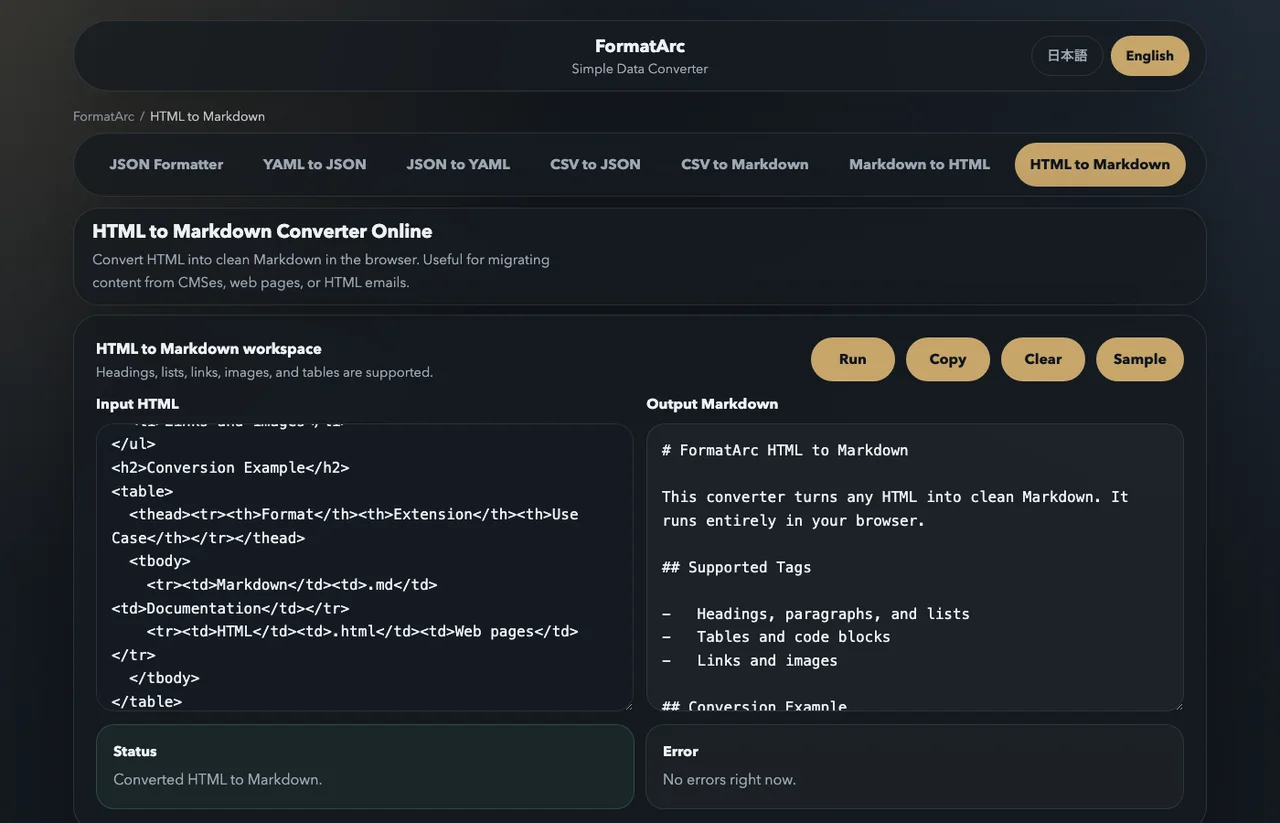
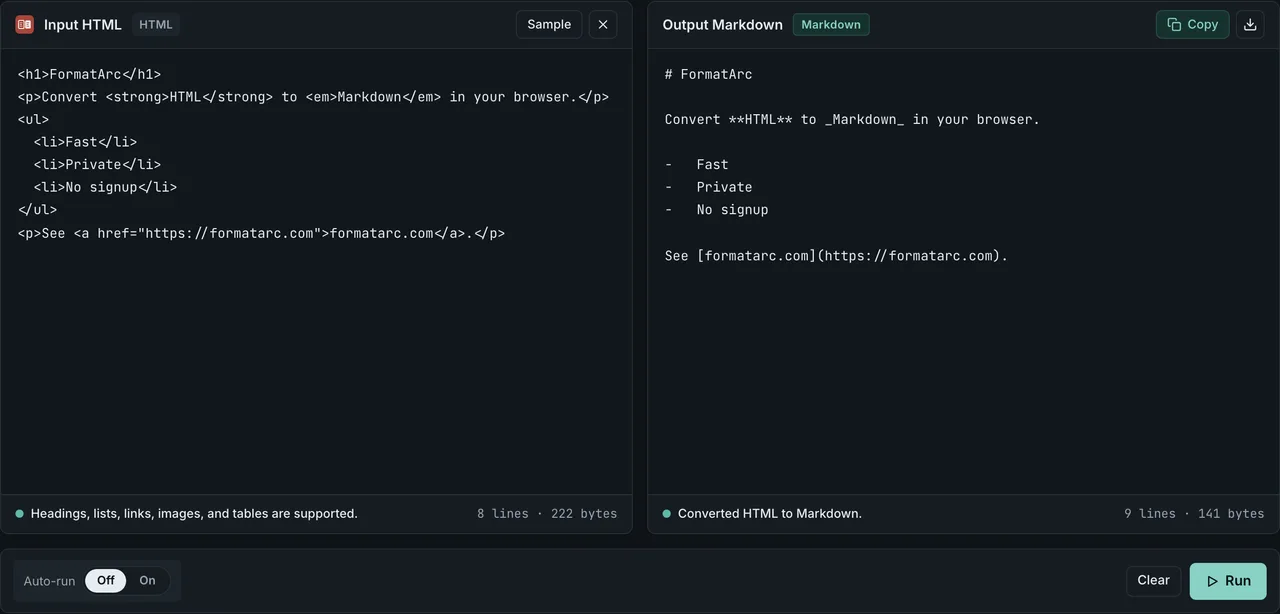
The conversion runs entirely in your browser — no request leaves the page. There is no account, no OAuth, and no workspace token to grant to a third-party service. That matters for the same reasons that make online converter safety a live issue: uploading a private document to a hosted converter is the moment you lose control of it.
What survives conversion: headings, lists, links, tables, code blocks, bold and italic emphasis. What gets stripped: inline style attributes, class names, wrapper <div>s, data-* attributes, and other presentational markup that Markdown has no syntax for. Notion callouts survive as inline HTML — the tag stays, but styling from Notion's app does not travel with it. If your goal is feeding the result into an LLM, see Markdown vs HTML for LLMs for why the token budget goes further with Markdown than with HTML. For general HTML paste cleanup patterns, see paste HTML as Markdown.
Path C — The Notion Markdown Content API (version 2026-03-11)
Notion added first-party Markdown content endpoints in 2026. The official developer documentationOpens in a new tab describes the surface, and requests must send the API version header 2026-03-11 to use it. Instead of traversing the block tree and translating each block, you make a single request:
GET /v1/pages/{id}/markdown— read a page as MarkdownPOST /v1/pageswith amarkdownbody — create a page from MarkdownPATCH /v1/pages/{id}/markdown— update page content with Markdown
Notion calls the format Enhanced Markdown. Standard headings, lists, links, and emphasis look normal. Blocks that have no CommonMark analog get XML-flavored tags: <callout>...</callout> for callouts, <details><summary>...</summary>...</details> for toggles, and <database> as a reference tag pointing at a database. If your downstream tool understands these tags, you keep the fidelity that Path A loses; if it does not, you strip or rewrite them in the same script that consumes the API. The endpoints work with public integrations as well as internal and personal tokens.
Two caveats worth knowing:
- The API returns pre-signed URLs for file blocks (images, PDFs). Those URLs expire — download the assets in the same job, do not archive the Markdown alone.
- Pages over roughly 20,000 blocks truncate; the response includes
unknown_block_idsyou can fetch separately. Notion's docs describe the follow-up pattern.
For a one-off page or a page you cannot share with a third party, the HTML → FormatArc route is often faster. The API earns its keep when you are building an automated pipeline (Notion → CMS, or Notion → RAG index) in a repo with a rotatable token.
Comparison: four ways to get Markdown out of Notion
| Approach | Best for | Callouts / toggles | UUIDs in output | Runs in browser |
|---|---|---|---|---|
| Native Markdown & CSV export | Whole-workspace migration you will clean in bulk | Callouts arrive as raw HTML; toggles may lose the wrapper | Yes (filenames + link targets) | Yes (ZIP is local) |
| Notion HTML export → HTML to Markdown | Confidential single/few pages | Callouts kept as inline HTML; toggles kept as <details> | No | Yes |
| notion-to-mdOpens in a new tab npm library | Custom pipelines with per-block control | Configurable per block | Configurable | Yes (Node/CLI) |
Notion Markdown Content API (version 2026-03-11) | Automated pipelines with an API token | <callout> / <details> Enhanced Markdown tags | No (no filesystem output) | No (server-side call) |
Frequently asked questions
Why does Notion put 32-character page IDs in exported filenames?
Every block and page in Notion has an internal ID. When the export writes each page to disk, it commonly appends that ID to the filename so two pages that share a title (say, "Meeting notes") do not collide inside the same folder. The trade-off is unreadable filenames and Windows path-length breakage. HTML export and the Markdown Content API sidestep the issue because they work on one HTML file or one API response respectively.
Are online Notion → Markdown converters safe with confidential pages?
Depends on whether the converter is browser-side or server-side. A browser-side tool (like FormatArc's HTML to Markdown) parses your paste in JavaScript on your own machine; nothing is uploaded. A server-side SaaS receives the file. For product plans, contracts, or unreleased documentation, the practical rule is the same as any other converter — see are online converters safe for the checks that catch the difference.
Should I use the API or Export as Markdown?
Use the API when you have a repeatable, automated job — pushing Notion pages into a static site build, keeping an RAG index in sync, or migrating hundreds of pages on a schedule. Use Export as Markdown for a one-off migration you will clean by hand. Use HTML export + FormatArc for single confidential pages where you want the output clean without touching a server.
Does the Notion Markdown Content API preserve callouts and toggles?
Yes, via Enhanced Markdown tags: <callout>...</callout> for callouts and <details><summary>...</summary>...</details> for toggles. Both are inline HTML that CommonMark allows, and GitHub renders <details> as a working collapsible. Callouts render as-is only in Notion; on other platforms you either style them yourself or rewrite them as blockquotes.
What happens to my Notion databases on export?
The native Markdown & CSV export writes each database as a CSV file at the top level of the ZIP, with each row's underlying page becoming a .md file in a folder. The database view (filters, sorts, grouping) is not preserved. If you want the database as a Markdown table, pipe the CSV through CSV to Markdown. If you want per-row pages plus a summary table, do both.
Wrapping up
Notion's Markdown export is not broken — it is lossy. Path A gets you the whole workspace at the cost of eight recurring quirks you fix in bulk. Path B lets you convert a single confidential page with HTML to Markdown entirely in your browser, with no account and no upload. The Markdown Content API (version 2026-03-11) fits between the two for automated pipelines. For general HTML → Markdown conversion patterns, see the HTML to Markdown guide; for feeding the result to an LLM, see Markdown vs HTML for LLMs.