Converting HTML to Markdown comes up more often than you might expect. You are migrating WordPress posts to Hugo or Astro. You exported pages from Notion and the HTML is full of wrapper divs. You want to clip a web page into your notes without dragging along tags and inline styles. All of these end at the same step: turning HTML into clean Markdown.
This guide covers the main use cases, a browser-based conversion workflow, CLI alternatives, and common pitfalls.
Quick answer
Paste your HTML into HTML to Markdown and press Run. The Markdown appears instantly. Nothing to install, and the conversion runs entirely in the browser — your data never leaves your machine.
The output follows two specifications: CommonMarkOpens in a new tab for the core syntax, and the GitHub Flavored Markdown specOpens in a new tab for tables, task lists, strikethrough, and autolinks.
When the conversion comes up
Migrating from WordPress or a CMS
WordPress exports articles as HTML. Moving them to a static site generator like Hugo, Astro, or Jekyll means converting each post to Markdown. For a handful of posts you could do it by hand, but a conversion tool preserves structure without the tedium. Export-specific gotchas and which tags need cleanup are covered in the detailed WordPress migration guide.
Cleaning up Notion exports
Notion supports HTML export, but the output is littered with Notion-specific class attributes and deeply nested div wrappers. Converting to Markdown strips the noise and leaves a readable text file you can drop into any Markdown-aware tool.
Clipping web pages
When you want to quote or save the content of a web page, copying raw HTML brings along tags and styles. Converting to Markdown keeps the structure — headings, lists, links — while discarding the presentation layer. This is also useful when feeding content to an LLM, since Markdown is more token-efficient than HTML.
Reusing HTML email content
Extracting the body of an HTML email into a document usually means stripping tags by hand. A converter preserves headings, lists, and links as Markdown while removing everything else. For what gets lost when you copy out of Gmail or Outlook, and how quoted replies and attachments behave, see Gmail & Outlook Email to Markdown.
Convert with FormatArc
HTML to Markdown takes pasted HTML and produces Markdown. There is nothing to install.
Step 1: Open the tool
Go to HTML to Markdown.
Step 2: Paste your HTML
Paste the HTML source into the left pane. The tool handles <table>, <ul>, <ol>, <a>, <img>, and the rest of the common tags.
Step 3: Hit Run
Press Run and the Markdown appears in the right pane.
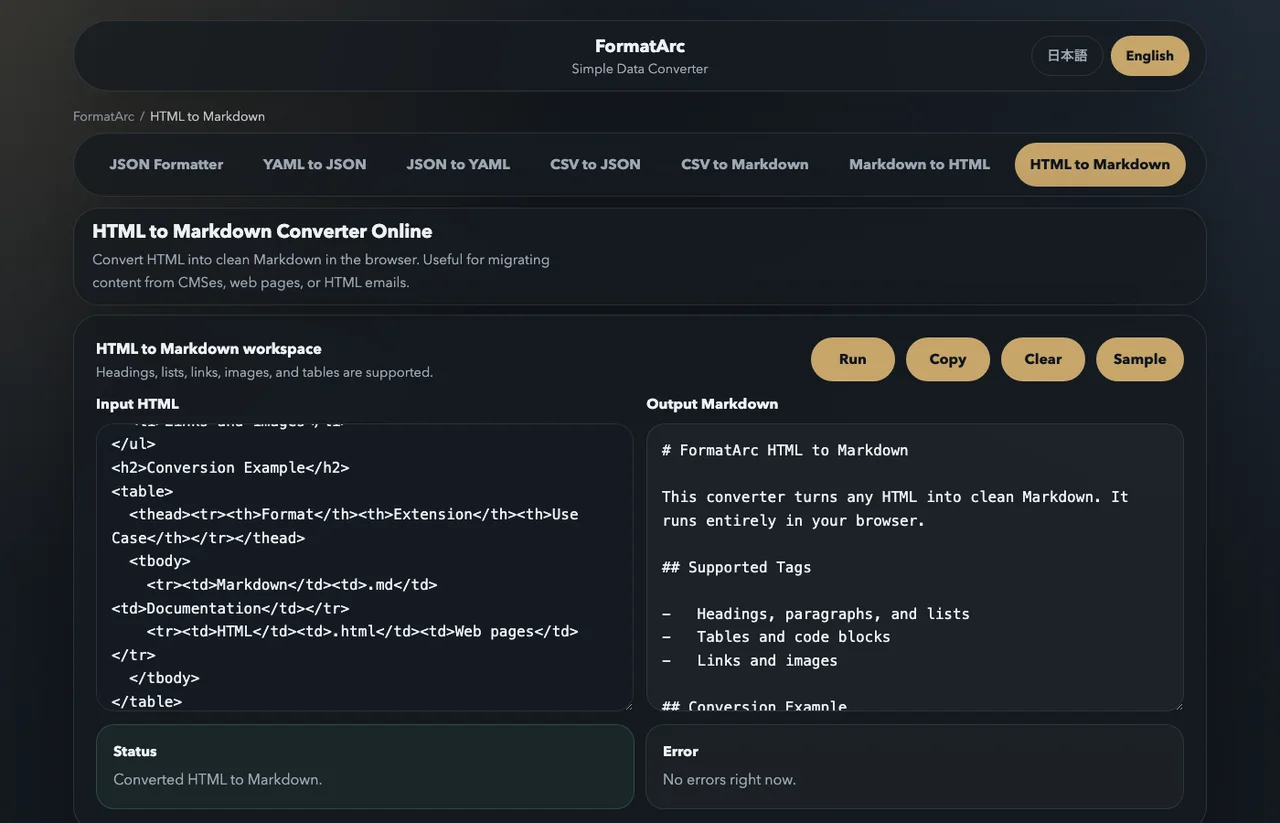
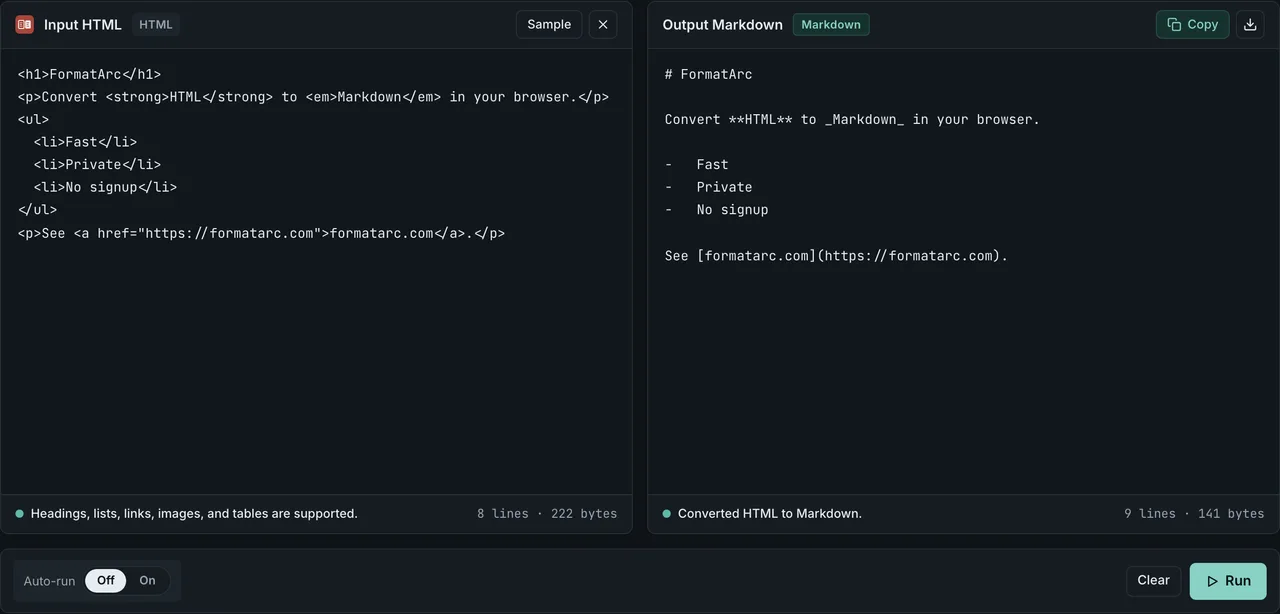
The conversion runs entirely in the browser. Internal documents and unpublished content stay on your machine.
HTML element to Markdown reference
Most common HTML elements map onto Markdown, but Markdown is a smaller language than HTML, so some attributes and structures have no equivalent and are dropped. The table below lists the element-level mapping to GitHub Flavored Markdown along with what is lost. Element names follow the WHATWG HTML Living StandardOpens in a new tab, now the authoritative HTML reference (the W3C's last dated snapshot, the superseded HTML 5.2 RecommendationOpens in a new tab, is mostly of historical interest); the Markdown side follows CommonMarkOpens in a new tab and the GitHub Flavored Markdown specOpens in a new tab.
| HTML element | GFM Markdown equivalent | Conversion notes / loss |
|---|---|---|
Headings <h1>–<h6> | # to ###### (ATX) | One # per heading level, so <h1> maps to # and <h6> to ######. CommonMark defines only six levels, matching HTML. |
Unordered list <ul> | -, *, or + markers | Item nesting is preserved through indentation. The choice of bullet character is converter-dependent. |
Ordered list <ol> | 1., 2., … markers | The start attribute (a custom first number) and type (a, i, etc.) have no Markdown equivalent and are dropped. |
Table <table> | GFM pipe table | Header row and column alignment (align) convert. colspan/rowspan, block-level content inside cells, and <caption> have no pipe-table equivalent. |
Link <a href> | [text](url) | href and link text are kept. Attributes such as target, rel, and title are dropped, except that title maps to the optional [text](url "title") form. |
Image <img src alt> |  | src and alt are kept. width, height, srcset, loading, and similar attributes have no Markdown syntax and are dropped. |
Code <pre> / <code> | Fenced/indented block; inline `code` | <pre><code> becomes a code block; a standalone <code> becomes inline code. The class="language-…" hint can be emitted as a fenced-block info string (e.g. ```js). |
Blockquote <blockquote> | > prefix | Each line is prefixed with > . Nested blockquotes use repeated >. The cite attribute has no Markdown equivalent and is dropped. |
Bold <strong> / <b> | **text** | Both <strong> (semantic) and <b> (presentational) collapse to the same ** syntax; the semantic distinction is not preserved. |
Italic <em> / <i> | *text* | Both <em> and <i> collapse to the same * syntax; the semantic distinction is not preserved. |
Anything with no row above — style, class, <div>/<span> wrappers, inline event handlers, and other presentational markup — is removed, leaving structural Markdown. GFM permits inline HTML, so a converter may keep an unsupported construct as a raw HTML fragment rather than dropping it.
CLI and library alternatives
Besides the browser tool, you can convert from the command line or inside a program. Pick a tool that matches the language stack you already use.
Pandoc (universal CLI)
pandoc -f html -t markdown -o output.md input.html
Pandoc is the most universal converter — it handles HTML, Word, EPUB, LaTeX, and many other formats. Use -t gfm to emit GitHub Flavored Markdown tables. Best for batch conversions and complex source documents. Requires a local install.
Turndown (JavaScript / Node.js)
import TurndownService from "turndown";

const turndown = new TurndownService();
const markdown = turndown.convert("<h1>Hello</h1><p>World</p>");
console.log(markdown);
The standard library for Node.js projects. Plugins (turndown-plugin-gfm) add table, strikethrough, and task-list support. Also runs in the browser if you need a self-hosted converter.
Python and Go alternatives
If your build pipeline runs in Python or Go rather than Node, two libraries dominate each ecosystem.
markdownify (Python)
pip install markdownify
from markdownify import markdownify

html = "<h1>Title</h1><p>Hello <strong>world</strong></p>"
print(markdownify(html, heading_style="ATX"))
markdownify wraps BeautifulSoup, so it tolerates messy HTML from real-world scraping. Options like heading_style="ATX", bullets="-*+", and strip=["script", "style"] give you fine-grained control over the output.
html2text (Python)
pip install html2text
import html2text
print(html2text.html2text("<h1>Title</h1><p>Hello world</p>"))
Distributed by Aaron Swartz originally, html2text is older but still actively maintained. It works as a CLI (html2text input.html) and is convenient for one-off conversions of saved web pages.
html-to-markdown (Go)
go install github.com/JohannesKaufmann/html-to-markdown/cli/html2markdown@latest
html2markdown < input.html > output.md
The Go community standard. Ships as both a library and a CLI binary, with a plugin system for tables, strikethrough, and custom rules. Useful when you need a single statically-linked binary for a Docker image or CI runner.
Choosing between them
| Tool | Install | Language | Best for |
|---|---|---|---|
| FormatArc | None (browser) | — | One-off conversions, private data |
| Pandoc | Homebrew/apt | CLI | Batch jobs, mixed source formats |
| Turndown | npm | JavaScript | Node.js services, browser apps |
| markdownify | pip | Python | Web scraping pipelines |
| html2text | pip | Python | Saved web page conversion |
| JohannesKaufmann | go install | Go | Statically-linked CLI in CI/Docker |
HTML Table to Markdown
HTML tables are where most converters trip up, so it is worth treating this as its own topic.
Markdown's pipe-table syntax — defined by the GitHub Flavored Markdown specOpens in a new tab — can represent the common case: a header row, body rows, and column alignment. But it cannot represent every HTML construct.
What converts cleanly
A standard <table> with <thead>, <tbody>, simple <td> cells, and align="left|center|right" on the headers will round-trip cleanly:
<table>
  <thead><tr><th>Name</th><th align="right">Price</th></tr></thead>
  <tbody>
    <tr><td>Apple</td><td align="right">120</td></tr>
    <tr><td>Banana</td><td align="right">80</td></tr>
  </tbody>
</table>
Becomes:
| Name   | Price |
|--------|------:|
| Apple  |   120 |
| Banana |    80 |
What does not convert
Three patterns have no direct Markdown equivalent:
colspan/rowspan— pipe tables are strictly rectangular. Merged cells get flattened or split, depending on the converter.- Nested elements inside cells — block-level content like
<ul>,<pre>, or another<table>inside a<td>cannot survive the conversion. Inline elements (<strong>,<em>,<a>,<code>) are fine. - Cell line breaks —
<br>inside a cell may or may not be preserved depending on the parser. Most tools either drop the break or emit a literal<br>tag (which GFM allows as inline HTML).
Workarounds
When the structure is too complex for pipe tables, you have two practical options:
- Convert the page to Markdown and keep the table as raw HTML inline. GFM allows inline HTML, so
<table>...</table>inside Markdown still renders on GitHub, Hashnode, and most static site generators. - Flatten the table into a list of records before converting. This is common when the table is really data, not layout — pipe through CSV to Markdown if you can express the data as rows and columns.
For details on writing pipe tables by hand — alignment, escaping pipes, multi-line cells — see the Markdown table syntax cheatsheet and the GFM table cheatsheet. For a focused walkthrough on table-only conversion — <br> handling, alignment preservation, and what happens to colspan / rowspan — see HTML table to Markdown.
For a full GFM walkthrough with the converter open in a new tab, see HTML to Markdown.
Common issues and fixes
Style and class attribute removal
style and class attributes have no Markdown equivalent, so they are stripped during conversion. If you need the styling information, keep a copy of the original HTML.
When the HTML came from pasting out of Word, Google Docs, or a web page, the noise is heavier — <o:p> markers, mso-* styles, and ghost spans; for that specific cleanup see paste HTML as Markdown and remove Word / Google Docs cruft.
For projects where styles matter (newsletters, branded exports), convert to Markdown for the structure, then re-apply CSS at the rendering stage via Markdown to HTML.
Image paths
<img src="..."> becomes , but relative paths in the original HTML may not resolve in the destination environment. During a migration, copy the image files separately and update the paths.
Run the conversion in HTML to Markdown first to confirm the alt text and link structure, then handle image relocation in a separate pass.
Whitespace, non-breaking spaces, and escaped characters
Converted output sometimes carries invisible leftovers. entities become regular spaces or Unicode non-breaking spaces depending on the converter, and runs of whitespace inside HTML collapse into single spaces. You may also see backslashes appear before characters like *, _, or #: converters add them so literal text is not misread as Markdown syntax — Turndown documents this behavior in its escaping rulesOpens in a new tab. If the escapes are unwanted, remove them after checking that the character is not meant to start a list, emphasis, or heading.
Frequently asked questions
Does this support GitHub Flavored Markdown tables?
Yes. HTML <table> elements are converted to GFM pipe tables (| col1 | col2 |), and the header row plus simple alignment hints are preserved when present. For details on writing pipe tables by hand — pipes, alignment, escaping cell content — see the Markdown table syntax cheatsheet.
Is the conversion done in the browser?
Yes. Both the HTML parsing and the Markdown emission run entirely in your browser using JavaScript. Internal HTML drafts and unpublished content stay on your machine — nothing is uploaded.
How is this different from Pandoc or Turndown?
Pandoc and Turndown are powerful conversion engines, but Pandoc requires a local install and Turndown a Node.js project. The browser tool is faster for one-off conversions: paste, click Run, copy the result. For batch jobs and build pipelines, Pandoc is still the better fit.
Are images and relative paths preserved?
<img src="..."> is converted to , keeping both the source URL and the alt text. Relative paths in the original HTML are kept as-is, so during a migration you usually need to copy the image files separately and update the paths in the resulting Markdown.
Why are class and style attributes stripped?
Markdown has no equivalent for inline CSS or class attributes, so the converter intentionally removes them. The result is clean, portable Markdown that any renderer can read. If you need the original styling, keep a copy of the source HTML — for the reverse direction, see the Markdown to HTML guide.
Can it convert PDFs too?
This converter takes HTML as input, so it cannot read PDFs directly. To turn a PDF into Markdown, use PDF to Markdown instead. Note that when a PDF carries no table structure, the columns can come out misaligned — see why PDF tables break in Markdown for when that happens and what to do about it.
Wrapping up
HTML-to-Markdown conversion is useful for CMS migration, web page clipping, export cleanup, and more. For quick one-off conversions, pasting into HTML to Markdown is the fastest path.
For the reverse direction — Markdown to HTML — see the Markdown to HTML guide. To turn CSV data into a Markdown table, check the CSV to Markdown guide.