You copied a paragraph out of Microsoft Word, a Google Doc, or a web page, pasted it into your editor, and got a wall of <span style="...">, class="c3", and <o:p> tags instead of clean text. The content is in there somewhere, but it is buried under presentational markup that no Markdown renderer needs. This guide shows how to turn that dirty HTML into clean Markdown in one step.
Quick answer
Paste the messy HTML into HTML to Markdown and press Run. Spans, inline style attributes, class names, <font> tags, and Word-specific markup have no Markdown equivalent, so they are dropped — what comes back is the structure (headings, lists, links, tables) as plain Markdown. The conversion runs entirely in your browser, so even a confidential internal document never leaves your machine.
How this differs from an HTML cleaner
Tools like HTML Cleaner or "remove inline styles" utilities give you back clean HTML — they strip the cruft but leave you with <p> and <ul> tags. That is one step short if your destination is a README, a GitHub issue, a wiki, or an LLM prompt, all of which want Markdown.
A converter does both at once: it removes the presentational noise and emits Markdown syntax (#, -, [text](url)). You do not have to clean the HTML first and convert it second.
Why pasted HTML is dirty in the first place
The mess depends on where you copied from. Each source adds its own kind of noise.
Microsoft Word
Word wraps copied text in Office-specific markup: mso-* properties inside style attributes, <o:p> paragraph markers, conditional comments (<!--[if gte mso 9]>), and <font face="..."> tags. None of this carries meaning a reader needs.
Note that the exact markup depends on the copy path. Pasting directly from the Word desktop app, going through Outlook, or copying a Word document opened in a browser can each produce different tag soup — sometimes lighter, sometimes heavier.
Google Docs
Google Docs leans on inline CSS rather than semantic tags. Bold text is often a <span style="font-weight:700"> rather than <strong>, and the document is full of generated class names and empty "ghost" spans that wrap individual runs of text. The class names are auto-generated, so you should not rely on any specific name being present.
Web page copy
Copying a region of a live web page brings along whatever the site used to lay it out: wrapper <div>s, utility class attributes, inline style, and sometimes navigation links, share buttons, or ad slots that sat next to the text you wanted. Stripping to Markdown discards the layout layer and keeps the readable structure.
ChatGPT and rich-text editors
When you copy a formatted answer out of a chat UI or a WYSIWYG editor, you often get HTML with editor-specific spans and data-* attributes. Pasting that into another tool carries the noise forward; converting to Markdown leaves just the content.
Copying from a PDF viewer
Text you select and copy out of a PDF viewer never becomes HTML in the first place. There is no span, no style, no class — just plain text, so the "strip the decorative noise" step this article covers does not even apply.
PDF stores characters as coordinates on a page, with no signal distinguishing a heading from body text, so pasted text often breaks mid-sentence or interleaves columns from a two-column layout. Tables suffer the most, coming out as column-shifted strings of text — Why PDF Tables Break When You Convert to Markdown measures this across seven documents. Running the PDF file itself through PDF to Markdown is more reliable than fixing the pasted text by hand.
What gets removed, and what survives
The table below shows the common dirty markup and what happens to it during conversion.
| Source markup | Example | Result in Markdown |
|---|---|---|
| Inline style | <span style="color:#333">text</span> | text (style dropped) |
| Class names | <p class="c3 c7">text</p> | text (class dropped) |
| Word Office markup | <o:p></o:p>, mso-* styles | removed entirely |
| Font tags | <font face="Calibri">text</font> | text |
| Wrapper containers | <div><span>text</span></div> | text |
| Empty / ghost spans | <span></span> | removed |
| Data attributes | <p data-id="9">text</p> | text |
| Heading | <h2>Title</h2> | ## Title |
| Bold (semantic or styled) | <strong>x</strong> or <span style="font-weight:700">x</span> | **x** |
| Link | <a href="/p" class="btn">go</a> | [go](/p) |
| List | <ul><li>a</li></ul> | - a |
Two things to keep in mind:
- Markdown is a smaller language than HTML. Anything with a structural equivalent (headings, lists, links, emphasis, tables, images) is preserved; anything purely presentational is dropped.
- "Convert to Markdown" does not guarantee "zero HTML." The Markdown spec permits inline HTML, so a converter may keep a tag it cannot map — for example a complex table or an unsupported element — as a raw HTML fragment rather than discarding your content. The result is clean enough to use, but it is not a promise that every
<span>disappears in every case.
Convert your dirty HTML with FormatArc
HTML to Markdown takes pasted HTML and produces Markdown. There is nothing to install and nothing is uploaded.
- Open HTML to Markdown.
- Paste the messy HTML into the left pane — Word cruft, ghost spans, and all.
- Press Run. The clean Markdown appears on the right.
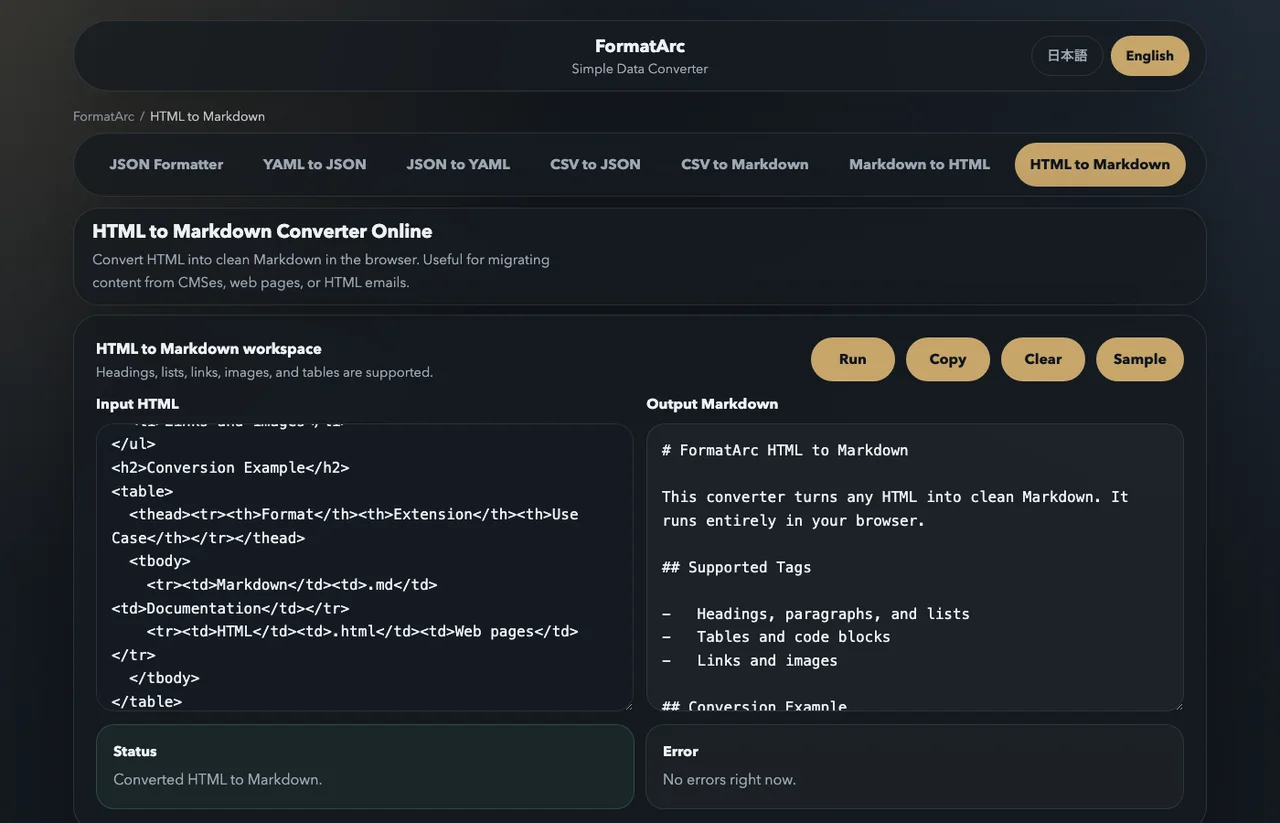
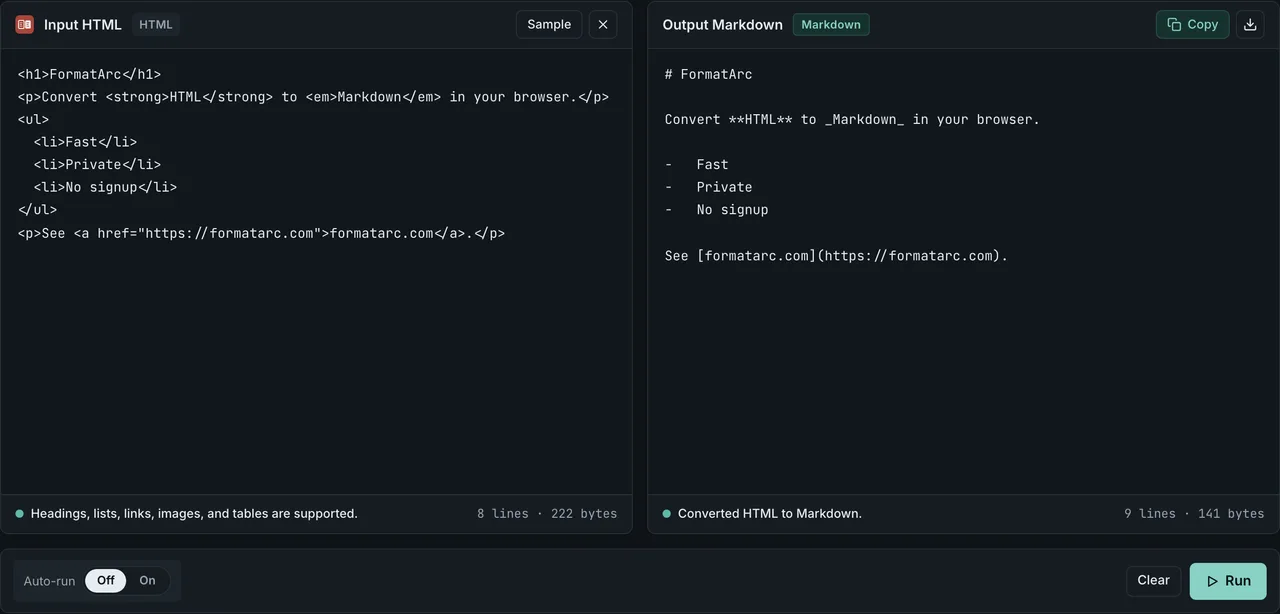
Because the HTML parsing and Markdown emission both run in your browser, a confidential contract pasted from Word or an unpublished draft from a CMS stays on your machine. Nothing is sent to FormatArc or any third party. (For more on why that matters, see are online converters safe.)
When the conversion does not come out clean
A few patterns need a second pass.
Word tables and borders
Pasted Word or spreadsheet tables often carry colspan, rowspan, or border styling that has no pipe-table equivalent. Merged cells get flattened, and the table may come through as inline HTML. For table-only conversions, HTML table to Markdown covers the edge cases.
Nested lists and line breaks
Deeply nested lists, <br> inside list items, and mixed ordered/unordered nesting can come out with extra blank lines or flattened indentation. Check the output and fix indentation by hand if a renderer trips on it.
Inline HTML left in the output
If a fragment of HTML survives (a <sub>, a complex table, a <details> block), that is by design — the converter kept your content rather than dropping it. You can leave it, since Markdown renders inline HTML on GitHub and most static site generators, or delete it manually. To preview how the mixed Markdown renders, paste it into Markdown to HTML.
Navigation and boilerplate from web copy
If you copied a whole page region and got menus or share buttons mixed in, select a tighter range before copying, or delete the stray list of links from the Markdown output. There is no automatic way to know which links were navigation and which were content.
If you are migrating a whole WordPress site rather than pasting one page at a time, WordPress to Markdown migration covers the export step and the bulk-conversion routes.
Frequently asked questions
Why are span and style attributes removed?
Markdown has no syntax for inline CSS, class names, or wrapper spans, so a converter drops them and keeps the structural content. That is the point — you get portable Markdown any renderer can read, instead of HTML carrying editor-specific noise.
Does it remove Microsoft Word's mso- markup?
Yes. mso-* style properties, <o:p> markers, <font> tags, and conditional comments have no Markdown equivalent and are removed. The exact markup Word emits depends on how you copied, but none of it survives as Markdown.
Can I keep the class names or styling?
No — Markdown cannot represent them, so they are intentionally stripped. If you need the styling, keep a copy of the original HTML, convert to Markdown for the structure, then re-apply CSS at render time with Markdown to HTML.
Is it safe to paste a confidential document?
Yes. The conversion runs entirely in your browser using JavaScript; the HTML you paste is never uploaded to FormatArc or any third-party server. See are online converters safe for how to verify a browser-side tool.
Why is there still some HTML in my Markdown?
Markdown allows inline HTML, so a converter keeps any construct it cannot map (a complex table, an unsupported tag) as a raw fragment rather than deleting your content. You can leave it or remove it by hand.
Wrapping up
Dirty HTML from Word, Google Docs, ChatGPT, or a web page becomes clean Markdown in one paste with HTML to Markdown — spans, inline styles, classes, and Office markup are dropped, and the structure stays. For a broader walkthrough of HTML-to-Markdown conversion, including CLI options, see the HTML to Markdown guide. If your goal is feeding clean content to an LLM, see Markdown vs HTML for LLMs.