You drafted a post in Markdown but the blog platform only accepts HTML. You want to drop a Markdown-formatted body into an email template. You are pulling Markdown content into a CMS WYSIWYG editor. All of these scenarios end at the same step: converting Markdown into HTML.
Pandoc or a build script can do this locally, but typing a command for every quick paste gets tedious, and many people would rather not paste internal drafts into a third-party online tool. This guide covers the relationship between Markdown and HTML, when the conversion shows up in practice, and how to do it directly in the browser.
Quick answer
Paste your Markdown into Markdown to HTML and press Run. The HTML appears instantly. Nothing to install, and the conversion runs entirely in the browser — your data never leaves your machine.
The output follows two specifications: CommonMarkOpens in a new tab for the core syntax, and the GitHub Flavored Markdown specOpens in a new tab for tables, task lists, strikethrough, and autolinks. For how the two differ, see CommonMark vs GFM.
How Markdown and HTML relate
Markdown is a lightweight markup language that prioritizes human readability while still expressing structure. HTML is the format browsers actually render, with tags wrapping each piece of content. The two map cleanly onto each other. This Markdown:
# Heading

This is a paragraph with **bold** and _italic_.

- Item 1
- Item 2
becomes this HTML:
<h1>Heading</h1>
<p>This is a paragraph with <strong>bold</strong> and <em>italic</em>.</p>
<ul>
  <li>Item 1</li>
  <li>Item 2</li>
</ul>
Markdown was designed with HTML output in mind, and the syntax-to-tag mapping is largely one-to-one.
When the conversion comes up
Blog and CMS platforms without Markdown support
WordPress's classic editor, several legacy CMSes, and many in-house publishing tools still expect HTML directly. Drafting in Markdown and converting on the way in is faster than fighting a WYSIWYG editor for layout consistency.
HTML email
Newsletter platforms accept HTML bodies. Writing the source in Markdown keeps the draft readable while still letting you ship final HTML into a template.
Static sites and docs pipelines
Some static site generators or documentation tools do not parse Markdown directly and expect pre-rendered HTML as part of the build step.
Convert with FormatArc
Markdown to HTML takes pasted Markdown and produces HTML. There is nothing to install.
Step 1: Open the tool
Go to Markdown to HTML.
Step 2: Paste your Markdown
Paste the Markdown source into the left pane. Headings, lists, links, images, fenced code blocks, and the rest of the common syntax are supported.
Step 3: Hit Run
Press Run and the HTML appears in the right pane.
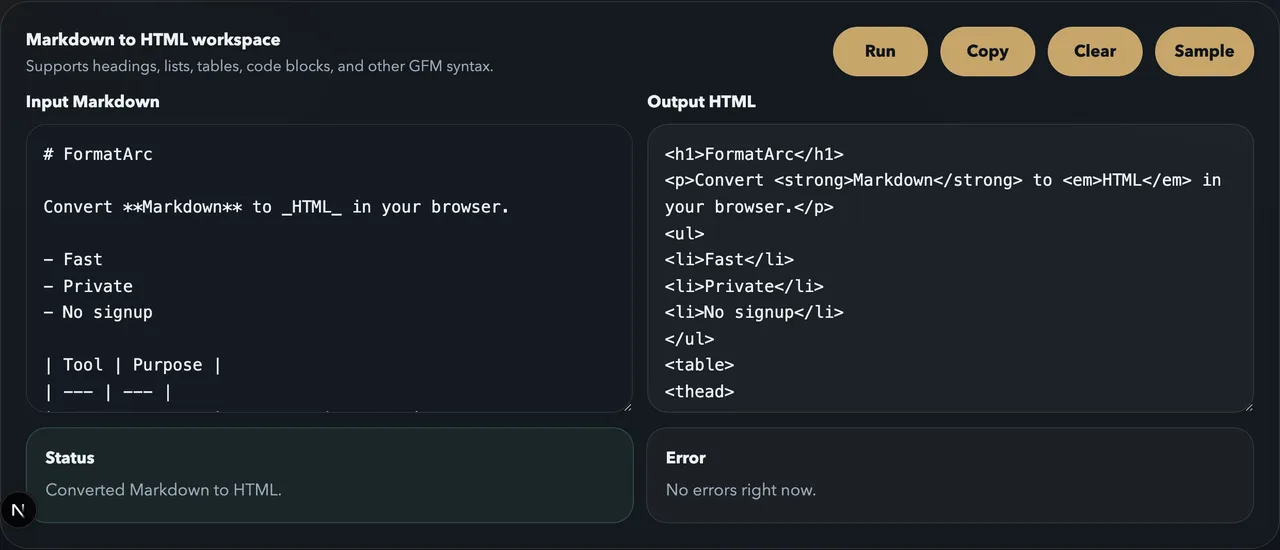
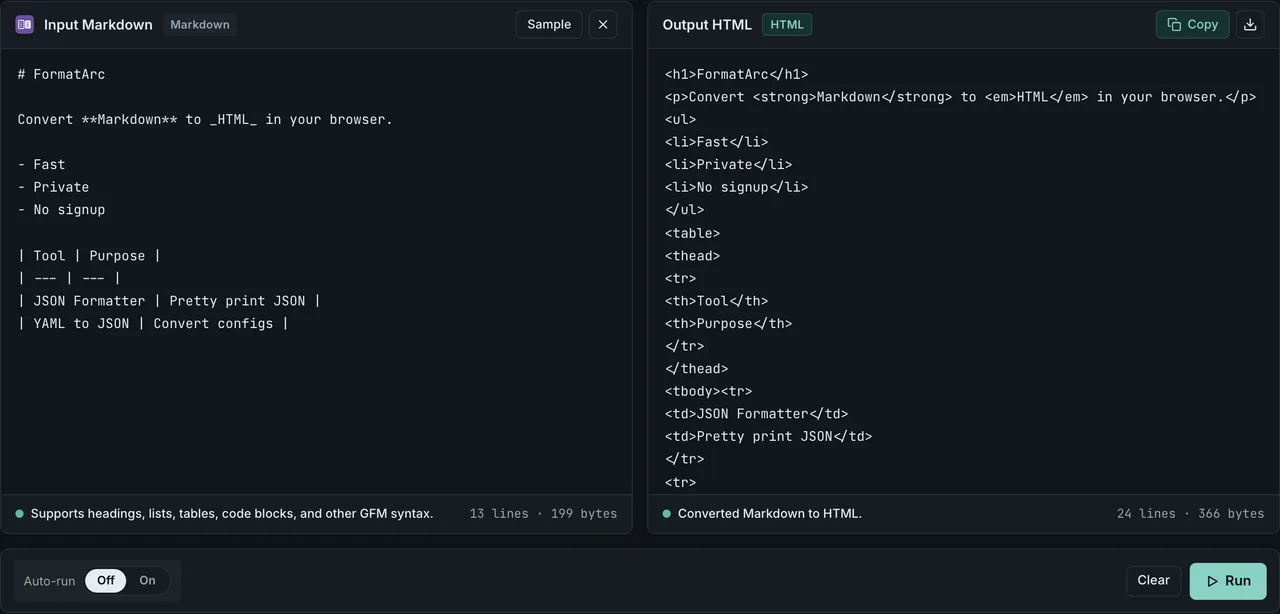
GitHub Flavored Markdown is enabled, so pipe tables (| col1 | col2 |) and task list checkboxes (- [x]) are converted to the corresponding HTML elements.
The conversion runs entirely in the browser. Unpublished drafts and internal documents stay on your machine.
Supported syntax
The main GFM features are covered:
- Headings (
#through######) - Paragraphs and line breaks
- Emphasis (
**bold**,_italic_,~~strikethrough~~) - Ordered and unordered lists
- Task lists (
- [ ],- [x]) - Links and images
- Inline code and fenced code blocks
- Tables
- Blockquotes
- Horizontal rules
Math notation (KaTeX, MathJax) is not supported.
For a deeper look at how Markdown tables are written — pipes, alignment, escaping cells, multi-line content — see the Markdown table syntax cheatsheet.
Markdown to HTML in code: when you need a library
A browser tool is great for one-off conversions, but if you are building a pipeline, a static site, or embedding conversion inside an app, a JavaScript library or CLI is the right fit. Here are the options most developers reach for.
marked.js (browser and Node)
A small, fast Markdown parser that runs in both the browser and Node. Install with npm install marked and convert in one line:
import { marked } from 'marked';

const html = marked.parse('# Hello\n\nThis is **bold**.');
GFM is enabled by default, so task lists, pipe tables, and fenced code blocks all follow the spec without extra setup.
No build step? Load it from a CDN and convert directly in the page — pair it with a sanitizer such as DOMPurify whenever the input is not your own writing:
<script type="module">
  import { marked } from 'https://cdn.jsdelivr.net/npm/marked/lib/marked.esm.js';
  document.body.innerHTML = marked.parse('# Hello from the browser');
</script>
markdown-it (extensible parser)
Another popular Markdown-to-HTML parser, built around a plugin system. Reach for it when you need footnotes, container blocks, custom containers, or any non-standard syntax:
import MarkdownIt from 'markdown-it';

const md = new MarkdownIt({ html: true, linkify: true });
const html = md.render('# Hello\n\nThis is **bold**.');
For tables and task lists, install the GFM-equivalent plugins (markdown-it-task-lists, etc.) since they are not enabled by default.
remark (unified pipeline)
marked and markdown-it hand you an HTML string in one step. remarkOpens in a new tab takes a different route: it parses Markdown into a syntax tree that plugins transform before anything is serialized to HTML. Conversion becomes a pipeline — remark-gfm for tables and task lists, remark-rehype to switch to the HTML tree, then rehype-sanitize or any other transform you need, ending in rehype-stringify:
import { remark } from 'remark';
import remarkGfm from 'remark-gfm';
import remarkRehype from 'remark-rehype';
import rehypeSanitize from 'rehype-sanitize';
import rehypeStringify from 'rehype-stringify';

const html = await remark()
  .use(remarkGfm)
  .use(remarkRehype)
  .use(rehypeSanitize)
  .use(rehypeStringify)
  .process('# Hello\n\nThis is **bold**.');
That is more moving parts than a one-line marked.parse(), which is exactly the trade-off: pick remark when conversion is one stage in a larger transform — sanitizing, heading anchors, a generated table of contents — rather than the whole job. It is also how FormatArc itself splits the work: the Markdown to HTML tool converts pasted text with marked, while the blog you are reading is rendered through a remark + rehype pipeline (GFM, sanitization, heading slugs for the table of contents).
Pandoc (CLI)
The universal document converter. Best fit for build pipelines, batch jobs, or when you need to convert between formats outside Markdown ↔ HTML:
pandoc -f markdown -t html input.md -o output.html
Pandoc supports CommonMark, GFM, MultiMarkdown, and more via flags. Slower than JS libraries for a single conversion, but unmatched for format coverage and PDF / DOCX output.
By default Pandoc emits an HTML fragment. These flags from the Pandoc manualOpens in a new tab cover most HTML conversion needs:
| Flag | What it does |
|---|---|
-f gfm | Parse the input as GitHub Flavored Markdown instead of Pandoc's extended Markdown |
--standalone | Emit a complete HTML document with <html> and <head> instead of a fragment |
--toc | Generate a table of contents from the headings (only takes effect with --standalone) |
--template FILE | Render the output into your own HTML template |
--embed-resources | Inline images, CSS, and scripts to produce one self-contained file |
--highlight-style STYLE | Pick a syntax highlighting theme for code blocks (pygments, kate, ...) |
Comparison
| Tool | Runs in browser | GFM tables built-in | Install required | Best for |
|---|---|---|---|---|
| FormatArc (this tool) | Yes | Yes | No | One-off pasted conversion |
| marked.js | Yes | Yes | Yes (npm) | App-embedded conversion |
| markdown-it | Yes | Via plugin | Yes (npm) | Custom syntax extensions |
| remark | Yes | Via plugin (remark-gfm) | Yes (npm) | Multi-stage pipelines (sanitize, TOC, custom transforms) |
| Showdown | Yes | Via option (tables: true) | Yes (npm) | Long-standing projects; also converts HTML back to Markdown |
| Pandoc | No | Yes | Yes (binary) | Build pipelines, multi-format batches |
If you only need to paste Markdown and copy HTML, the browser tool above is enough. For automated builds, Pandoc. For app integration or shipping a parser in a frontend bundle, marked.js or markdown-it.
Things to watch when using the output
Sanitize untrusted input separately
Markdown allows raw HTML, which means any <script> tags in the source pass straight through to the output. If you are converting your own writing this is fine. If you are converting input from users or any untrusted source, run the result through DOMPurify or a similar sanitizer before rendering it.
No styling included
The output is structural HTML only. CSS is not added. The expectation is that wherever you paste it — a blog, a CMS, an email template — provides the visual styles.
Syntax highlighting in code blocks
Specifying a language with ```js adds class="language-js" to the rendered <code> element, but actual syntax highlighting requires loading something like Prism.js or highlight.js on the page that renders it.
Frequently asked questions
Does this support GitHub Flavored Markdown (tables, task lists, fenced code)?
Yes. The converter follows the GitHub Flavored Markdown spec, so pipe tables (| col1 | col2 |), task list checkboxes (- [x]), strikethrough (~~text~~), and fenced code blocks with optional language hints are all converted to the corresponding HTML elements.
Is the conversion done in the browser?
Yes. Both the parsing and HTML generation run entirely in your browser using JavaScript. Nothing is uploaded to a server, so internal drafts and unpublished documents stay on your machine.
Should I sanitize the HTML output before publishing?
If the source is your own writing, the output is safe to use directly. If the Markdown comes from an untrusted source such as form input or third-party content, pass the result through a sanitizer like DOMPurify before rendering it. Raw HTML embedded in Markdown — including <script> tags — passes through to the output as-is.
How is this different from Pandoc?
Pandoc is a powerful command-line converter that handles many formats and produces highly customizable output, but it requires installation and a terminal. This browser tool is faster for one-off conversions: paste, click Run, copy the result. For build pipelines and batch jobs, Pandoc is still the better fit.
Can I convert HTML back to Markdown?
Yes. For the reverse direction, use the HTML to Markdown converter, which strips HTML tags down to clean Markdown source. The companion article is the HTML to Markdown guide.
If your Markdown files carry YAML frontmatter, see Markdown frontmatter YAML to JSON for the SSG compatibility matrix and the five types that break during conversion.
Wrapping up
Converting Markdown to HTML is something every Markdown user runs into eventually. For one-off conversions, a browser tool like Markdown to HTML is faster than installing and remembering a CLI.
For the reverse direction, see HTML to Markdown. To turn CSV into a Markdown table, see the CSV to Markdown guide. If you want the same conversion from your browser toolbar, check the FormatArc Chrome Extension 2026 guide.