You decide to move your WordPress blog to Hugo, 11ty, or Obsidian, click Tools and then Export — and what you get is an XML file, not Markdown. This is where most migrations stall. There is no single migration path: the fastest route depends on how many posts you have and what tooling you can run. This guide compares three routes, walks through each one, and covers the cleanup steps that every route leaves behind.
Which route should you take?
The decision comes first.
- Dozens to hundreds of posts, and you can run Node.js locally — Route A (wordpress-export-to-markdown)
- You want everything to happen server-side and you have admin rights to install plugins — Route B (exporter plugins)
- Only a handful of posts, no Node.js, no plugin rights, or content you cannot paste into an uploading service — Route C (in-browser conversion, free, no signup, nothing uploaded)
Route C is less a "migration" and more a precise extraction tool, but for rescuing a few posts from an internal WordPress or moving one draft ahead of the rest, it is the shortest path.
Why the export XML is not Markdown yet
When you run Tools and then Export in the WordPress admin, you download a WordPress eXtended RSS (WXR) fileOpens in a new tab — an XML format that bundles posts, pages, categories, tags, and comments. Your post bodies sit inside that XML as embedded HTML. In other words, the export is "HTML inside an XML shell", and reaching Markdown takes two conversions.
On top of that, posts written in the block editor (Gutenberg) carry block delimiters serialized as HTML comments. As the official block editor architecture documentationOpens in a new tab shows, a single paragraph is stored like this:
<!-- wp:paragraph -->
<p>Welcome to the world of blocks.</p>
<!-- /wp:paragraph -->
Shortcodes such as [gallery] also remain embedded in the body. How you deal with these three layers — the XML shell, the block comments, and the shortcodes — is what really separates the routes.
Before you migrate — what survives and what does not
Every route turns the post body (headings, paragraphs, lists, links, tables, code blocks) into Markdown. The differences are in the metadata.
- Publish dates, slugs, categories, and tags live in the WXR file. Route A writes them into frontmatter; Route C only sees the body HTML you copied, so you add frontmatter yourself
- Reader comments do not become Markdown on any route. If you want them after the move, plan a separate switch to a static-site comment service
- Custom fields are tool-dependent. If you rely on specific fields, inventory them before you start
Route A — bulk conversion with wordpress-export-to-markdown
The de facto standard is wordpress-export-to-markdownOpens in a new tab. It takes the WXR file as input, writes each post as a Markdown file with frontmatter, and downloads the images referenced in your posts while rewriting the references (the feature list is in the repository README).
- In the admin, open Tools, then Export, choose "All content", and download the XML.
- On a machine with Node.js, run:
npx wordpress-export-to-markdown
An interactive wizard asks where the export file is, where output should go, how to organize folders (--post-folders / --date-folders), whether to prefix file names with dates (--prefix-date), how to save images (--save-images), and which frontmatter fields to include (--frontmatter-fields). The more posts you have, the more this batch processing pays off.
Route B — export with a plugin
If you would rather keep everything server-side, exporter plugins such as Static Site Exporter (formerly Jekyll Exporter)Opens in a new tab package your posts and pages as Markdown files with YAML frontmatter in a ZIP, ready for Jekyll or Hugo.
Two caveats. Installing a plugin requires admin rights, and — as the plugin page itself notes — large sites tend to time out when exported through the web interface, so command-line execution is recommended there. Shared hosting may also hit PHP memory limits.
Route C — convert in the browser, nothing installed
For a handful of posts, in-browser conversion with zero setup is the shortest route. There are two ways to grab the input:
- Open the post in the block editor, switch to the "Code editor" view from the options menu, and copy the body HTML. This HTML contains the block comments such as
<!-- wp:paragraph --> - Open the published page in a browser and copy the article HTML via the developer tools. This is rendered HTML, so there are no block comments — but theme wrapper elements come along instead
Paste what you copied into HTML to Markdown and run it.
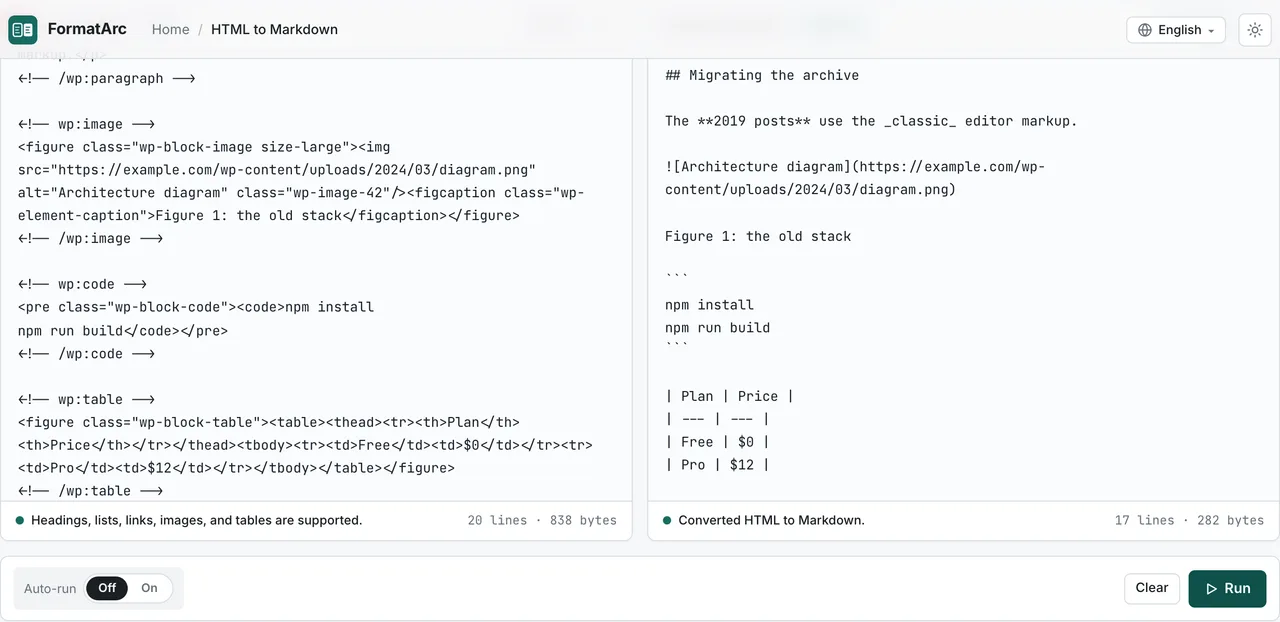
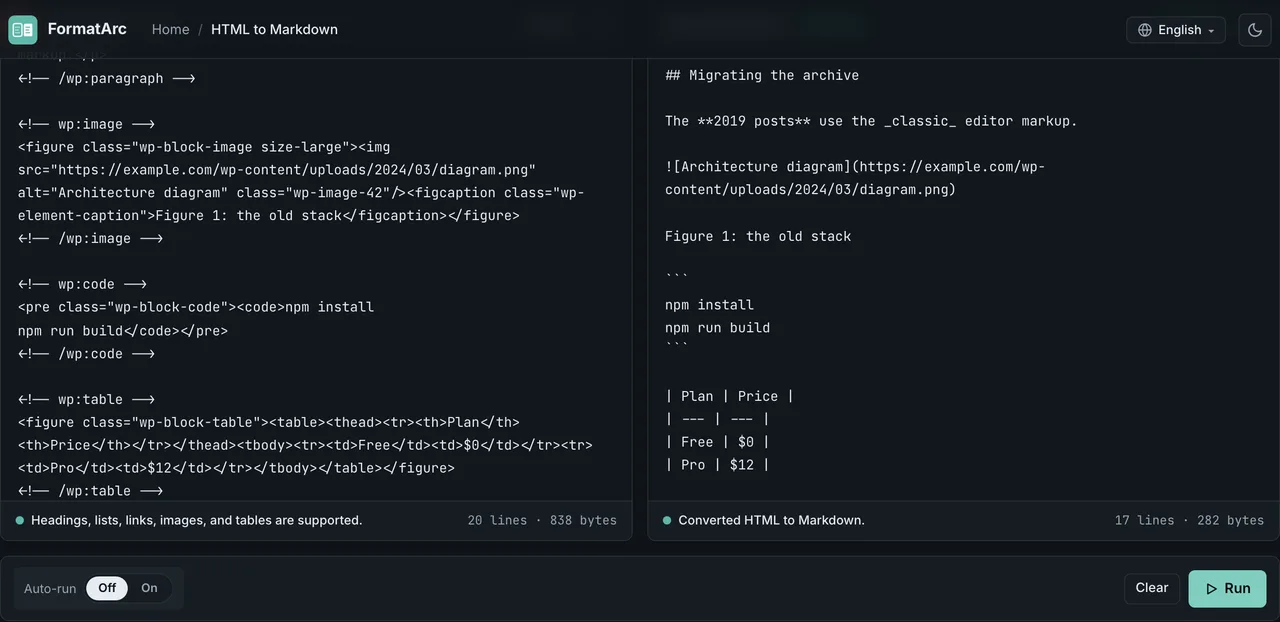
For example, pasting this HTML copied from the code editor view:
<!-- wp:heading -->
<h2 class="wp-block-heading">Migrating the archive</h2>
<!-- /wp:heading -->
<!-- wp:image -->
<figure class="wp-block-image size-large"><img src="https://example.com/wp-content/uploads/2024/03/diagram.png" alt="Architecture diagram" class="wp-image-42"/><figcaption class="wp-element-caption">Figure 1: the old stack</figcaption></figure>
<!-- /wp:image -->
produces this output:
## Migrating the archive

Figure 1: the old stack
The block comments, the wp-block-* classes, and inline styles are gone; headings and images become Markdown syntax. The figcaption text survives as a plain line under the image. Code in <pre class="wp-block-code"> becomes a fenced code block, and tables become pipe tables. Shortcodes are not HTML, so they pass through unconverted — they remain as escaped plain text like \[gallery ids="12,13,14"\] (see the cleanup section below).
The conversion runs entirely in your browser's JavaScript; nothing you paste is transmitted anywhere. That difference matters when the posts come from an internal WordPress or are unpublished drafts — the opposite of upload-based converter SaaS. We cover how to judge that risk in are online converters safe. For the general conversion workflow see the HTML to Markdown guide, for cleaning up pasted HTML from Word or the web see paste HTML as Markdown, and for applying the same paste-based conversion to HTML emails see converting HTML email to Markdown — this article stays focused on the WordPress-specific parts.
Post-migration cleanup checklist
Whichever route you take, these four items are left for you at the end.
- Shortcode cleanup.
[gallery],[caption], and plugin-specific shortcodes do not convert to Markdown. Their shapes vary (attributes, enclosing forms), so searching your files for[and deciding case by case is safer than a blanket replace - Image relocation. On Route C, image URLs still point at
wp-content/uploads. Download the images into your new setup and rewrite the URLs.srcsetandloading="lazy"attributes are dropped in conversion; re-add equivalents in the target platform if you need them - Internal links. Rewrite links that point at the old domain or old permalink structures (such as the
?p=123form) to match the new site's URL scheme - Frontmatter. Add title, date, and tags as YAML at the top of each file. For the differences between SSG formats, see Markdown frontmatter in YAML and JSON
Comparison — choosing between the three routes
| Route | Best for | Requirements | Metadata | Images |
|---|---|---|---|---|
| A: wordpress-export-to-markdownOpens in a new tab | Bulk migration of dozens to hundreds of posts | Node.js + WXR export | Written to frontmatter automatically | Downloaded, references rewritten |
| B: exporter plugins | Keeping the job server-side | Admin rights (plugin install) | Written to frontmatter automatically | Plugin-dependent |
| C: HTML to Markdown | Spot migration of a few posts | A browser (free, no signup) | Added manually | URLs preserved, manual relocation |
Frequently asked questions
Can I convert WordPress posts to Markdown without Node.js?
Yes. If you can install plugins, use Route B; if not, use Route C. Switch the post to the code editor view, copy the HTML, and paste it into HTML to Markdown — no environment setup needed.
Do Gutenberg block comments survive the conversion?
In FormatArc's conversion, HTML comments such as <!-- wp:paragraph --> do not appear in the output. Note that these comments only exist in HTML copied from the code editor view; HTML copied from a published page never contained them in the first place.
Can images be migrated along with the posts?
Route A downloads the images referenced in your posts and rewrites the references (per the READMEOpens in a new tab). Route C converts markup only — image URLs keep pointing at the original site. For a few posts, saving images manually and rewriting the URLs is practical.
Is it safe to paste unpublished drafts or internal WordPress content into an external tool?
With tools that send data to a server, the content leaves your hands the moment you paste it. FormatArc processes everything inside the browser, so no transmission happens at all. The criteria for judging this are covered in are online converters safe.
Do posts written in the classic editor work with the same steps?
Yes. Classic editor bodies are plain HTML without block comments, which makes conversion simpler if anything. Routes A, B, and C all handle classic editor posts.
Summary
WordPress to Markdown migration is decided by scale and environment. For hundreds of posts, use wordpress-export-to-markdown; to stay server-side, use an exporter plugin; for a few posts with zero setup — or content that must not be uploaded anywhere — the in-browser HTML to Markdown is the shortest path. Whichever route you choose, treat shortcode cleanup, image relocation, internal link rewrites, and frontmatter as part of the migration, not an afterthought. If you are doing the same exercise with Notion content, Notion export to Markdown applies the same thinking.