You want to keep a newsletter in your notes, quote a vendor announcement in a doc, or hand an email thread to an LLM as context. Whatever the reason, the moment you open the source of an HTML email you hit markup that is messy in ways ordinary web pages are not: layout tables nested several levels deep, a style attribute on every element, and invisible tracking images mixed into the body. This guide shows, with measured results, how the same email converts completely differently depending on where you copy from — then walks through extracting the HTML from Gmail, Outlook, and .eml files, and the cleanup that follows.
Decide what you need to keep — that picks the route
Start with the deliverable, not the tool. What you want to keep determines the shortest path.
- Body text only, from a handful of open emails — in-browser conversion is the shortest route. Copy the content block's HTML and paste it into HTML to Markdown. Free, no signup, and nothing you paste is sent anywhere
- From / Subject / date headers, quoted reply chains, or an attachment list — or dozens of .eml files — use a CLI that reads .eml directly (the eml2md family, below)
- A recurring ingestion pipeline — use Python's
emailmodule to pick the right MIME part, then convert
Two caveats before you start. First, in-browser converters work on extracted HTML text, not on .eml files: a .eml file is a MIME container, not an HTML document, so pasting one will not convert. Second, most emails are multipart/alternative and already carry a text/plain version next to the HTML one — if plain text is good enough, you may not need a conversion at all. For choosing a format to feed an LLM, see Markdown vs HTML for LLMs.
Measured: where you copy from changes everything
We built one representative newsletter-style sample email (a hand-made fixture, not statistics from real mailings) and ran it through Turndown 7.2.4 with the exact configuration FormatArc's converter uses. Measured on 2026-07-17; the reproduction script, the samples, and the raw results live in the repository under scripts/benchmarks/html-email-to-markdown/. Every number below comes from that run.
Pasting the full source collapses into a 12-column table
The full source of the sample is 6,491 bytes. Inside it: 8 <table> elements (nested, all for layout), 33 style attributes, 3 MSO conditional comments, one 1x1 tracking pixel, and 4 click-tracking redirect links.
Convert that as-is and the output collapses into a 12-column pipe table (10 rows including the separator). The rows of every nested table get flattened into a single table, so the same sentences appear duplicated across multiple cells — unusable as a table and unusable as text. On top of that, the <title> text and the 380 bytes of CSS from the <style> block leak into the top of the output as plain text.
The specific way the table collapses comes from FormatArc's own conversion rule, which gathers all rows of a <table> into one pipe table. That works well for a normal data table, and terribly for nested layout tables. But no matter which tool you use, converting a full email source with layout tables in it never ends well.
Pasting only the content block yields 477 characters of clean Markdown
Take the same email and convert only the content block (the HTML of the element that wraps the body copy, 1,086 bytes) and the result flips. The output is 477 characters of Markdown you can use as-is: the heading becomes #, paragraphs stay paragraphs, links stay links. All 8 style attributes are stripped.
One thing survives: the click-tracking redirect URL remains as the link target. That is a post-processing task (below). The takeaway is simple — do not paste the whole source; paste the content block.
Why email HTML is this messy
Email HTML differs from web HTML for concrete reasons.
- Layout is done with nested tables because email clients support only a limited slice of CSS. Classic Outlook on Windows, for example, renders HTML email with Microsoft Word's HTML engine, as Microsoft documents officiallyOpens in a new tab — and that document's unsupported list includes
float,position, andmax-width. Tables are the only layout tool left - MSO conditional comments (
<!--[if mso]>) serve alternate markup to Outlook only. Converters treat them as HTML comments, so they disappear from the output - Because many clients ignore external stylesheets, every visual decision is inlined as a style attribute on the element itself
- Open tracking adds a 1x1 image, and click tracking wraps every link in a redirect URL (something like
https://click.…/track?dest=...)
Getting the HTML out of your mail client
This step decides whether the conversion works. Client by client:
The reliable way: copy the content block with devtools
This works in Gmail and any other webmail, and corresponds to the "content block only" case in our measurements.
- Open the email, right-click the body text, and choose Inspect.
- In devtools, walk up to the element that wraps the entire body copy (all paragraphs and headings inside it).
- Right-click it and choose Copy, then Copy outerHTML.
You now have decoded body HTML on the clipboard, without the mailbox UI around it.
The "Show original" trap: quoted-printable
Gmail's "Show original" (and source view in Thunderbird) displays the entire MIME message. The HTML part is usually encoded as Content-Transfer-Encoding: quoted-printable, so copying it gives you broken HTML:
Content-Type: text/html; charset="utf-8"
Content-Transfer-Encoding: quoted-printable

<td style=3D"padding:24px 32px 12px 32px; font-family:Arial, Helvetica, san=
s-serif;">
=3D is the encoded form of =, and a bare = at the end of a line is a soft line break that gets joined on decoding. The rules in RFC 2045, Section 6.7Opens in a new tab go beyond =3D, so a find-and-replace will not restore the HTML correctly. Decoding belongs at the MIME-part level — if you find yourself in the raw source, switch to the CLI or Python route instead.
Outlook, Apple Mail, Thunderbird
- Classic Outlook on Windows can show the message source from the message context menu, which opens decoded HTML in an editor. Copying from there avoids the quoted-printable problem entirely
- Apple Mail and Thunderbird can save any message as a .eml file (drag it out, or use save-as). Since .eml is a MIME container, handing it to the CLI in the next section is faster and safer than hunting for the HTML part in a text editor
Converting with FormatArc — in-browser, nothing uploaded
Once you have the content block's HTML, conversion takes three steps.
- Open HTML to Markdown.
- Paste the copied HTML on the left.
- Press the convert button and the Markdown appears on the right.
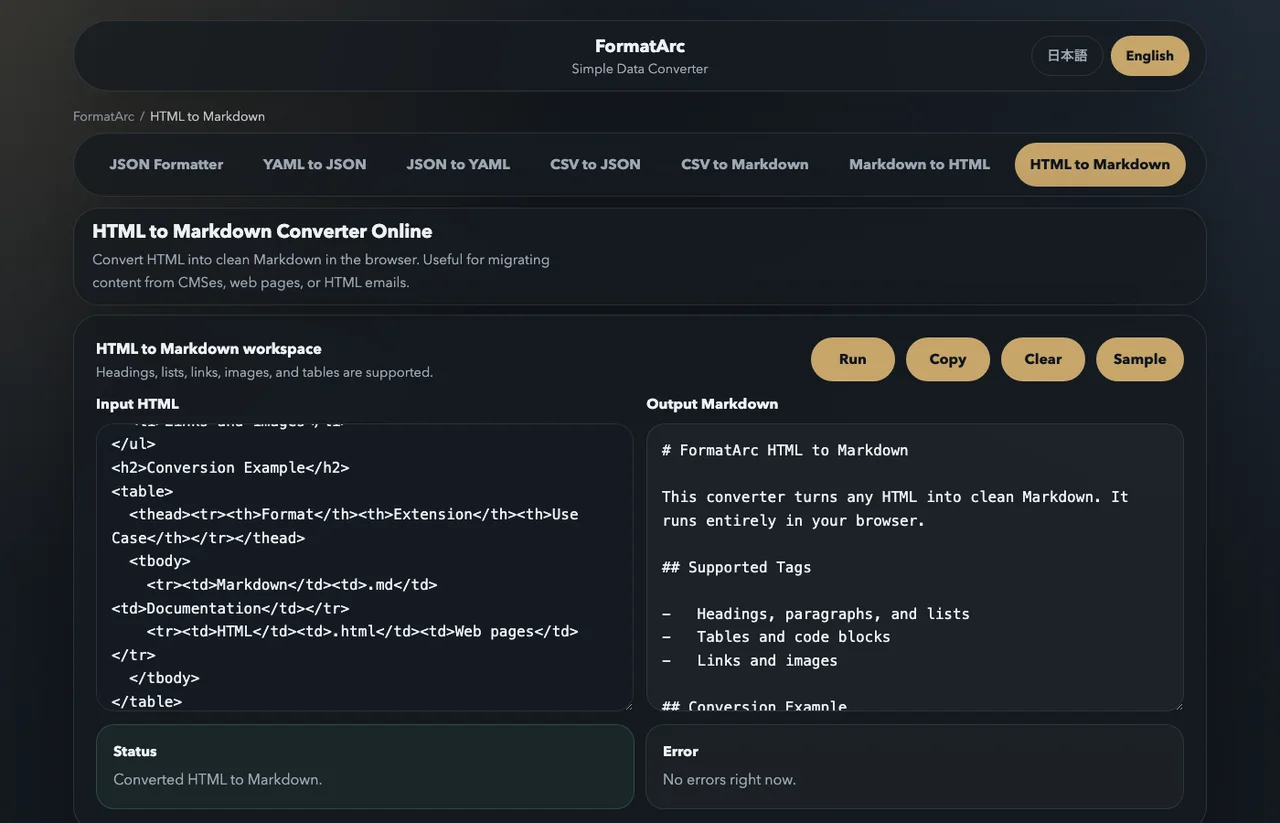
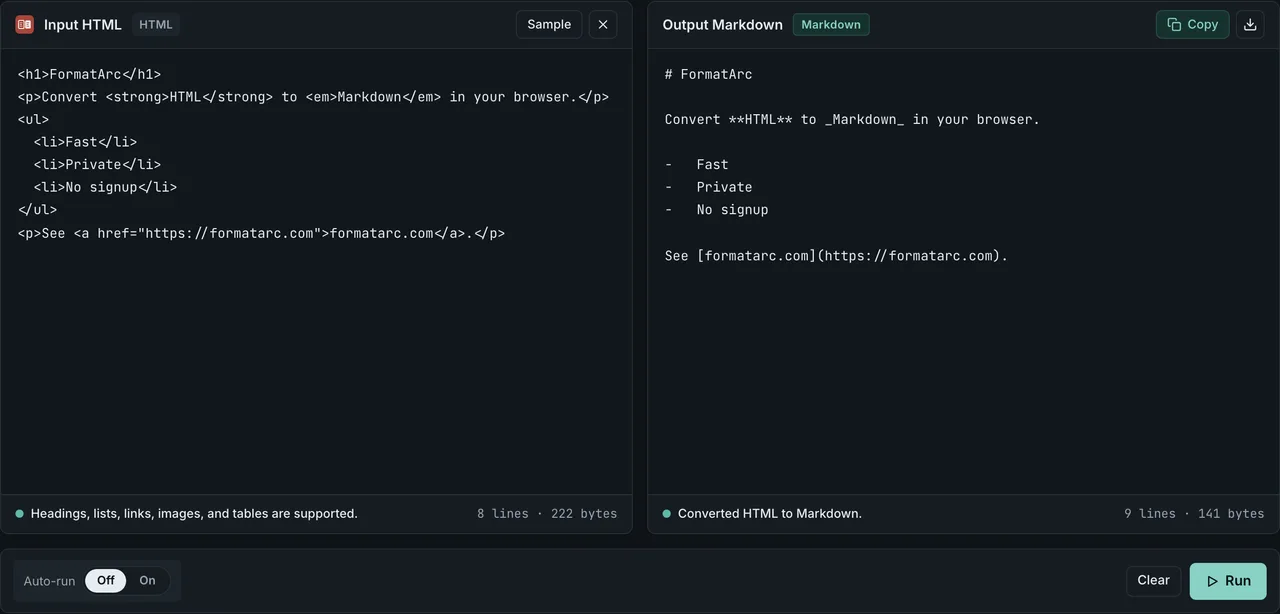
The conversion runs entirely in your browser as JavaScript; nothing you paste is transmitted. For mail you would not put on someone else's server — client correspondence, internal announcements — this is the practical difference from upload-based converter sites. The reasoning is covered in are online converters safe. For the tool's basic operation and the HTML-to-Markdown element mapping, see the HTML to Markdown guide; for general paste-cleanup patterns from Word or web pages, see paste HTML as Markdown. This article stays focused on what is specific to email.
Post-conversion cleanup checklist
Even a clean content-block conversion leaves email-specific residue in the Markdown. Check these five points before you file or publish it.
- Restore tracked links. Redirect URLs like
https://click.example.com/track?dest=https%3A%2F%2F...should be rewritten to the real target by URL-decoding thedest=(or similar) parameter — or remove the link. Avoid "checking" the URLs by opening them in bulk: that fires the open/click tracking you are trying to remove - Delete tracking-pixel leftovers, such as image references with an empty alt like
 - Handle
cid:images. A reference likepoints at an attachment inside the message (multipart/related) and cannot resolve outside the email. If you need the image, export it from the .eml and swap the reference - Sweep stray whitespace and blank lines left by
spacers - Decide how much of the signature, legal footer, unsubscribe block, and quoted reply chain to keep
Batch-converting .eml files — CLI and Python
When you have many .eml files, or you want the headers kept, hand the job to tooling that understands MIME.
On the CLI, eml-to-mdOpens in a new tab (installable with pip) outputs Markdown with the headers included and positions itself for "giving context to AI agents without giving it access to all your emails". There is also eml2mdOpens in a new tab, written in Rust.
pip install eml-to-md
eml2md message.eml            # one message
eml2md *.eml -o converted/    # a whole folder
For a Python pipeline, use the standard-library email moduleOpens in a new tab to pick the part and markdownifyOpens in a new tab to convert it. The important details: read the file in binary mode, pass policy.default, and select the part with get_body(). get_content() then decodes quoted-printable and base64 for you.
import email
from email import policy
from markdownify import markdownify

with open("message.eml", "rb") as f:
    msg = email.message_from_binary_file(f, policy=policy.default)

body = msg.get_body(preferencelist=("html", "plain"))
print(markdownify(body.get_content()))
You can also route through HTML into pandocOpens in a new tab, or keep the extraction manual and delegate just the conversion to a CLI (cat body.html | formatarc html-to-markdown). FormatArc's CLI is covered in the formatarc npm package.
Comparing the options
| Option | Best for | Requirements | Headers and threads | Confidential mail |
|---|---|---|---|---|
| HTML to Markdown (browser) | Body text of a few open emails | Browser only (free, no signup) | Body only | Processed in-browser, nothing sent |
| eml2md-family CLI | Dozens of .eml files at once | pip / cargo | Included in output | Local processing |
| Python (email + markdownify) | Recurring automated pipelines | Python | Fully controllable | Local processing |
| Upload-based web services | When nothing else is available | Browser | Tool-dependent | Sent to a server; daily limits or paid tiers exist |
Frequently asked questions
Where do I find the HTML source of an email in Gmail?
The message menu offers "Show original", which displays the whole MIME message. The HTML in there is usually quoted-printable encoded, so copying it yields broken HTML. If you only need the body, right-click it, choose Inspect, and copy the content block's outerHTML instead.
Do email layouts convert into Markdown tables?
No. Nested layout tables flatten and collapse — in our measurement, a 6,491-byte full source turned into a 12-column flat table. The fix is to paste only the content block. Genuine data tables (a pricing grid, an order summary) do convert into normal pipe tables.
What happens to images?
Images whose src is a web URL survive as  Markdown images. References starting with cid: point at attached images and cannot display outside the email. Delete 1x1 tracking pixels after converting.
Is it safe to paste confidential email into an online converter?
With upload-based tools, the content leaves your machine the moment you paste. FormatArc's conversion completes inside the browser, so there is no transmission at all. The decision criteria are collected in are online converters safe.
Can I paste a .eml file directly?
No. A .eml file is a MIME container with headers and encoded parts, not HTML. For a single message, copy the content block; for many, use an eml2md-family CLI.
Summary
Converting HTML email to Markdown is decided by where you copy from. Paste the full source and nested layout tables collapse into a 12-column flat table with CSS leaking into the text; paste just the content block and you get 477 characters of clean Markdown (measured: scripts/benchmarks/html-email-to-markdown/). For a few open emails, copy the content block with devtools and use HTML to Markdown; for batches of .eml files, use an eml2md-family CLI; for pipelines, use Python's email module. Whichever route you take, plan the tracking-link and pixel cleanup as part of the conversion, not an afterthought.