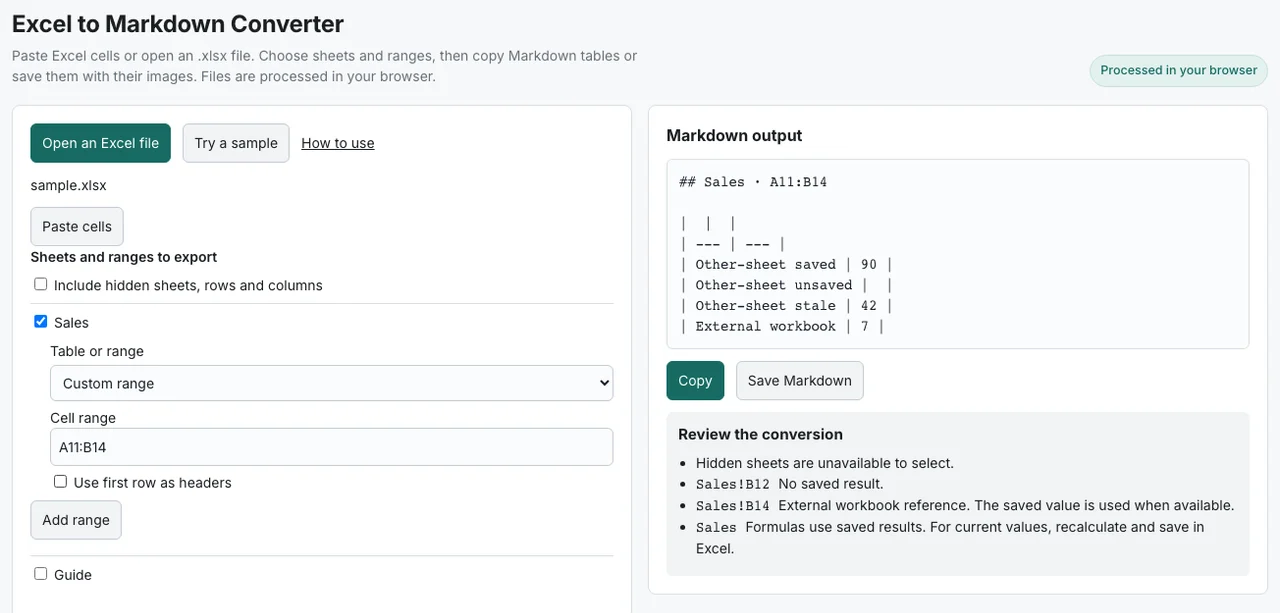
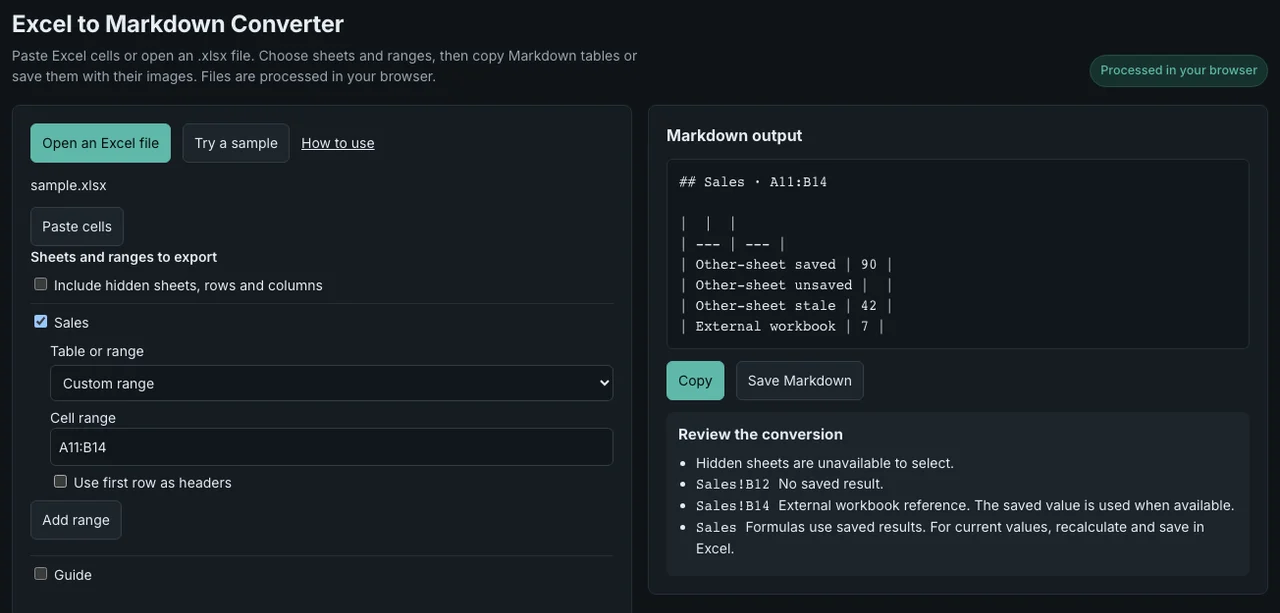
An Excel formula becomes a fixed value in a Markdown table. A picture needs its own image file. For a few cells you can usually paste what you see in Excel. Open the original XLSX when you need to check values from other sheets, choose exactly which table to export, or keep pictures with the result.
The sample workbook deliberately stores old and missing formula results. Open the downloaded file directly in the Excel to Markdown converter to see those differences. Opening and saving it in Excel first can recalculate the test cells.
What the converter can read from pasted cells, CSV, and XLSX
| Input | What you can take into Markdown | What to check |
|---|---|---|
| Copied cells | The cell values supplied for the range you copied | Verify the pasted cells if the original selection spans hidden rows or columns. |
| Excel CSV export | Text and values from the active worksheet | CSV carries neither embedded pictures nor the workbook's other sheets. |
| Original XLSX | Worksheet structure, saved formula values, defined tables, and embedded pictures | A saved value can be older than the current inputs to the formula. |
Microsoft documents which data Excel retains when you save to a text formatOpens in a new tab. For a straightforward selection of cells, use the guide to copying an Excel range into a Markdown table.
Why the same formula yields different values
In the sample, Guide!B3 contains 45. On Sales, cells B11, B12, and B13 all use =Guide!B3*2. To inspect the examples together, select A11:B14 on Sales and include the first row as data.
| Cell | Value stored in the sample | What to look for in the conversion |
|---|---|---|
Sales!B11 | 90 | The saved result is available even when you export Sales without Guide. |
Sales!B12 | No saved result | The output leaves the value blank and identifies the cell in a warning. |
Sales!B13 | 42 | The file supplies 42. Its age cannot be inferred from the number alone. |
Sales!B14 | 7 | The formula references another workbook. The output uses the local saved result. |
An XLSX file stores formula expressions separately from their last saved results. If you need up-to-date results in the Markdown, check the inputs in Excel, recalculate, save a copy, and convert that copy. Check the source workbook too when the formula contains an external reference. Microsoft's formula storage documentationOpens in a new tab and Excel recalculation instructionsOpens in a new tab explain the distinction.
Export two tables from one worksheet
The sample's SalesTable occupies Sales!A3:D5, and SeparateTable occupies Sales!G3:H5. A whole-sheet export treats cells on the same row as part of a single grid. Select a defined table or a cell range to keep independent tables separate. In the sample, column D, row 5, and the Hidden sheet are hidden. Check the preview for the columns and rows you intend to share. When you copy directly from Excel, you can instead explicitly select visible cellsOpens in a new tab.
Save pictures with the Markdown file
The sample contains an in-cell picture at C4 and a floating picture anchored at B8. If you include the in-cell picture, its Markdown reference appears within the table. Select the floating picture's anchor cell to include it after the table. Its position on the Excel sheet does not carry into Markdown. Microsoft explains how Excel places pictures in cells and above themOpens in a new tab.
Download the ZIP for an export with pictures. Keep the Markdown file and the image directory together so the relative references still resolve. The IMAGE() example at D4 points to a URL outside the workbook. Only pictures available in the workbook can be extracted locally. If you need the rendered chart at J3, copy it as a picture in ExcelOpens in a new tab. Microsoft's IMAGE function documentationOpens in a new tab and the Markdown image syntaxOpens in a new tab describe the two kinds of reference.