How to Fix JSON Parse Errors and Unexpected Token
A practical guide to diagnosing and fixing JSON parse errors including SyntaxError: Unexpected token, with examples and solutions.
If you have ever worked with JSON, you have almost certainly encountered the dreaded SyntaxError: Unexpected token message. It shows up in browser consoles, API responses, configuration files, and CI/CD pipelines. The error itself is not very helpful — it tells you something is wrong but rarely explains what.
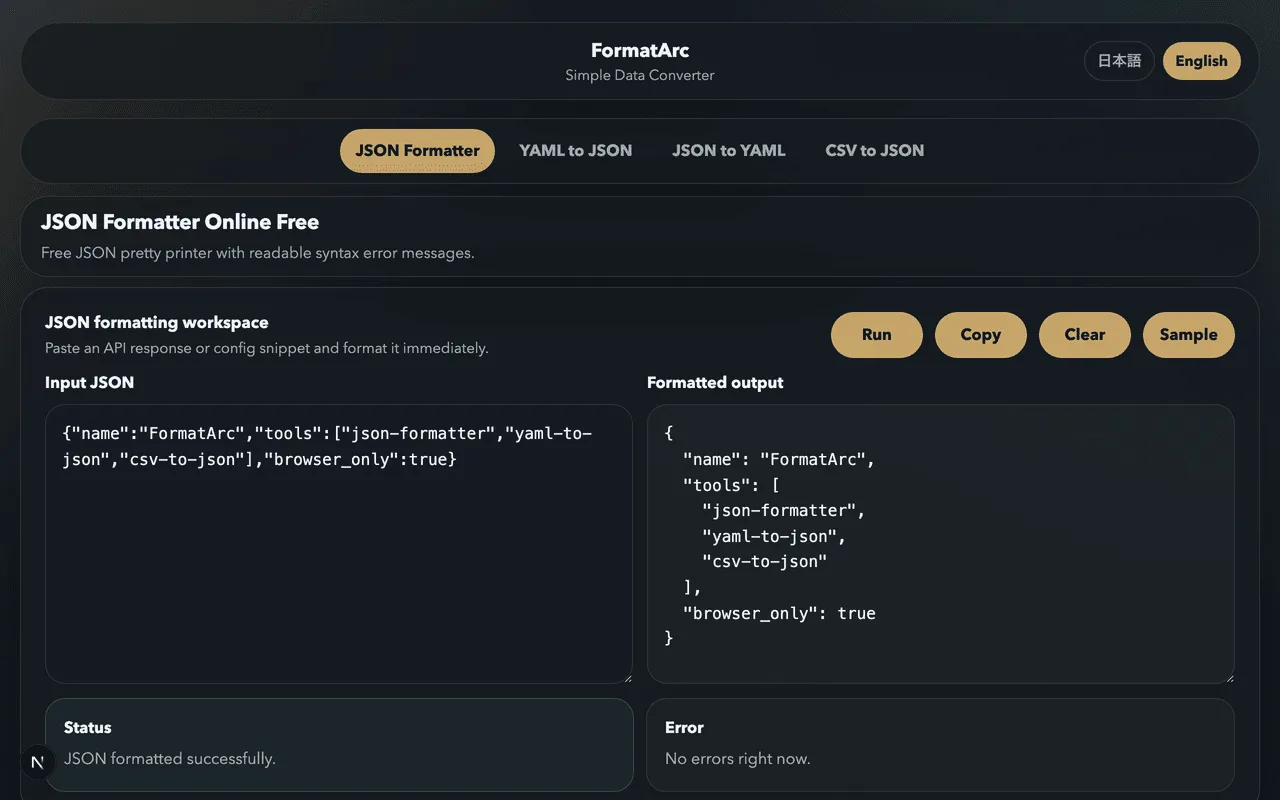
This guide walks through the most common causes of JSON parse errors, shows you exactly how to fix each one, and gives you a reliable workflow for catching these mistakes before they cause problems. If you want to skip straight to a fix, paste your broken JSON into the JSON Formatter and it will highlight the exact line and character where the error occurs.
What does "Unexpected token" actually mean?
JSON parsers read your text character by character. When the parser encounters a character that does not belong according to the JSON specification, it throws a SyntaxError. The "unexpected token" is simply the character that the parser did not expect to find at that position.
For example, if the parser expects a double quote to start a string value but finds a single quote instead, it reports something like:
SyntaxError: Unexpected token ' in JSON at position 14
The position number tells you how many characters from the beginning of the string the parser got before it gave up. This is useful, but counting characters manually in a large JSON file is tedious. That is where a tool like the JSON Formatter becomes invaluable — it pinpoints the error location visually.
The 5 most common causes of JSON parse errors
1. Trailing commas
This is arguably the single most frequent cause of JSON parse errors, especially for developers who write JavaScript regularly. JavaScript arrays and objects happily accept trailing commas. JSON does not.
The broken version:
{
  "name": "Alice",
  "age": 30,
  "city": "Tokyo",
}
The fixed version:
{
  "name": "Alice",
  "age": 30,
  "city": "Tokyo"
}
The comma after "Tokyo" is the problem. The JSON parser reads the comma, expects another key-value pair, and instead finds a closing brace. That closing brace becomes the "unexpected token."
Trailing commas also appear in arrays:
{
  "colors": ["red", "green", "blue",]
}
Remove the comma after "blue" and the error disappears:
{
  "colors": ["red", "green", "blue"]
}
This mistake is so easy to make that many code editors now have settings to automatically remove trailing commas when saving JSON files. If your editor supports it, turn that feature on.
2. Single quotes instead of double quotes
JSON requires double quotes for all strings and keys. Single quotes are not valid, even though JavaScript and Python both accept them for string literals.
The broken version:
{
  'name': 'Alice',
  'age': 30
}
The fixed version:
{
  "name": "Alice",
  "age": 30
}
This error commonly appears when someone copies a Python dictionary or a JavaScript object literal and tries to use it as JSON. The two formats look similar but they are not interchangeable.
A quick find-and-replace from ' to " often works, but be careful if your string values contain apostrophes. In that case, you need to escape them or handle the replacement more carefully. Pasting the text into the JSON Formatter will flag the exact positions where single quotes appear so you can fix them one by one.
3. Unquoted keys
In JavaScript, object keys do not need quotes if they are valid identifiers. In JSON, every key must be a double-quoted string — no exceptions.
The broken version:
{
  name: "Alice",
  age: 30
}
The fixed version:
{
  "name": "Alice",
  "age": 30
}
This tends to happen when someone writes JSON by hand or copies from a JavaScript source. It also shows up in configuration files where someone has forgotten that JSON is stricter than the language they normally use.
4. Comments in JSON
JSON does not support comments. Not single-line comments (//), not multi-line comments (/* */), not hash comments (#). If a parser encounters any of these, it throws an error.
The broken version:
{
  // User's display name
  "name": "Alice",
  /* Age in years */
  "age": 30
}
The fixed version:
{
  "name": "Alice",
  "age": 30
}
This is a real pain point. It is perfectly reasonable to want comments in a configuration file, and many developers feel frustrated that JSON does not allow them. Some tools (like VS Code's settings.json) actually use a superset called JSONC (JSON with Comments), but standard JSON parsers will reject comments outright.
If you need comments in your configuration, consider using YAML instead. YAML supports comments natively with the # character, and you can convert between the two formats easily. Check out our JSON formatting tips article for more on managing complex JSON files.
5. BOM (Byte Order Mark) characters
This one is sneaky because you cannot see the problem by looking at the file. A BOM is an invisible character (U+FEFF) that some text editors — especially on Windows — insert at the very beginning of a file. It tells the editor what encoding the file uses.
The JSON parser hits this invisible character before it reaches the opening { or [, and it has no idea what to do with it. The error message might look like:
SyntaxError: Unexpected token in JSON at position 0
That blank-looking space before "in JSON" is the BOM character.
How to fix it:
- Open the file in a hex editor and remove the first three bytes (
EF BB BFfor UTF-8 BOM). - In VS Code, click the encoding indicator in the status bar, choose "Save with Encoding," and select "UTF-8" (without BOM).
- Use a command-line tool:
sed -i '1s/^\xEF\xBB\xBF//' file.json
The before state (shown as hex):
EF BB BF 7B 0A 20 20 22 6E 61 6D 65 22 ...
The after state:
7B 0A 20 20 22 6E 61 6D 65 22 ...
The file content looks identical in a text editor, but the parser can now read it.
Other causes worth knowing about
Beyond the top five, here are a few more issues that trip people up:
Mismatched brackets or braces
A missing closing } or ] will cause a parse error, usually reported at the end of the file. If your JSON is deeply nested, finding the mismatched bracket by eye is nearly impossible. A formatter with bracket matching will save you significant time.
Control characters in strings
Newlines, tabs, and other control characters inside JSON strings must be escaped. A literal newline inside a string value is not valid:
{"message": "Hello
World"}
It should be:
{"message": "Hello\nWorld"}
Numbers with leading zeros
JSON numbers cannot have leading zeros. 007 is not valid JSON — it must be either 7 or 0.07 or some other standard numeric format.
{
  "code": 007
}
Fixed:
{
  "code": 7
}
Using undefined or NaN
JavaScript's undefined and NaN are not valid JSON values. If you serialize an object that contains undefined, most serializers will either omit the key or throw an error. NaN and Infinity are similarly rejected.
A reliable workflow for debugging JSON
When you hit a parse error and the file is more than a few lines long, staring at the raw text is not productive. Here is a workflow that consistently works:
-
Paste the JSON into the JSON Formatter. It will show you the exact error location with a line number and a description of what went wrong.
-
Look at the reported position. The error is usually at or just before the position the parser reports. Sometimes the actual mistake is a few lines earlier — for example, a missing comma on line 10 might not cause an error until the parser reaches line 11.
-
Check for the top five causes listed above. In practice, trailing commas and single quotes account for the majority of real-world parse errors.
-
If the file was generated by code, check the serialization step. Are you using
JSON.stringify()or an equivalent function? Hand-building JSON strings with string concatenation is a common source of bugs. -
If the file was downloaded or received from an API, check the encoding. BOM issues, character encoding mismatches, and truncated responses all produce parse errors.
Parse errors in different environments
The error messages vary by platform, which can make searching for solutions confusing.
In the browser (Chrome, Firefox):
SyntaxError: Unexpected token < in JSON at position 0
This particular error — unexpected < at position 0 — almost always means the server returned an HTML error page instead of JSON. Check the network tab to see what the API actually returned.
In Node.js:
SyntaxError: Unexpected token } in JSON at position 142
Node gives you a position number that you can use to locate the problem.
In Python:
json.decoder.JSONDecodeError: Expecting property name enclosed in double quotes: line 3 column 5
Python is actually quite helpful — it gives you both a line number and a column number.
In Java (Jackson):
com.fasterxml.jackson.core.JsonParseException: Unexpected character ('}' (code 125)): was expecting double-quote to start field name
Jackson is verbose but specific about what it expected versus what it found.
Preventing parse errors in the first place
Rather than fixing errors after the fact, a few habits can eliminate most JSON parse errors:
- Use
JSON.stringify()to produce JSON, not string concatenation. This applies to every language — use the built-in serializer. - Configure your editor to validate JSON on save. VS Code, IntelliJ, and Sublime Text all have JSON validation built in or available as plugins.
- Add a linting step to your CI pipeline. A simple
python -m json.tool < config.jsoncheck will catch malformed files before they reach production. - When editing JSON by hand, use a tool with real-time validation. The JSON Formatter validates as you type and shows errors immediately.
For more on writing clean JSON, see our JSON formatting tips and JSON syntax guide.
When JSON is not the right format
If you find yourself fighting JSON's limitations regularly — wanting comments, needing multiline strings, or dealing with complex nested configurations — it might be worth considering YAML as an alternative. YAML supports comments, handles multiline text naturally, and is generally more readable for configuration files.
The tradeoff is that YAML is sensitive to indentation and has its own set of gotchas (implicit type coercion, for example). But for configuration files where humans need to read and edit the content, YAML is often the more practical choice. You can always convert between the two formats when needed — see our guide on YAML vs JSON differences for a deeper comparison.
Wrapping up
JSON parse errors are annoying but predictable. The same five or six causes account for the vast majority of cases:
- Trailing commas
- Single quotes
- Unquoted keys
- Comments
- BOM characters
- Mismatched brackets
Get familiar with these patterns and you will fix most parse errors in seconds. And when the file is too large or too complex to debug by eye, paste it into the JSON Formatter and let it do the work.