How to Convert JSON to YAML: Quick and Easy Methods
A practical guide to converting JSON to YAML for Kubernetes configs, Docker Compose files, and other YAML-based workflows.
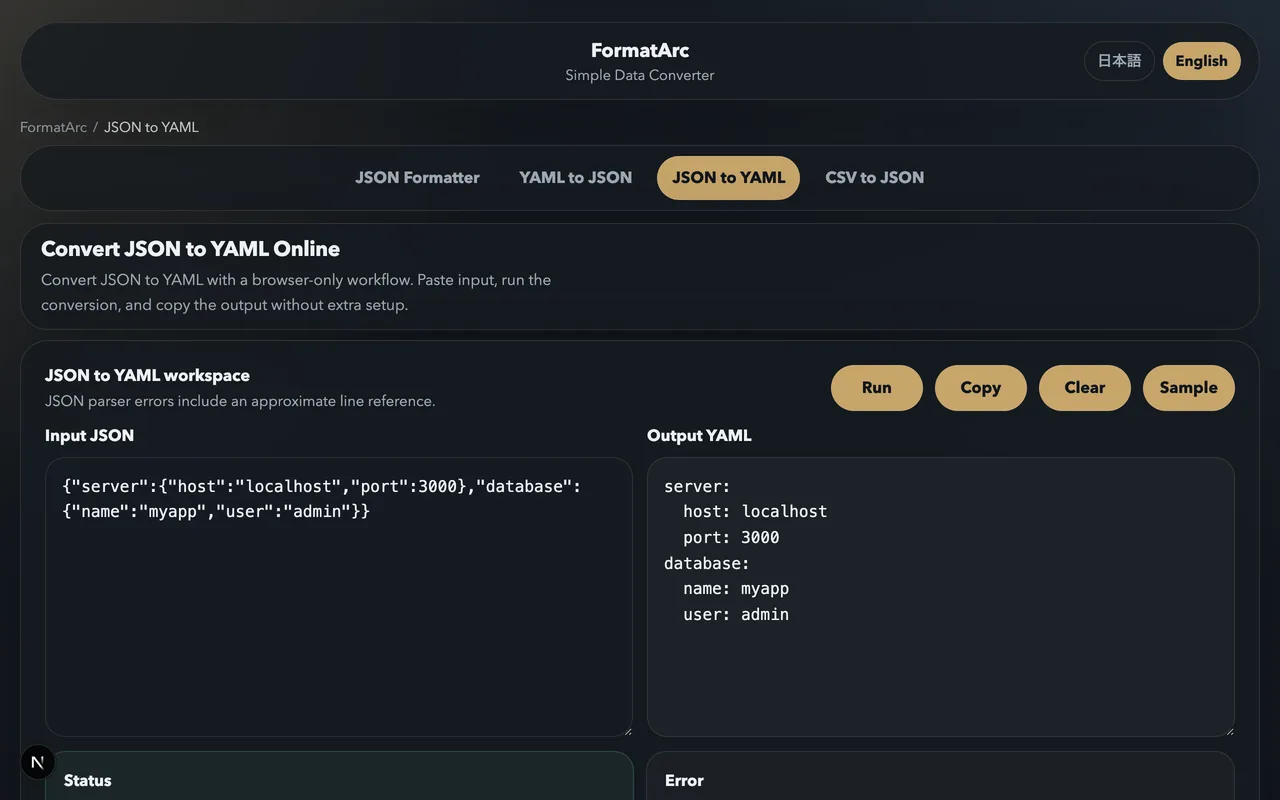
You pulled a configuration from an API as JSON. Now you need it in YAML — maybe for a Kubernetes manifest, a Docker Compose file, or an Ansible playbook. The data is the same; only the format needs to change. But doing it by hand is tedious and error-prone, especially for deeply nested structures.
This guide covers why you might need to convert JSON to YAML, what to watch out for during conversion, and three practical methods to get it done.
Why convert JSON to YAML?
JSON and YAML can represent the same data structures — maps, lists, strings, numbers, booleans, and null. They are functionally interchangeable. The reason to prefer one over the other usually comes down to context and readability.
Kubernetes and container orchestration
Kubernetes accepts both JSON and YAML for resource definitions, but the ecosystem overwhelmingly uses YAML. Documentation, tutorials, blog posts, and Stack Overflow answers are almost exclusively in YAML. If you generate a resource definition programmatically (which often produces JSON), converting it to YAML makes it consistent with everything else in your cluster configuration.
Docker Compose
Docker Compose files are YAML by definition. If you have service configuration stored as JSON (perhaps from a configuration management API), you need to convert it to YAML before it can be used as a Compose file.
Readability and editing
YAML is more human-friendly for configuration files. It eliminates the visual noise of curly braces, square brackets, and commas. Compare:
JSON:
{
  "server": {
    "host": "0.0.0.0",
    "port": 8080,
    "workers": 4,
    "logging": {
      "level": "info",
      "format": "json"
    }
  }
}
YAML:
server:
  host: 0.0.0.0
  port: 8080
  workers: 4
  logging:
    level: info
    format: json
The YAML version has fewer characters, less punctuation, and the hierarchical structure is communicated through indentation rather than nesting symbols. For files that humans read and edit regularly, this matters.
Adding comments
JSON does not support comments. YAML does. If you need to annotate a configuration file — explaining why a value is set a certain way, documenting allowed values, or leaving notes for your team — YAML lets you do that directly in the file:
server:
  host: 0.0.0.0
  port: 8080
  # Increase workers for production; 4 is fine for staging
  workers: 4
Converting JSON to YAML is often the first step before adding these kinds of annotations.
The pain of manual conversion
For a simple, flat JSON object, manual conversion is straightforward: remove the braces, remove the quotes around keys, replace colons-with-spaces. But real-world JSON is rarely simple. Consider a Kubernetes Deployment:
{
  "apiVersion": "apps/v1",
  "kind": "Deployment",
  "metadata": {
    "name": "web-app",
    "labels": {
      "app": "web",
      "tier": "frontend"
    }
  },
  "spec": {
    "replicas": 3,
    "selector": {
      "matchLabels": {
        "app": "web"
      }
    },
    "template": {
      "metadata": {
        "labels": {
          "app": "web"
        }
      },
      "spec": {
        "containers": [
          {
            "name": "nginx",
            "image": "nginx:1.25",
            "ports": [
              {
                "containerPort": 80
              }
            ]
          }
        ]
      }
    }
  }
}
Converting this by hand means tracking indentation levels, converting arrays with bracket notation to YAML's dash notation, removing quotes selectively (some values need them, others do not), and getting all the spacing right. One wrong indent and kubectl apply will reject the entire file. A converter does all of this instantly and correctly.
Method 1: Browser-based conversion with FormatArc
The JSON to YAML tool converts your JSON to properly formatted YAML in seconds, entirely in your browser.
- Open the JSON to YAML converter.
- Paste your JSON into the left panel.
- Click Convert.
The tool validates your JSON before converting, so if there is a syntax error — a missing comma, a trailing brace, unquoted keys — it reports the problem with a line number. This makes it useful as a JSON validator even when you do not need YAML output.
Since the conversion runs in your browser, you can safely paste credentials, internal configurations, or any other sensitive data without it being transmitted anywhere.
Method 2: Command-line tools
For automation and scripting, CLI tools integrate into your existing workflows.
Using Python
python3 -c 'import sys, json, yaml; yaml.dump(json.load(sys.stdin), sys.stdout, default_flow_style=False, allow_unicode=True)' < input.json > output.yaml
This reads JSON from stdin and writes YAML to stdout. default_flow_style=False ensures the output uses block style (the typical YAML formatting) rather than flow style (which looks like JSON with fewer quotes).
Using yq
yq handles JSON-to-YAML conversion just as cleanly as the reverse:
yq -P '.' input.json > output.yaml
The -P flag (pretty print) outputs in YAML's block style. Without it, yq may use flow style for compact structures.
Using jq + yq together
Sometimes you want to extract part of a JSON document and convert just that part:
jq '.spec.template' deployment.json | yq -P '.'
This pulls out the spec.template section from a Kubernetes deployment JSON and converts it to YAML.
Method 3: Programming languages
Python
import json
import yaml

with open("config.json") as f:
    data = json.load(f)

with open("config.yaml", "w") as f:
    yaml.dump(data, f, default_flow_style=False, allow_unicode=True, sort_keys=False)
sort_keys=False preserves the original key order from the JSON file. By default, PyYAML sorts keys alphabetically, which can make the output harder to compare with the original.
Node.js
const fs = require("fs");
const yaml = require("js-yaml");

const data = JSON.parse(fs.readFileSync("config.json", "utf8"));
fs.writeFileSync("config.yaml", yaml.dump(data, { lineWidth: -1 }));
lineWidth: -1 prevents js-yaml from wrapping long lines, which can cause unexpected line breaks in URLs and other long values.
Go
package main

import (
    "encoding/json"
    "fmt"
    "os"

    "gopkg.in/yaml.v3"
)

func main() {
    data, _ := os.ReadFile("config.json")
    var obj interface{}
    json.Unmarshal(data, &obj)
    out, _ := yaml.Marshal(obj)
    fmt.Print(string(out))
}
Things to watch out for
String quoting in YAML output
YAML has complex rules about when strings need quotes. Most converters handle this correctly, but it is worth understanding:
- Strings that look like numbers (
"8080"in JSON) may appear unquoted in YAML, becoming actual numbers. - Strings that look like booleans (
"true","yes","no") may be misinterpreted. A good converter will add quotes around these. - Strings starting with special characters (
*,&,!,{,[,>,|) need quoting.
If exact type preservation matters, verify the output by converting it back to JSON and comparing with the original. You can use the YAML to JSON converter for this round-trip check.
Multi-line strings
JSON represents multi-line strings with \n escape sequences. When converted to YAML, a good converter will use block scalar notation:
JSON:
{
  "description": "Line one\nLine two\nLine three"
}
YAML:
description: |
  Line one
  Line two
  Line three
The | (literal block scalar) preserves newlines exactly. Some converters may use > (folded scalar) which joins lines with spaces instead of newlines. Check the output if newline preservation matters.
Null values
JSON's null maps to YAML's null (or ~ or simply an empty value). Different converters may choose different representations:
# All equivalent in YAML
value: null
value: ~
value:
This is mostly cosmetic, but if you are comparing files or have strict formatting requirements, it is worth knowing.
Key ordering
JSON objects and YAML mappings are both technically unordered. In practice, most people expect keys to appear in a meaningful order (like apiVersion before kind before metadata in Kubernetes resources). Most converters preserve the source order, but PyYAML's default behavior of sorting alphabetically will rearrange everything. Use sort_keys=False to prevent this.
For a deeper comparison of the two formats, see YAML vs JSON.
A practical workflow for Kubernetes
Here is a common real-world scenario. You use kubectl to get a resource as JSON, modify it, and want to save it as YAML:
# Get the current deployment as JSON
kubectl get deployment web-app -o json > deployment.json

# Edit as needed (or use jq for automated changes)
jq '.spec.replicas = 5' deployment.json > updated.json

# Convert to YAML for your Git repository
yq -P '.' updated.json > deployment.yaml
Or in a single pipeline:
kubectl get deployment web-app -o json | jq '.spec.replicas = 5' | yq -P '.' > deployment.yaml
For quick modifications where you do not need scripting, paste the JSON into the JSON to YAML tool, copy the YAML output, and save it to your file.
Going the other direction
Need to convert YAML back to JSON? See our guide on how to convert YAML to JSON. The YAML to JSON tool handles the reverse conversion with the same ease.
Summary
Converting JSON to YAML comes up constantly in DevOps, infrastructure-as-code, and configuration management workflows. Three approaches cover every situation:
- The JSON to YAML browser tool for immediate, no-setup conversions.
- CLI tools (
yq, Python one-liners) for scripting and pipelines. - Language libraries for application-level integration.
The format you store your configuration in is a matter of workflow and tooling preferences. Having a reliable conversion path in both directions means you never have to be locked into one format.