If you need a table in your README, the fastest path is to paste your CSV into CSV to Markdown and hit Run. It produces a GFM-compatible table you can copy straight into your README, all inside the browser.
This article covers when README tables make sense, how to generate them from CSV or JSON, and what to watch out for with GitHub Flavored Markdown.
When a README needs a table
Plain text works until the information grows. The following kinds of content read much better as tables:
- API endpoint lists (path, method, description)
- Supported versions or platform compatibility matrices
- Feature comparisons (your project vs. alternatives, or free vs. paid)
- CLI option references
- Environment variable lists with defaults
Bullet lists stretch vertically and make it hard to compare across columns. A table lets readers scan horizontally and spot differences immediately.
Real-world README table examples
The five categories above are abstract. Here is what they actually look like as Markdown tables you can drop into a README today.
CLI options reference — every CLI tool grows a flag list. A table beats a wall of --help text:
| Flag | Default | Description |
| :--- | :--- | :--- |
| `--port` | `3000` | HTTP port to listen on |
| `--host` | `0.0.0.0` | Bind address |
| `--log-level` | `info` | One of `debug`, `info`, `warn`, `error` |
Version compatibility matrix — runtime support is the most common reason to scan a README:
| Runtime | Minimum | Tested up to | Status |
| :--- | ---: | ---: | :--- |
| Node.js | 18.x | 22.x | LTS supported |
| Bun | 1.0 | 1.1 | Best effort |
| Deno | 1.40 | 2.0 | Community |
Feature comparison vs alternatives — used in every "why this library" section:
| Feature | This project | Alternative A | Alternative B |
| :--- | :---: | :---: | :---: |
| Zero dependencies | ✅ | ❌ | ✅ |
| TypeScript types | ✅ | ✅ | ❌ |
| Browser-side | ✅ | ❌ | ❌ |
Each of these is small (3–4 rows, 3–4 columns) on purpose: GitHub renders them without horizontal scroll on mobile, and they stay readable when the README grows.
Markdown table basics
GFM tables use pipe characters as column separators:
| Command | Description |
| --- | --- |
| install | Install dependencies |
| build | Build for production |
| test | Run the test suite |
Row one is the header, row two is the separator, and every row after that is data. Add : to the separator to control alignment (:--- left, :---: center, ---: right).
For a deeper dive into the syntax, see Markdown table syntax.
Generate a README table from CSV
When your data lives in a spreadsheet or a CSV file, use CSV to Markdown:
- Open CSV to Markdown
- Paste your CSV into the left editor (copy-paste from Excel or Google Sheets works too)
- Press Run
- Copy the Markdown table from the right pane into your README
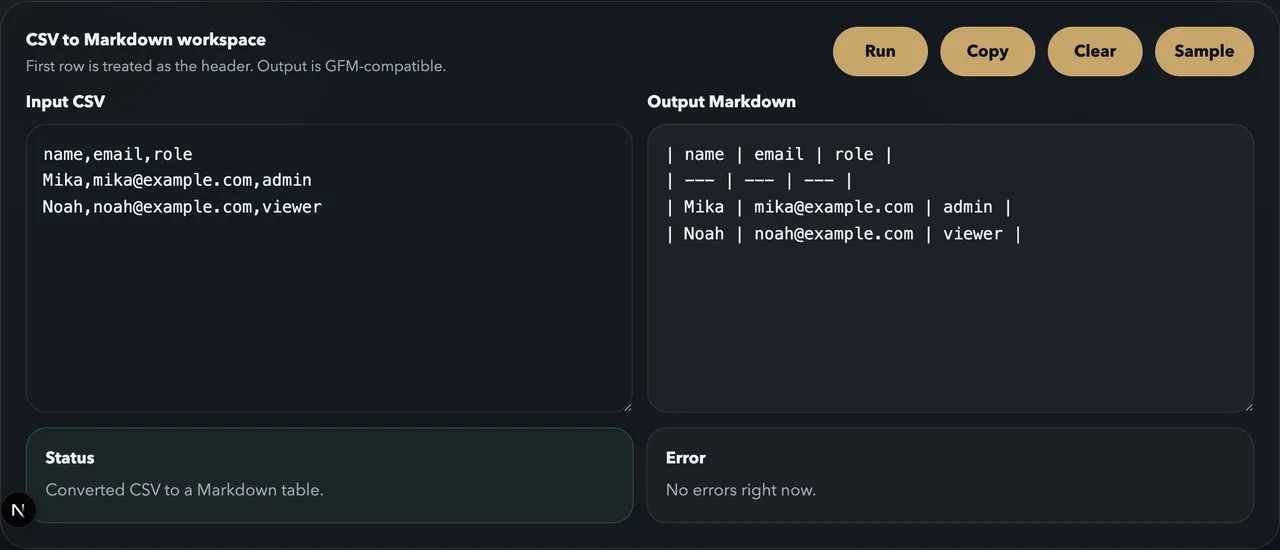
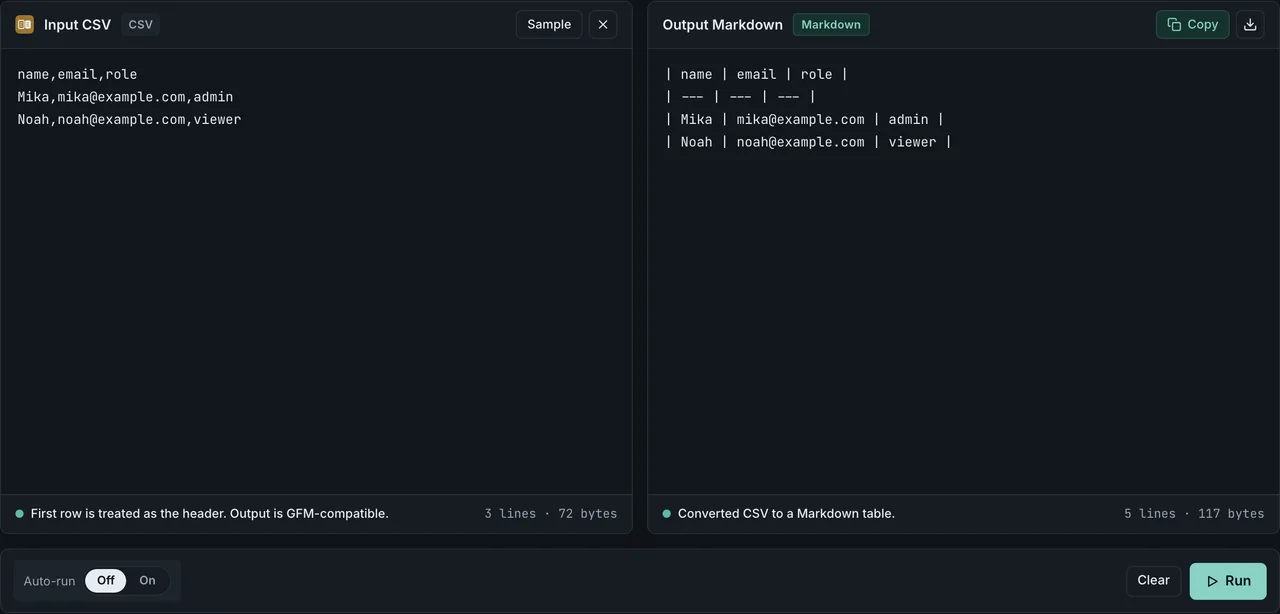
Everything runs in the browser — no data leaves your machine. For more detail on edge cases and escaping, see How to convert CSV to a Markdown table.
Not sure whether the data itself should live in JSON, YAML, CSV, or Markdown? The JSON vs YAML vs CSV vs Markdown comparison cheatsheet breaks down when to use each format.
Create a table from JSON data
Sometimes your data starts as JSON — an API response, a config dump, a log extract. The most reliable route to a Markdown table is to go through CSV first.
For a deeper walkthrough covering arrays, nested objects, and API responses, see How to convert JSON to a Markdown table.
Steps
- Format the JSON with JSON Formatter to verify its structure
- Convert the JSON array to CSV (object keys become column headers, values become row cells)
- Paste the CSV into CSV to Markdown to generate the table
For example, given this JSON:
[
  { "name": "Node.js", "version": "20.x", "status": "LTS" },
  { "name": "Node.js", "version": "22.x", "status": "Current" }
]
The CSV equivalent is:
name,version,status
Node.js,20.x,LTS
Node.js,22.x,Current
Paste that into CSV to Markdown and the table is ready for your README.
Common pitfalls in README tables
Most "broken" README tables boil down to four mistakes. Knowing which one bit you saves a long bisect through Markdown source. One thing to clear up before the list: the GFM spec section 4.10Opens in a new tab describes the delimiter row as cells "whose only content are hyphens (-), and optionally, a leading or trailing colon (:)". It sets no minimum number of hyphens, and it does not require a blank line before the table.
Inconsistent column counts
The delimiter row fixes the number of columns. Any row with more cells gets the extras silently dropped; any row with fewer cells gets empty cells appended.
| name | role |
| --- | --- |
| Alice | Engineer | LA      ← extra cell, dropped silently
| Bob                        ← missing cell, rendered blank
GitHub does not warn about this. If the right column of your table is mysteriously empty, count the pipes in the offending row.
Missing or malformed delimiter row
The delimiter row is what turns the block into a table, so getting it wrong is the failure that produces no table at all. What matters is the column count, not the number of hyphens.
| name | role |
| --- |            ← one delimiter cell for two header columns: no table anywhere
| Alice | Engineer |
I ran that case through four parsers (scripts/benchmarks/markdown-table-parsers/ in the repository, measured 2026-07-15 with the GitHub Markdown API, marked 18.0.5, remark-gfm 4.0.1, and strict CommonMark via remark-parse). A column-count mismatch produced no table on all four.
The dash count is a different story. In the same run, | - | - | and | -- | -- | both rendered as tables on the GitHub Markdown API, marked, and remark-gfm. Three dashes is a readability convention, not a requirement — GitHub's own documentation says three or more, the spec says nothing, and the implementations accept one. So when a table refuses to render, counting dashes is the wrong place to start. See Why your Markdown table is broken for the same myth in more detail.
There is one case where a short delimiter row does bite: drop the outer pipes and use a single dash, and GitHub reads the block as a list.
h1 | h2
- | -              ← GitHub renders a list here; `--- | ---` renders a table
a | b
If a table refuses to render on GitHub but works in your editor, check the column count of the delimiter row first, then whether the outer pipes are present.
Empty cells in GitHub vs editors
GFM allows truly empty cells:
| feature | basic | pro |
| :--- | :---: | :---: |
| Export PDF |  | ✅ |
| API access |  | ✅ |
GitHub renders the empty cells correctly. Some editors collapse the row visually because they read consecutive pipes as a syntax error. The Markdown source is fine — the editor preview is wrong. Render on GitHub to confirm.
Pipe | literal inside a cell
A pipe character in a cell terminates the column. Escape it with a backslash, or use the HTML entity |:
| condition | meaning |
| --- | --- |
| `a \| b` | bitwise or |
| `a | b` | same, via entity |
Both render as a | b on GitHub. Backslash is the GFM-standard way; the HTML entity is a safer fallback if your README is processed by a non-GFM toolchain (Hugo, MkDocs).
If your table renders correctly when you paste it on GitHub but looks broken in your local editor, the editor is usually the problem — preview on github.com is the source of truth for any README table.
GFM table quirks on GitHub
GitHub's Markdown renderer behaves differently from general-purpose Markdown editors in a few ways.
Cell line breaks with <br>
The GFM table spec does not allow literal newlines inside cells. A multi-line cell written like this gets flattened to a single line:
| step | description |
| --- | --- |
| 1 | install dependencies
then build |
Use <br> instead — GitHub renders it as a line break inside the cell:
| step | description |
| --- | --- |
| 1 | install dependencies<br>then build |
| 2 | run tests<br>commit the lockfile |
<br> is one of the very small set of HTML tags that survive GitHub's Markdown sanitizer inside tables (see next section). Most editors preview this correctly, but if yours does not, paste the README into a GitHub Gist to verify the actual render.
Formatting inside cells: emphasis, code, links, badges
Inline Markdown works inside cells, which is what makes README tables useful for status and comparison grids. Emphasis, inline code, links, images and emoji all render:
| Package | Status | Docs |
| --- | --- | --- |
| `core` |  | [Read](./docs/core.md) |
| `cli` | :warning: experimental | [Read](./docs/cli.md) |
Two things do not work. Block-level constructs — headings, lists, fenced code blocks — cannot be nested in a cell; a # at the start of a cell stays a literal #. And any | inside a shields.io URL or an image link splits the cell, so query strings like ?label=a|b need the pipe escaped as \| or percent-encoded as %7C. That is the same escaping rule as the "Pipe | literal inside a cell" section above, but it is easy to miss when the pipe is buried in a URL rather than in prose.
If you generate the table from CSV or JSON, keep the badge Markdown in the source cell — CSV to Markdown passes it through unchanged, so the badge column survives regeneration.
Limited HTML inside tables
GitHub strips most inline HTML inside table cells for security. <br> works for line breaks, but <span style="...">, <font color>, and similar inline styles are ignored. Do not rely on color or font-size changes inside cells. Block-level tags like <details> work outside tables but not inside cells.
Column alignment
The : alignment syntax in the separator row works as expected on GitHub. Right-aligning numeric columns makes version numbers and prices easier to scan.
| Plan | Monthly |
| :--- | ---: |
| Free | $0 |
| Pro | $10 |
Wide tables and horizontal scroll
Tables with many columns trigger horizontal scrolling on GitHub. If readers will view the README on both desktop and mobile, keep tables to five or six columns, or split them into separate tables.
Frequently asked questions
Can I manage README tables in a spreadsheet?
Yes. Keep the source data in a spreadsheet, export CSV whenever the content changes, and run it through CSV to Markdown to regenerate the table. Paste the result into the README and commit.
Can I put links inside table cells?
Yes. Standard Markdown link syntax [text](url) works inside GFM table cells and renders as clickable links on GitHub.
How do I add a line break inside a table cell?
Use the HTML tag <br> inside the cell. See the "Cell line breaks with <br>" section above for examples and limitations.
Wrapping up
Tables make README content scannable. Writing pipes by hand is fine for a few rows, but anything larger calls for automation. CSV to Markdown generates the table from pasted CSV in seconds, so you can spend your time on the content instead of the formatting.