How to Convert YAML to JSON: 3 Easy Methods
Step-by-step guide to converting YAML to JSON using command-line tools, programming languages, and browser-based converters.
YAML is everywhere in the DevOps world — Kubernetes manifests, Docker Compose files, CI/CD pipelines, Ansible playbooks. But plenty of tools and APIs expect JSON. When you need to bridge the gap, you need a reliable way to convert between the two formats.
This guide covers three methods for converting YAML to JSON: command-line tools for scripting and automation, programming language libraries for integration into your code, and browser-based tools for quick one-off conversions. Pick the one that fits your situation.
Why convert YAML to JSON?
A few common scenarios where YAML-to-JSON conversion comes up:
- You have a Kubernetes config in YAML but need to submit it to an API that only accepts JSON.
- You are debugging a YAML file and want to see its structure in JSON for clarity (YAML's indentation-based nesting can be ambiguous).
- A colleague sent you a YAML file and your toolchain is JSON-based.
- You need to embed configuration data in a JSON-only context, like a database field or a message queue payload.
Understanding the differences between the two formats helps avoid surprises during conversion. Our YAML vs JSON comparison covers the structural differences in detail.
Method 1: Command-line tools
If you work in a terminal regularly, CLI tools are the fastest option for converting YAML to JSON. Two tools stand out.
Using Python (one-liner)
Python ships with a JSON module in its standard library, and the pyyaml package is installed on most systems (or can be added with pip install pyyaml).
python3 -c 'import sys, yaml, json; json.dump(yaml.safe_load(sys.stdin), sys.stdout, indent=2)' < input.yaml > output.json
This reads YAML from stdin, parses it with yaml.safe_load, and writes formatted JSON to stdout. The indent=2 argument produces readable output with two-space indentation.
For a file called config.yaml containing:
server:
  host: localhost
  port: 8080
  ssl: true
database:
  name: myapp
  connections: 10
The output will be:
{
  "server": {
    "host": "localhost",
    "port": 8080,
    "ssl": true
  },
  "database": {
    "name": "myapp",
    "connections": 10
  }
}
Using yq
yq is a lightweight command-line YAML processor (think jq but for YAML). It handles conversion directly:
yq -o=json '.' input.yaml
Or if you want to pipe from stdin:
cat config.yaml | yq -o=json '.'
yq is particularly useful in shell scripts and CI/CD pipelines because it handles edge cases like multi-document YAML files and complex nested structures cleanly.
Install it with:
# macOS
brew install yq

# Linux (snap)
snap install yq

# Go install
go install github.com/mikefarah/yq/v4@latest
Using jq with yq together
For more complex transformations, you can pipe yq output into jq:
yq -o=json '.' config.yaml | jq '.server'
This converts the YAML to JSON and then extracts just the server object. Chaining tools like this gives you a lot of flexibility.
Method 2: Programming languages
When conversion is part of a larger application or build process, using a library in your programming language of choice makes more sense.
Python
import yaml
import json

with open("config.yaml", "r") as f:
    data = yaml.safe_load(f)

with open("config.json", "w") as f:
    json.dump(data, f, indent=2)
yaml.safe_load is important — it prevents arbitrary code execution that yaml.load allows. Always use the safe variant unless you have a specific reason not to.
Node.js
const fs = require("fs");
const yaml = require("js-yaml");

const doc = yaml.load(fs.readFileSync("config.yaml", "utf8"));
fs.writeFileSync("config.json", JSON.stringify(doc, null, 2));
The js-yaml package is the standard choice in the Node ecosystem. Install it with npm install js-yaml.
Go
package main

import (
    "encoding/json"
    "fmt"
    "os"

    "gopkg.in/yaml.v3"
)

func main() {
    data, _ := os.ReadFile("config.yaml")
    var obj interface{}
    yaml.Unmarshal(data, &obj)
    result, _ := json.MarshalIndent(obj, "", "  ")
    fmt.Println(string(result))
}
One caveat with Go: the yaml.v3 package unmarshals map keys as string, but nested maps may come out as map[string]interface{} which encoding/json handles fine. However, YAML integer keys will be converted to strings in JSON since JSON only supports string keys.
Method 3: Browser-based conversion with FormatArc
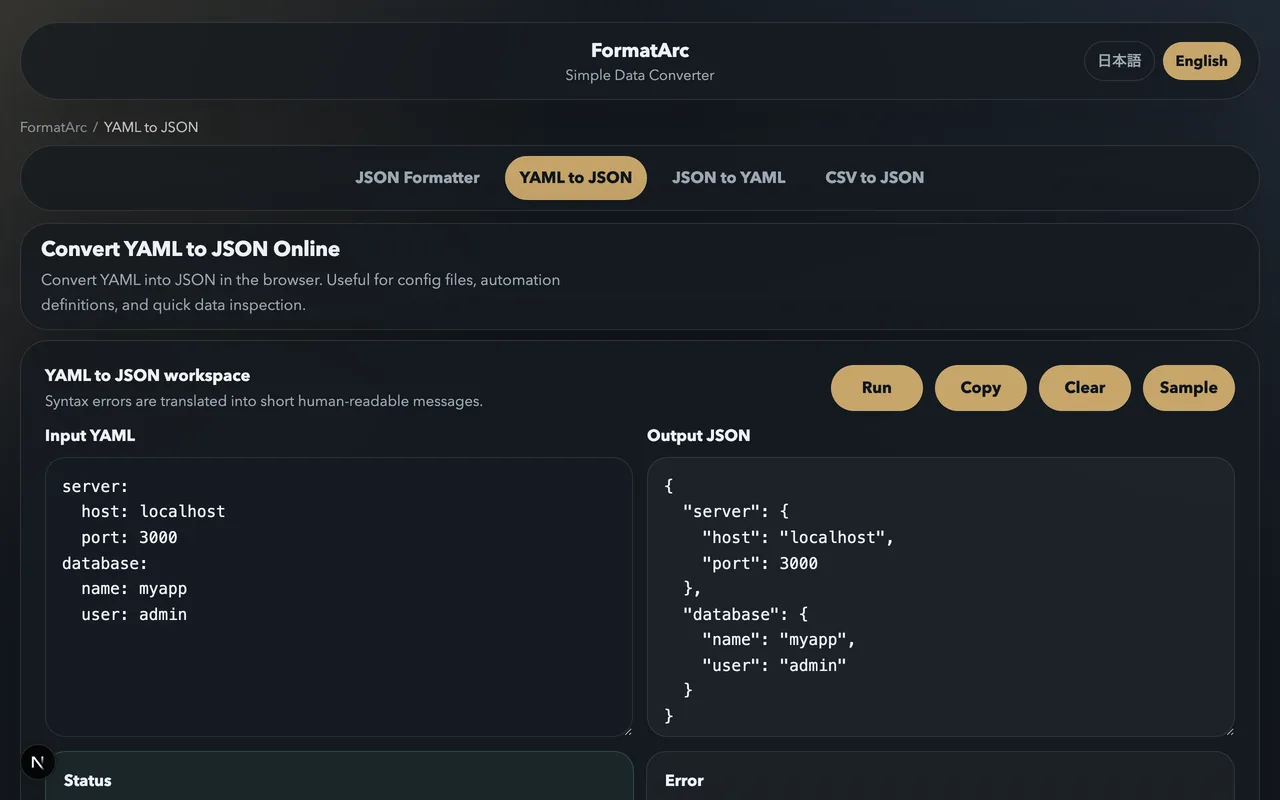
For quick, one-off conversions — or when you do not want to install anything — a browser tool is the simplest option. The YAML to JSON converter on FormatArc handles conversion entirely in your browser with no data sent to any server.
Here is how it works:
- Open the YAML to JSON tool.
- Paste your YAML into the left panel.
- Click Convert. The JSON output appears in the right panel.
The tool validates your YAML as it converts, so if there is a syntax error — wrong indentation, a missing colon, a tab character where spaces are expected — it tells you exactly what went wrong and where. This makes it useful for debugging YAML files even when conversion is not your main goal.
A few things the browser tool handles well:
- Multiline strings (both block scalar
|and folded scalar>styles) - Anchors and aliases
- Nested structures of arbitrary depth
- Arrays of mixed types
- Null values, booleans, and numeric types
Since the conversion happens in your browser, you can use it with confidential data without worrying about it leaving your machine.
Things to watch out for during conversion
YAML and JSON do not have a perfect one-to-one mapping. A few things can surprise you:
YAML's implicit typing
YAML automatically interprets certain values as non-string types. The classic example:
country: NO
In YAML, NO is interpreted as a boolean false. When converted to JSON, you get:
{
  "country": false
}
If you meant the string "NO" (as in the country code for Norway), you need to quote it in your YAML:
country: "NO"
Similar gotchas apply to yes/no, on/off, true/false, and even some version-like strings such as 1.0 being treated as a float.
Comments are lost
YAML supports comments with #. JSON does not support comments at all. Any comments in your YAML file will be silently dropped during conversion. If the comments contain important information, save them separately before converting.
Multi-document YAML
YAML files can contain multiple documents separated by ---. JSON has no equivalent concept. Most converters will either process only the first document or throw an error. If you have a multi-document file, split it first and convert each document separately.
Key ordering
YAML mappings are technically unordered, and JSON objects are also unordered by specification. In practice, most converters preserve the key order from the YAML source, but you should not rely on this if order matters to your application.
For a deeper look at these differences, see What is YAML and our YAML vs JSON comparison.
Automating conversion in CI/CD
If you maintain YAML configuration files but deploy to a system that requires JSON, automating the conversion in your pipeline avoids manual steps and potential errors.
A GitHub Actions example:
- name: Convert YAML config to JSON
  run: |
    python3 -c 'import sys, yaml, json; json.dump(yaml.safe_load(sys.stdin), sys.stdout, indent=2)' < config.yaml > config.json
Or with yq:
- name: Convert YAML config to JSON
  run: yq -o=json '.' config.yaml > config.json
Either approach takes less than a second and integrates naturally into your build process.
Going the other direction
If you need to convert JSON to YAML instead — for example, taking an API response and turning it into a Kubernetes manifest — see our companion guide on how to convert JSON to YAML. The FormatArc JSON to YAML tool handles that direction just as easily.
Summary
Three methods, each suited to different situations:
- CLI tools (Python one-liner or
yq) — best for scripts, automation, and CI/CD pipelines. - Programming language libraries — best when conversion is part of a larger application.
- Browser tools like the YAML to JSON converter — best for quick conversions, debugging, and when you do not want to install anything.
Pick the one that fits your workflow. For most people doing occasional conversions, the browser tool is the path of least resistance.