What is JSON? A Beginner-Friendly Guide
A clear introduction to JSON for beginners covering syntax, data types, and where JSON is used in real-world development.
If you have spent any time working with web development, APIs, or configuration files, you have almost certainly encountered JSON. It shows up everywhere, from the responses your browser gets when loading a Twitter feed to the settings files in VS Code. But what exactly is it, and why did it become the default format for moving data around the internet?
This guide walks through JSON from the ground up. No prior knowledge required.
What JSON stands for
JSON is short for JavaScript Object Notation. Douglas Crockford popularized the format in the early 2000s, basing it on a subset of JavaScript's object literal syntax. Despite the name, JSON is language-independent. You can read and write JSON in Python, Java, Go, Ruby, C#, PHP, and virtually every other programming language in use today.
The key insight behind JSON was simplicity. XML was the dominant data exchange format at the time, and it was verbose. JSON offered a lighter alternative that humans could read without squinting and machines could parse without much effort.
A first look at JSON
Here is a minimal JSON document:
{
  "name": "Alice",
  "age": 30,
  "isStudent": false
}
That is it. Curly braces wrap the object, keys are strings in double quotes, and values follow a colon. Commas separate each key-value pair. If you have ever written a JavaScript object, this looks familiar, but there are some important differences we will get to shortly.
The six data types
JSON supports exactly six types of values. No more, no less.
Strings
Strings are wrapped in double quotes. Single quotes are not allowed, which trips up people coming from Python or JavaScript where single quotes work fine.
{
  "greeting": "Hello, world!",
  "emoji": "Totally valid \u2714"
}
You can include special characters using backslash escapes: \" for a literal quote, \\ for a backslash, \n for a newline, and \t for a tab.
Numbers
Numbers can be integers or floating-point. JSON does not distinguish between the two. Scientific notation is allowed.
{
  "temperature": 22.5,
  "population": 7900000000,
  "planckConstant": 6.626e-34
}
One thing to watch: JSON does not support NaN, Infinity, or leading zeros like 007. These will cause a parse error.
Booleans
Just true and false, lowercase. Not True, not TRUE, not 1.
{
  "isActive": true,
  "isDeleted": false
}
Null
The null value represents the intentional absence of a value. Again, lowercase only.
{
  "middleName": null
}
Objects
Objects are collections of key-value pairs wrapped in curly braces. Keys must be strings. Values can be any of the six types, including other objects.
{
  "user": {
    "id": 42,
    "profile": {
      "bio": "Likes coffee",
      "location": "Tokyo"
    }
  }
}
Objects can nest as deeply as you need, though deeply nested JSON becomes hard to read. A JSON Formatter helps when you are staring at a wall of nested data.
Arrays
Arrays are ordered lists of values wrapped in square brackets. The values do not have to be the same type, though in practice they usually are.
{
  "colors": ["red", "green", "blue"],
  "matrix": [[1, 2], [3, 4]],
  "mixed": [42, "hello", null, true]
}
Arrays and objects can be combined freely. An array of objects is one of the most common patterns you will see in real-world JSON:
{
  "employees": [
    { "name": "Alice", "role": "Engineer" },
    { "name": "Bob", "role": "Designer" }
  ]
}
Where JSON shows up in practice
API responses
This is the big one. When your browser or mobile app talks to a server, the response is almost always JSON. If you open your browser's developer tools and look at the network tab, you will see JSON flowing back and forth constantly.
A typical API response might look like:
{
  "status": "ok",
  "data": {
    "userId": 1,
    "posts": [
      {
        "id": 101,
        "title": "First Post",
        "published": true
      }
    ]
  }
}
REST APIs, GraphQL APIs, webhook payloads — they all default to JSON. The format is so dominant that many developers have never had to deal with XML-based APIs at all.
Configuration files
package.json in Node.js projects, tsconfig.json for TypeScript, settings.json in VS Code, .eslintrc.json for ESLint — the list goes on. JSON became a natural choice for config files because every language already had a JSON parser built in.
That said, JSON has a notable limitation for configuration: it does not support comments. This is one reason formats like YAML and JSONC (JSON with Comments) exist. If you are curious about how YAML compares, take a look at YAML vs JSON: choosing the right format.
Data storage and exchange
Many NoSQL databases, like MongoDB and CouchDB, store documents in JSON or a JSON-like binary format (BSON). Elasticsearch queries and responses are JSON. Log aggregation tools often work with JSON-formatted log lines because they are easy to parse programmatically.
When two systems need to exchange data, JSON is the default choice unless there is a specific reason to use something else. It is readable enough for debugging, compact enough for network transfer, and universally supported.
Spreadsheet and tabular data conversion
If you work with data that starts life in a spreadsheet — exported as CSV — you may need to convert it to JSON for use in an API or application. The structures are quite different, so understanding both formats helps. See What is CSV for a closer look at the CSV side of things.
Rules that catch people off guard
JSON looks simple, and it is, but there are a few rules that cause errors if you are writing it by hand.
Trailing commas are not allowed
This is valid JavaScript but invalid JSON:
{
  "a": 1,
  "b": 2,
}
That comma after "b": 2 will cause a parse error. Every JSON parser will reject it.
Keys must be double-quoted strings
In JavaScript, you can write { name: "Alice" } without quoting the key. JSON requires { "name": "Alice" }. Single quotes do not work either.
No comments
There is no comment syntax in JSON. Not //, not /* */, not #. If you need to add notes to a JSON file, you either use a different format or add a dummy key like "_comment", though that is a workaround rather than a real solution.
The document must have a single root
A JSON document must be a single value at the top level. Usually that is an object or an array, but technically a bare string, number, boolean, or null is valid JSON too.
What you cannot do is have two objects at the top level:
{ "a": 1 }
{ "b": 2 }
That is not valid JSON. If you need multiple objects, wrap them in an array.
For a deeper dive into these rules with more examples, check out the JSON syntax guide.
Working with JSON in code
Every mainstream language has built-in or standard-library support for JSON.
In JavaScript and TypeScript:
// Parse a JSON string into an object
const data = JSON.parse('{"name": "Alice", "age": 30}');

// Convert an object to a JSON string
const json = JSON.stringify(data, null, 2);
The null, 2 arguments to stringify add indentation, making the output human-readable. Without them, you get a single compressed line, which is fine for network transfer but terrible for reading.
In Python:
import json

data = json.loads('{"name": "Alice", "age": 30}')
text = json.dumps(data, indent=2)
The pattern is the same everywhere: parse a string into a native data structure, manipulate it, serialize it back to a string.
Formatting and validating JSON
When you get a blob of minified JSON from an API response or a log file, it can be nearly impossible to read. A formatter adds indentation and line breaks so you can actually see the structure.
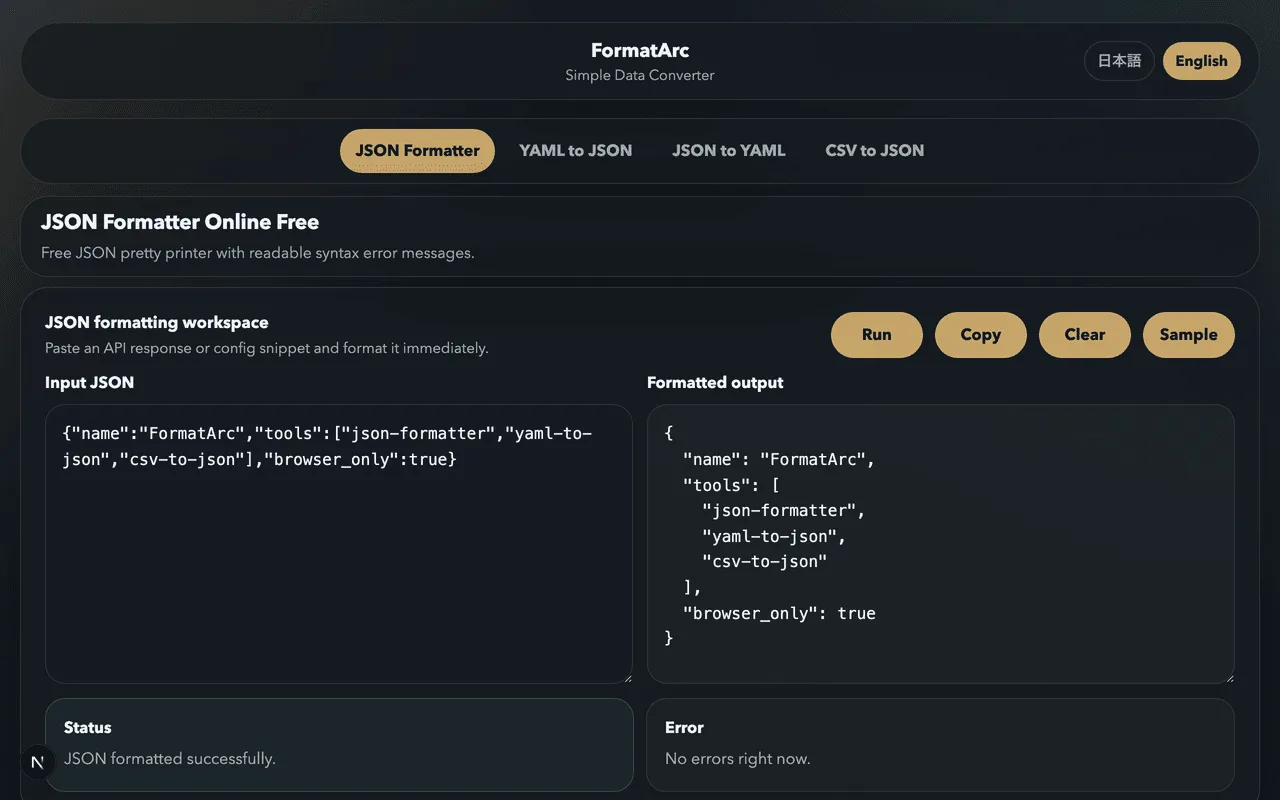
You can do this in code, as shown above, or use a tool like the JSON Formatter to paste in raw JSON and get a clean, indented version instantly. It also catches syntax errors, which is useful when you are debugging a malformed response.
For tips on keeping your JSON clean and readable, see JSON formatting tips.
JSON vs other formats
JSON is not the only data format around, and it is not always the best choice.
YAML is more human-friendly for configuration files because it supports comments and uses indentation instead of braces. Kubernetes manifests, GitHub Actions workflows, and Docker Compose files all use YAML. The tradeoff is that YAML's indentation rules can be finicky, and it has some surprising behaviors around type coercion.
XML is more verbose but supports attributes, namespaces, and schemas. It is still common in enterprise systems, SOAP APIs, and some document formats.
CSV is great for tabular data but has no concept of nesting or data types. Everything is a string unless the consuming application decides otherwise.
Protocol Buffers and MessagePack are binary formats that are more efficient than JSON for network transfer but are not human-readable.
For most web development tasks, JSON hits the sweet spot of readability, simplicity, and universal support.
Quick reference
Here is a complete JSON document that demonstrates every data type:
{
  "string": "Hello",
  "number": 42,
  "float": 3.14,
  "boolean": true,
  "nullValue": null,
  "array": [1, 2, 3],
  "object": {
    "nested": "value"
  }
}
That covers all six types. If you can read this, you can read any JSON document — the rest is just composition.
Next steps
Now that you understand the basics, here are some paths forward:
- Read the JSON syntax guide for a thorough reference on writing correct JSON, including every data type and common nesting patterns.
- Try the JSON Formatter to paste in some real-world JSON and see it properly indented.
- Explore YAML vs JSON if you are deciding which format to use for a configuration file.
- Check out JSON formatting tips for practical advice on keeping your JSON clean in production.
JSON is one of those technologies that rewards understanding the fundamentals. The syntax is small enough to learn in an afternoon, and that knowledge pays off every time you debug an API response, edit a config file, or build a data pipeline.