Best Chrome Extensions for JSON Formatting in 2026
A comparison of popular JSON Chrome extensions and how FormatArc handles JSON formatting, YAML conversion, and CSV conversion in the browser.
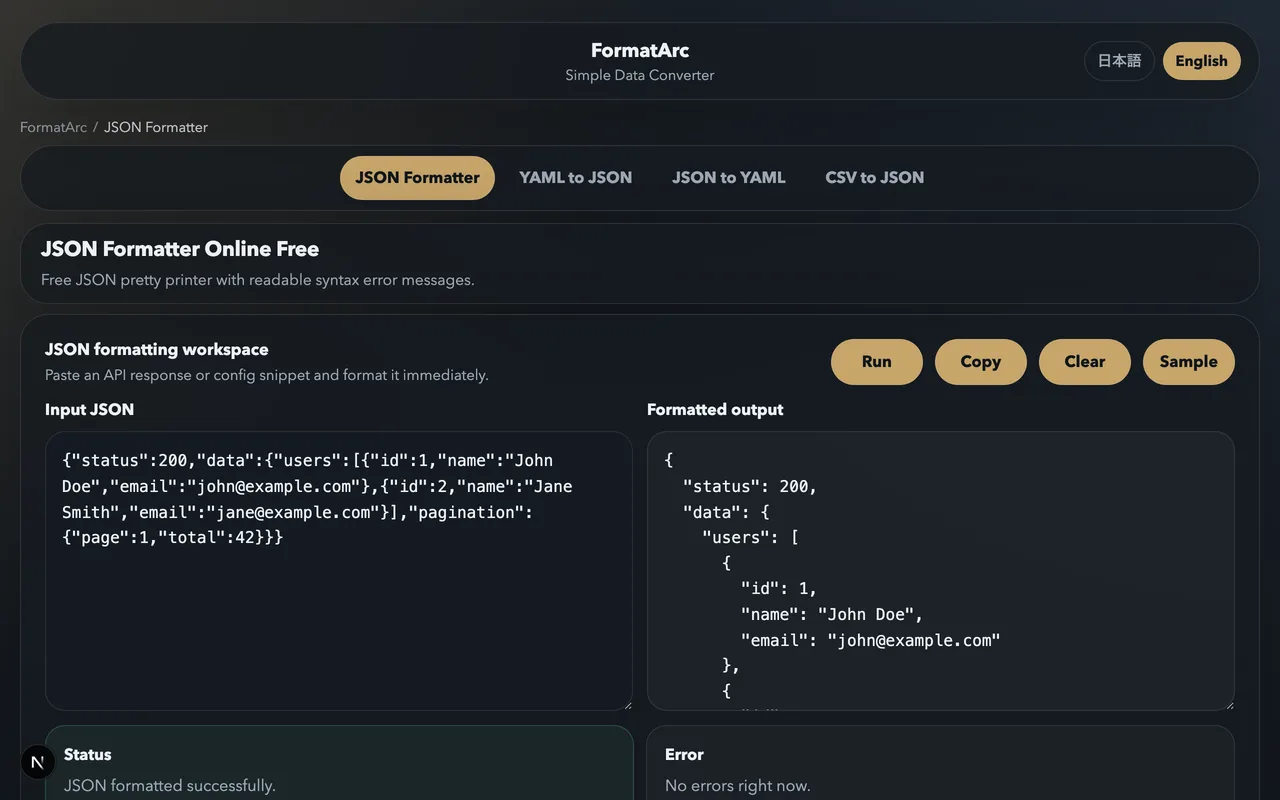
Why you need a JSON formatter in the browser
When you open a JSON API endpoint directly in Chrome, the response shows up as a single compressed line. Reading nested objects in that state is painful, so most developers install a Chrome extension to auto-format JSON responses.
But not all JSON tools work the same way. This article compares the most popular extensions and explains where a browser-based converter like FormatArc fits in.
Popular JSON Chrome extensions
JSONView
One of the oldest and most-used JSON extensions with over 900,000 users. When you navigate to a URL that returns JSON, JSONView automatically renders it as a collapsible tree. It validates against RFC 4627 and supports custom stylesheets.
Good for:
- Viewing API endpoints directly in the browser tab
- Collapsible tree navigation of large JSON responses
JSON Formatter
A newer alternative with dark mode, syntax highlighting, code folding, indent guides, and clickable URLs. It also lets you toggle between raw and parsed views.
Good for:
- Developers who prefer a polished UI
- Dark theme workflows
What these extensions do not cover
Both JSONView and JSON Formatter auto-format JSON URLs opened in a browser tab. They do not handle:
- Pasting JSON from clipboard and formatting it
- Converting YAML or CSV to JSON
- Processing data entirely client-side without any network requests
For those use cases, a converter tool is a better fit.
FormatArc — JSON, YAML, and CSV in one place
FormatArc is a browser-based tool that handles JSON formatting, YAML conversion, and CSV conversion without sending data to a server.
What makes it different
No data leaves the browser:
All processing runs in client-side JavaScript. You can paste internal API responses or production data without worrying about it being transmitted anywhere. Browser extensions like JSONView also process locally, but FormatArc works with pasted input rather than URL navigation.
Handles more than JSON:
- YAML to JSON — useful for Kubernetes manifests and CI config files
- JSON to YAML — convert API responses to config file format
- CSV to JSON — turn spreadsheet exports into JSON arrays
Syntax error reporting:
When JSON is malformed, FormatArc shows the approximate line number where the error occurs. JSONView simply displays the raw text when parsing fails. For a deeper dive into fixing parse errors, see How to Fix JSON Parse Errors.
How to use it
- Open the JSON Formatter page
- Paste your JSON into the input area
- Click "Run"
- Copy the formatted output
CLI option
If you prefer the terminal, FormatArc is also available as an npm package:
npx formatarc json-format '{"a":1}'
cat response.json | npx formatarc json-format
GitHub: https://github.com/m-naoki-m/formatarc
When to use what
JSONView / JSON Formatter
- Auto-formatting JSON URLs in the browser
- Quick inspection of API endpoints
- Install-and-forget convenience
FormatArc
- Paste-and-format workflow
- YAML and CSV conversion
- Syntax error diagnosis with line numbers
- Privacy-sensitive data handling
The practical approach is to use both. Let JSONView handle automatic formatting when you open JSON URLs, and reach for FormatArc when you need to paste, convert, or debug.
Summary
- JSONView and JSON Formatter are great for auto-formatting JSON URLs in the browser
- FormatArc covers paste-and-format, YAML/CSV conversion, and error diagnosis
- All three process data locally with no server involved
- Using a browser extension and a converter tool together gives the best coverage