Using formatarc as an npm Package — CLI and API Guide
formatarc is available as an npm package. Learn how to format JSON, convert YAML and CSV from the terminal with npx, CLI commands, or by importing the API into your Node.js project.
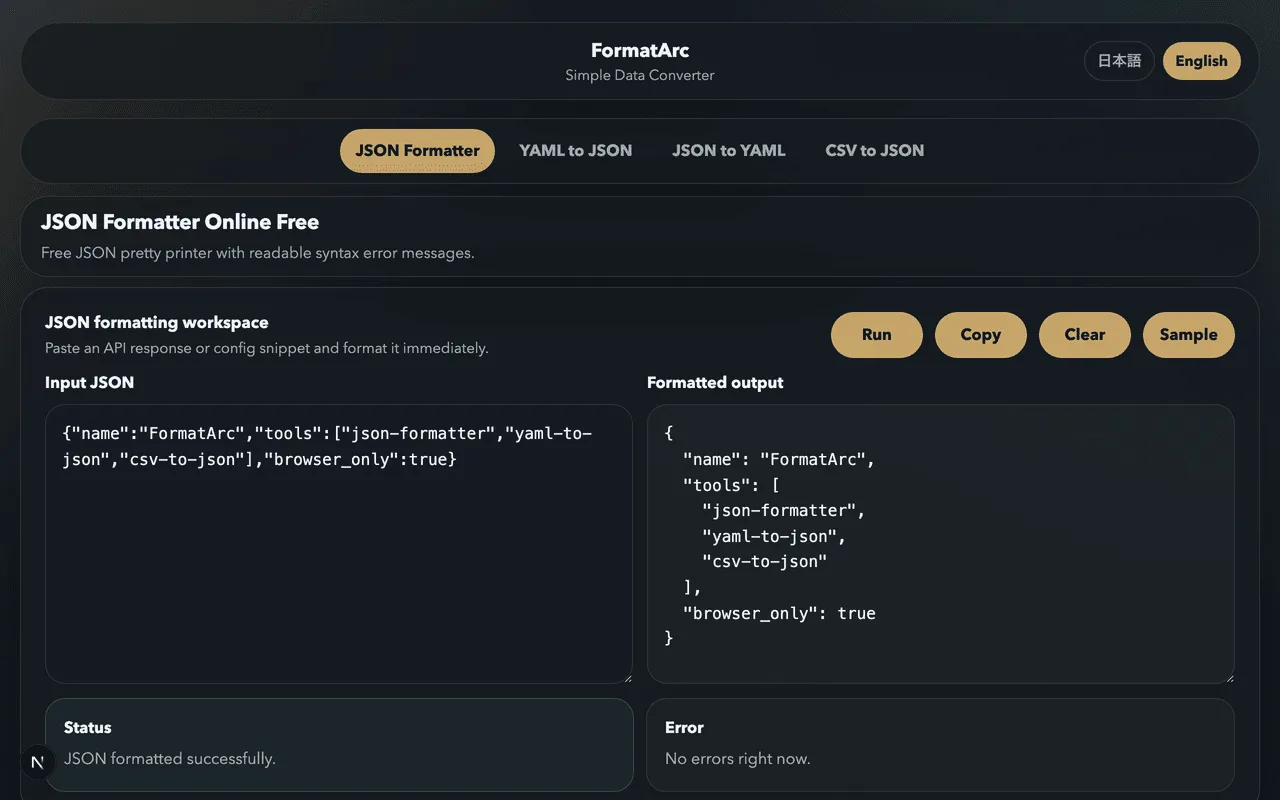
The data conversion features of FormatArc are now available as an npm package. You can format JSON, convert YAML, and transform CSV right from your terminal or Node.js code — no browser needed.
This article covers how to use formatarc as a CLI tool and how to integrate it into your project as an API.
Installation
Run instantly with npx (no install required)
For a quick one-off conversion, npx is the easiest option. No installation needed.
npx formatarc json-format '{"name":"FormatArc","version":1}'
Global install
If you use it frequently, install it globally to skip the npx startup delay.
npm install -g formatarc
After installation, the formatarc command is available directly.
formatarc json-format '{"name":"FormatArc","version":1}'
Add to your project
To use it as a dependency in a Node.js project:
npm install formatarc
Supported tools
Four conversion tools are available — the same ones found on the FormatArc website.
| Tool | Description |
|---|---|
json-format |
Pretty-print and validate JSON |
yaml-to-json |
Convert YAML to JSON |
json-to-yaml |
Convert JSON to YAML |
csv-to-json |
Convert CSV to JSON (header row required) |
CLI usage
The basic syntax is:
formatarc <tool> [input]
There are three ways to pass input.
1. Inline argument
formatarc json-format '{"name":"FormatArc","tools":["json","yaml","csv"]}'
Output:
{
  "name": "FormatArc",
  "tools": [
    "json",
    "yaml",
    "csv"
  ]
}
2. File path
formatarc yaml-to-json config.yaml
Pass a file path and formatarc reads and converts its contents. This works well in CI/CD pipelines.
3. Pipe from stdin
cat data.csv | formatarc csv-to-json
Combine it with curl to format API responses on the fly.
curl -s https://api.example.com/data | formatarc json-format
Using the API
You can also call the conversion functions directly from Node.js code. This is useful for automation scripts or when building your own tools.
The convert function
convert takes a tool name and an input string, and returns the conversion result.
import { convert } from "formatarc";

const result = convert("json-format", '{"a":1,"b":2}');
console.log(result.output);
// {
//   "a": 1,
//   "b": 2
// }
The return value has two fields: output (the converted result) and error (the error message).
const result = convert("json-format", "{invalid json}");
if (result.error) {
  console.error(result.error);
  // JSON parse error: Expected property name or '}' ...
}
On error, output is an empty string and error contains the message. On success, error is an empty string.
The isValidTool function
A type guard that checks whether a string is a valid tool name.
import { convert, isValidTool } from "formatarc";

const toolName = process.argv[2];

if (isValidTool(toolName)) {
  const result = convert(toolName, inputData);
  console.log(result.output);
}
Example: batch-convert YAML files to JSON
import { convert } from "formatarc";
import { readFileSync, writeFileSync } from "fs";
import { globSync } from "fs";

const files = globSync("configs/*.yaml");

for (const file of files) {
  const yaml = readFileSync(file, "utf-8");
  const result = convert("yaml-to-json", yaml);

  if (result.error) {
    console.error(`${file}: ${result.error}`);
    continue;
  }

  const outPath = file.replace(/\.yaml$/, ".json");
  writeFileSync(outPath, result.output);
  console.log(`${file} → ${outPath}`);
}
Using the browser version
If you prefer a visual interface over the terminal, the FormatArc website handles everything in the browser. No data is sent to any server.
- JSON Formatter — Format and validate JSON
- YAML to JSON — Convert YAML to JSON
- JSON to YAML — Convert JSON to YAML
- CSV to JSON — Convert CSV to JSON