How to Convert CSV to JSON: A Step-by-Step Guide
Learn how to convert CSV files to JSON format using browser tools, command-line utilities, and programming languages.
CSV files are the lowest common denominator of data exchange. Every spreadsheet application exports them. Every database can import them. They are simple, portable, and universally supported. But when you need to feed that data into a web application, a REST API, or a modern data pipeline, JSON is usually the expected format.
This guide walks through converting CSV to JSON using three approaches: a browser-based tool for quick conversions, command-line utilities for scripting, and programming language libraries for application integration.
A quick refresher on CSV structure
CSV stands for Comma-Separated Values. A typical CSV file looks like this:
name,email,department,start_date
Alice Johnson,alice@example.com,Engineering,2024-01-15
Bob Smith,bob@example.com,Marketing,2023-06-01
Carol Williams,carol@example.com,Engineering,2024-03-10
The first row is usually the header, defining column names. Each subsequent row is a record. Fields are separated by commas (though semicolons and tabs are also common in some locales).
Despite its simplicity, CSV has some well-known quirks:
- Fields containing commas must be wrapped in double quotes:
"Smith, John" - Fields containing double quotes must escape them by doubling:
"She said ""hello""" - Newlines inside quoted fields are valid (and frequently cause problems with naive parsers)
- There is no standard for encoding — you might get UTF-8, Latin-1, or Shift-JIS depending on the source
For more background on the format, see What is CSV.
Why convert CSV to JSON?
Several practical reasons come up regularly:
- REST APIs accept JSON request bodies, not CSV. If you have data in a spreadsheet that you need to POST to an API, you need to convert it first.
- Frontend frameworks (React, Vue, Angular) work naturally with JSON arrays and objects. Parsing CSV in the browser is possible but adds unnecessary complexity.
- JSON preserves data types more explicitly. In CSV, everything is a string. In JSON, you can distinguish between numbers, booleans, strings, and null.
- NoSQL databases like MongoDB and CouchDB import JSON directly.
- Data pipelines and ETL tools increasingly expect JSON as an interchange format.
Understanding both formats helps you make informed decisions about when and how to convert. See What is JSON for a thorough look at JSON's structure and capabilities.
Method 1: Browser-based conversion with FormatArc
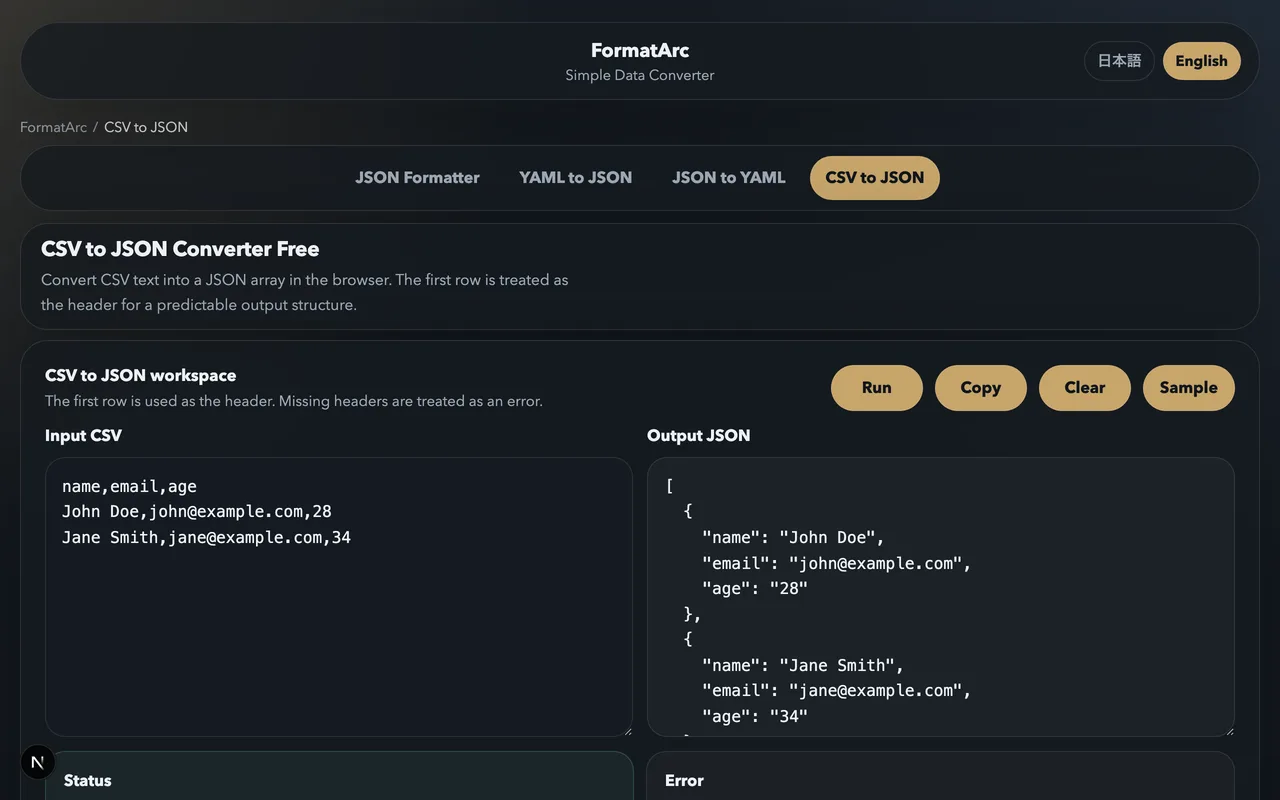
If you need to convert a CSV file right now without installing anything, the CSV to JSON tool is the fastest route. It runs entirely in your browser — your data never leaves your machine.
Here is the process:
Step 1: Open the tool
Go to the CSV to JSON converter. You will see two panels: an input panel on the left and an output panel on the right.
Step 2: Paste your CSV
Copy your CSV data and paste it into the left panel. The tool accepts data with or without a header row.
Step 3: Convert
Click the Convert button. The JSON output appears instantly in the right panel.
For the CSV example above, the output looks like this:
[
  {
    "name": "Alice Johnson",
    "email": "alice@example.com",
    "department": "Engineering",
    "start_date": "2024-01-15"
  },
  {
    "name": "Bob Smith",
    "email": "bob@example.com",
    "department": "Marketing",
    "start_date": "2023-06-01"
  },
  {
    "name": "Carol Williams",
    "email": "carol@example.com",
    "department": "Engineering",
    "start_date": "2024-03-10"
  }
]
Each CSV row becomes a JSON object, with the header values as keys. The result is an array of objects, which is the most common structure for tabular data in JSON.
The tool handles edge cases that trip up simpler converters:
- Quoted fields with embedded commas
- Fields containing newlines
- Empty fields (converted to empty strings)
- Very large datasets (processing happens client-side, so performance depends on your browser but handles thousands of rows without issue)
Method 2: Command-line tools
For scripting and automation, CLI tools let you convert CSV files without opening a browser.
Using Python
Python's standard library includes both csv and json modules, so no third-party packages are needed:
import csv
import json
import sys

reader = csv.DictReader(sys.stdin)
rows = list(reader)
json.dump(rows, sys.stdout, indent=2, ensure_ascii=False)
Save this as csv2json.py and use it:
python3 csv2json.py < data.csv > data.json
csv.DictReader uses the first row as headers automatically. Each row becomes a dictionary, and the list of dictionaries maps directly to a JSON array of objects.
Using Miller (mlr)
Miller is a command-line tool specifically designed for working with structured data like CSV, JSON, and TSV. It handles the conversion in a single command:
mlr --icsv --ojson cat data.csv > data.json
Miller is particularly powerful when you need to transform the data during conversion — filtering rows, renaming fields, computing new columns — all in one pipeline.
Using csvkit
csvkit is a Python-based suite of tools for working with CSV files:
pip install csvkit
csvjson data.csv > data.json
csvjson is straightforward and handles most CSV edge cases correctly. It also supports options like --indent for formatting and --no-inference to keep all values as strings.
Method 3: Programming languages
When CSV-to-JSON conversion is part of a larger application, use a library in your language.
JavaScript / Node.js
The papaparse library is the go-to choice for CSV parsing in JavaScript (it is also what FormatArc uses internally):
const Papa = require("papaparse");
const fs = require("fs");

const csv = fs.readFileSync("data.csv", "utf8");
const result = Papa.parse(csv, { header: true, skipEmptyLines: true });

fs.writeFileSync("data.json", JSON.stringify(result.data, null, 2));
PapaParse handles all the CSV edge cases — quoted fields, embedded newlines, various delimiters — and gives you clean objects with headers as keys.
Python (with pandas)
For larger datasets or when you need data manipulation:
import pandas as pd

df = pd.read_csv("data.csv")
df.to_json("data.json", orient="records", indent=2, force_ascii=False)
Pandas is overkill for simple conversion, but if you are already using it for data analysis, the conversion is a one-liner.
Go
package main

import (
    "encoding/csv"
    "encoding/json"
    "fmt"
    "os"
)

func main() {
    f, _ := os.Open("data.csv")
    defer f.Close()
    reader := csv.NewReader(f)
    records, _ := reader.ReadAll()

    headers := records[0]
    var result []map[string]string
    for _, row := range records[1:] {
        obj := make(map[string]string)
        for i, val := range row {
            obj[headers[i]] = val
        }
        result = append(result, obj)
    }

    out, _ := json.MarshalIndent(result, "", "  ")
    fmt.Println(string(out))
}
Handling common issues
Type inference
CSV treats everything as text. When you convert to JSON, you may want numbers to be actual numbers and booleans to be actual booleans rather than strings. Some tools handle this automatically (PapaParse has a dynamicTyping option), while others keep everything as strings.
If type accuracy matters, explicitly convert values after parsing:
const result = Papa.parse(csv, {
  header: true,
  dynamicTyping: true, // "42" becomes 42, "true" becomes true
  skipEmptyLines: true,
});
Character encoding
CSV files from Excel on Windows are often encoded in Shift-JIS (for Japanese) or Latin-1 (for European languages). If you see garbled characters in your JSON output, the encoding is likely wrong.
In Python:
with open("data.csv", encoding="shift-jis") as f:
    reader = csv.DictReader(f)
    # ...
In the browser, the FormatArc tool handles UTF-8 input. If your file uses a different encoding, convert it to UTF-8 first (many text editors can do this with "Save As").
Large files
For files with hundreds of thousands of rows, streaming parsers are more memory-efficient than loading everything at once:
import csv
import json
import sys

writer = sys.stdout
writer.write("[\n")
reader = csv.DictReader(open("huge.csv"))
first = True
for row in reader:
    if not first:
        writer.write(",\n")
    json.dump(row, writer, ensure_ascii=False)
    first = False
writer.write("\n]\n")
This approach writes JSON incrementally rather than building the entire array in memory.
Using converted JSON with APIs
A common use case is converting spreadsheet data to JSON for API consumption. Here is a typical workflow:
- Export your data from Excel or Google Sheets as CSV.
- Convert it to JSON using one of the methods above.
- Use the JSON as a request body for a REST API.
For example, if you are importing users into a system:
# Convert the CSV
python3 csv2json.py < users.csv > users.json

# POST to an API
curl -X POST https://api.example.com/users/bulk \
  -H "Content-Type: application/json" \
  -d @users.json
Or for quick, manual API testing, convert the CSV in the CSV to JSON tool, copy the output, and paste it into Postman or curl.
Wrapping up
CSV to JSON conversion is a routine task with straightforward solutions:
- Use the CSV to JSON browser tool for quick, one-off conversions with no setup required.
- Use command-line tools (Python, Miller, csvkit) for scripting and automation.
- Use language libraries (PapaParse, pandas, Go's csv package) when conversion is part of a larger application.
The right choice depends on your context. For most day-to-day work, the browser tool gets the job done in about ten seconds.